
How to Retrieve Deleted Text Messages or Just accidentally deleted an important text message? Don’t panic. Whether you’re trying to recover deleted text messages from your iPhone or Android device, you’re in the right place.
The good news is that deleted texts aren’t immediately erased from your phone—and with the right method, you can retrieve deleted texts within minutes.
In this comprehensive guide, we’ll walk you through every proven method to restore deleted SMS and MMS messages, from instant built-in recovery features to advanced data recovery software.
By the end of this article, you’ll know exactly how to get back deleted messages on any device, plus how to prevent this from happening again.
Time is critical: The sooner you act, the better your chances of successful recovery. Let’s dive in.
Table of Contents
Can You Really Recover Deleted Text Messages?
Yes, you can absolutely recover permanently deleted texts—but success depends on how quickly you act and which method you use.
When you delete a text message, it doesn’t vanish immediately from your phone’s internal storage. Instead, your device marks that space as available for new data. The original message remains hidden until new data overwrites it. This is why acting fast dramatically improves your recovery chances.
Understanding How Message Deletion Works
Think of your phone’s storage like a library. When you “delete” a book (message), the librarian doesn’t immediately shred it. They simply remove it from the catalog and mark its shelf space as available. The book still sits there until a new book takes its place.
Here’s what happens when you delete SMS and MMS messages:
- Immediate deletion: Your phone hides the message from view
- Data marking: The storage space is flagged as “available”
- Waiting period: The message data remains intact but inaccessible
- Overwriting: New data gradually replaces the old message
- Permanent loss: Once overwritten, recovery becomes nearly impossible
Key insight: Stop using your phone immediately if you need to recover recent deletions. Every new text, photo, or app download reduces your recovery chances.
Modern smartphones also offer safety nets. iOS 16+ includes a Recently Deleted folder that stores messages for 30 days. Samsung Messages has a similar Recycle Bin feature. These built-in options make instant recovery possible—no backup required.
Instant Recovery: Built-in Features (No Backup Needed)
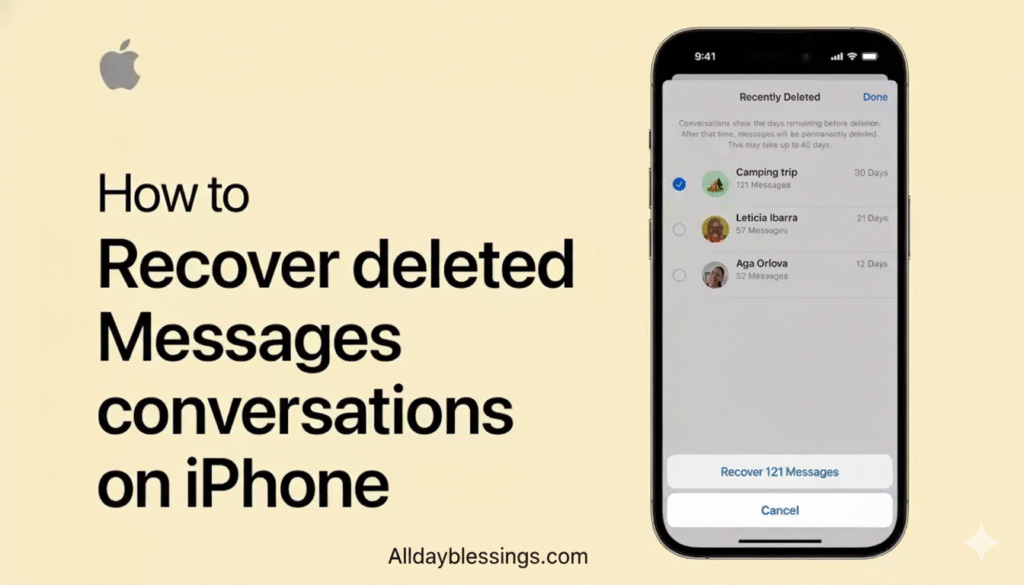
Before diving into complex backup and restore procedures or third-party recovery apps, check if your device has built-in recovery features. These are the fastest ways to retrieve deleted text messages without any technical expertise.
iPhone Recently Deleted Folder (iOS 16+)
If you’re running iOS 16, iOS 17, or iOS 18, Apple introduced a game-changing feature: the Recently Deleted folder in the Messages app.
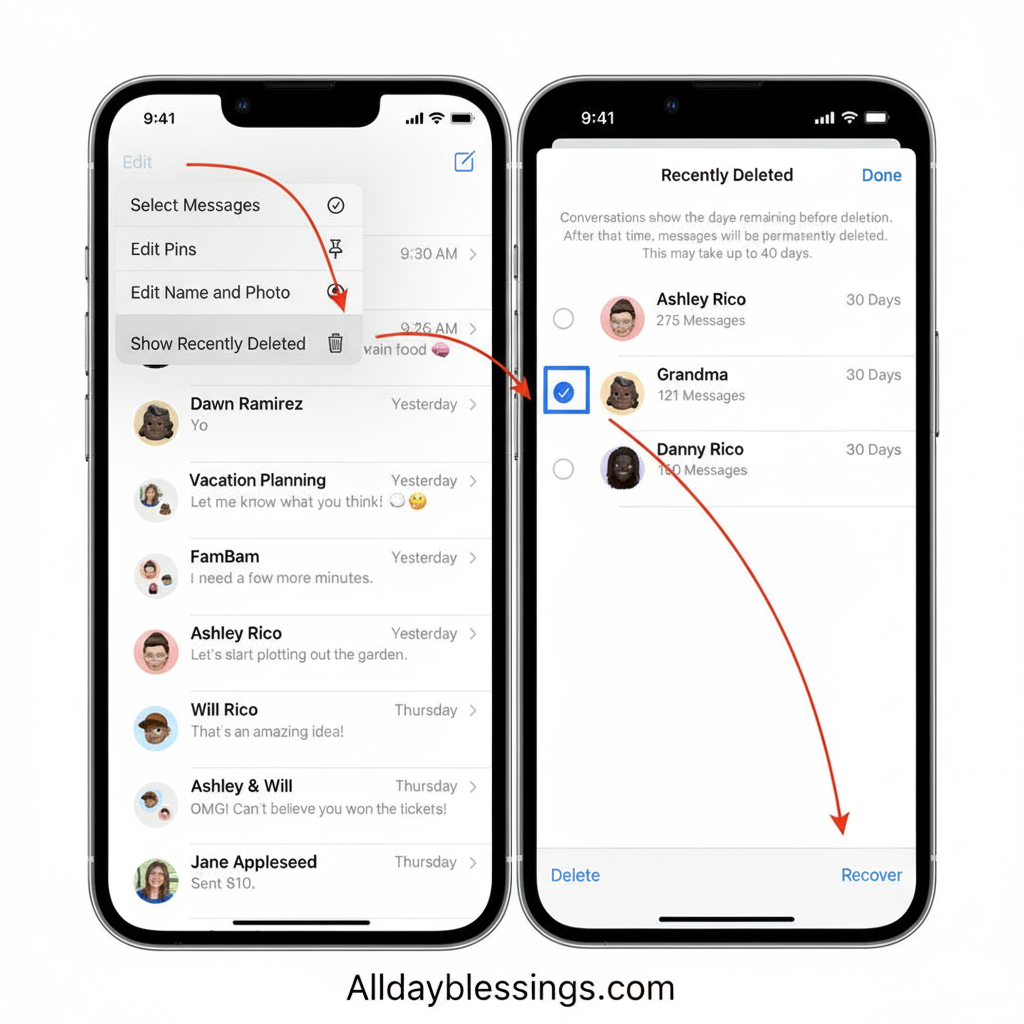
Step-by-step recovery process:
- Open the Messages app on your iPhone
- Tap Edit in the top-left corner
- Select Show Recently Deleted
- Browse through deleted conversations (available for 30 days)
- Tap the conversations you want to recover
- Press Recover at the bottom
- Confirm by tapping Recover Messages
Success rate: 95%+ if within 30 days Time required: Less than 2 minutes Requirements: iOS 16 or later
Important note: Messages older than 30 days are permanently deleted from this folder and require backup restoration.
Samsung Messages Recycle Bin
Samsung devices with the native Samsung Messages app include a built-in Recycle Bin—Samsung’s version of the Recently Deleted folder.
Recovery steps for Samsung phones:
- Open the Samsung Messages app
- Tap the three dots (⋮) in the top-right corner
- Select Recycle Bin or Trash
- Review your deleted messages (stored for 30 days)
- Select the messages you want to recover
- Tap Restore or Restore All
Supported devices: Samsung Galaxy S21/S22/S23/S24 series, Galaxy Z Fold/Flip, Galaxy A series Success rate: 90%+ within 30 days Note: This feature is only available in Samsung Messages, not Google Messages
Finding Archived Messages
Sometimes messages aren’t deleted—they’re archived. Archived conversations are hidden from your main inbox but remain fully accessible.
For Google Messages:
- Open Google Messages
- Tap the three lines (☰) menu
- Select Archived
- Long-press the conversation you want
- Tap Unarchive
For iPhone Messages:
- Swipe left on the Home Screen
- Use Search to find the contact name
- If the conversation appears, it’s archived (not deleted)
- Open and reply to automatically unarchive
Pro tip: Before assuming a message is deleted, always check your archived folders. Many users accidentally archive messages instead of deleting them.
How to Retrieve Deleted Texts on iPhone (Complete Guide)
If the Recently Deleted folder doesn’t help, you’ll need to restore from a backup. Here are all four proven methods to recover deleted texts on iPhone.
Method 1: Recently Deleted Folder (Fastest)
This is covered above but bears repeating as your first option:
- Available on iOS 16+ (iPhone 8 and newer)
- Stores messages for 30 days
- No iCloud or iTunes backup needed
- Instant recovery in under 2 minutes
Method 2: Restore from iCloud Backup
If your messages are older than 30 days or you’re on an earlier iOS version, iCloud backup recovery is your next best option.
Before starting: Check your backup date
- Go to Settings → Your Name → iCloud
- Tap Manage Storage → Backups
- Select your device
- Check the backup date and whether “Messages” is included
- If the backup predates your deletion, proceed
Restore process (requires factory reset):
- Backup current data: Save any important recent data to your computer
- Go to Settings → General → Transfer or Reset iPhone
- Select Erase All Content and Settings
- Enter your passcode and confirm
- Your iPhone will restart to the setup screen
- Choose Restore from iCloud Backup
- Sign in with your Apple ID
- Select the backup containing your deleted messages
- Wait for restoration (10-60 minutes depending on data size)
Success rate: 85% if proper backup exists Time required: 30-90 minutes Drawback: Erases current data on your phone
Critical warning: This method overwrites your current iPhone data. Any texts, photos, or data created after the backup date will be lost unless separately saved.
Method 3: Restore from iTunes/Finder Backup
If you’ve been backing up your iPhone to a computer, you can restore from iTunes (Windows, macOS Mojave or earlier) or Finder (macOS Catalina or later).
Check for computer backups:
For iTunes (Windows/older Mac):
- Connect your iPhone to your computer
- Open iTunes
- Click the phone icon
- Check “Latest Backup” date under Backups
- Click “Restore Backup” if the date is suitable
For Finder (macOS Catalina+):
- Connect your iPhone to your Mac
- Open Finder
- Select your iPhone from the sidebar
- View backup dates under the General tab
- Click “Restore Backup” and select the appropriate backup
Recovery steps:
- Connect iPhone to computer with original cable
- Open iTunes or Finder
- Select your device
- Click Restore Backup
- Choose the backup with your deleted messages
- Enter backup password if encrypted
- Wait for restoration to complete (don’t disconnect)
Success rate: 80-85% with valid backup Time required: 20-45 minutes Advantage: Often faster than iCloud restoration
Method 4: Sync from Another Device
If you use iCloud Messages and have another Apple device (iPad, Mac), your deleted messages might still exist there.
Requirements:
- iCloud Messages enabled on multiple devices
- Messages not yet synced (deleted recently)
- Access to another signed-in Apple device
Recovery process:
- Check your iPad or Mac for the deleted conversation
- If found, take screenshots immediately
- Turn OFF iCloud Messages on the device that still has them:
- Go to Settings → Apple ID → iCloud
- Toggle off Messages
- Select “Keep on My [Device]”
- Turn ON iCloud Messages on your iPhone
- Messages should sync back
Success rate: 60-70% (time-sensitive) Limitation: Only works if deletion hasn’t synced across devices
How to Retrieve Deleted Texts on Android (Complete Guide)
Android SMS recovery varies by manufacturer and whether you use Google Messages, Samsung Messages, or other messaging apps. Here’s every method to recover deleted texts on Android.
Method 1: Samsung Recycle Bin Recovery
As covered earlier, Samsung devices offer the easiest recovery path with their built-in Recycle Bin.
Quick recap:
- Open Samsung Messages → ⋮ → Recycle Bin
- Select messages (available 30 days)
- Tap Restore
Device compatibility: All Samsung Galaxy devices with Samsung Messages app (S20 and newer, most A-series, Z Fold/Flip series)
Method 2: Restore from Google Drive Backup
Google Drive automatically backs up your Android data, including SMS messages if enabled. This is the most common Android backup method.
Step 1: Verify backup exists
- Open Settings → Google → Manage Backup
- Check “Backup by Google One” date
- Verify “SMS messages” is listed in backup content
- Note the backup date (must be before deletion)
Step 2: Factory data reset (required)
⚠️ Critical: This erases all current data. Save important files first!
- Go to Settings → System → Reset options
- Select Erase all data (factory reset)
- Tap Delete all data and confirm
- Your phone will restart
Step 3: Restore from backup
- On the Welcome screen, select Let’s Go
- Connect to Wi-Fi
- Choose Copy your data
- Select Backup from the cloud
- Sign into your Google Account
- Choose the backup with your messages
- Ensure “SMS & MMS messages” is selected
- Tap Restore and wait for completion
Success rate: 75-80% with proper backup Time required: 45-90 minutes Note: Google One free tier includes SMS backup; MMS requires subscription
Method 3: Samsung Cloud Recovery (No Reset)
Samsung users have an advantage: Samsung Cloud allows message restoration without a factory reset.
Recovery process:
- Go to Settings → Accounts and backup
- Tap Samsung Cloud → Restore data
- Select your device from the list
- Check Messages
- Tap Restore
- Wait for process to complete (5-15 minutes)
Success rate: 80-85% with recent backup Time required: 10-20 minutes Major advantage: No data loss from current phone state
Enable automatic backups:
- Settings → Accounts and backup → Samsung Cloud
- Tap ⋮ → Settings → Sync and auto backup settings
- Enable Messages
Method 4: Check Google Messages Archive
Like iPhone, Google Messages includes an archive feature that hides (not deletes) conversations.
Steps to check:
- Open Google Messages
- Tap your profile icon
- Select Archived
- Long-press any conversation
- Tap Unarchive
Also try: Use the search function at the top of Google Messages. Type the contact name or keywords from the message. Archived messages appear in search results.
Advanced Recovery: Third-Party Software Solutions
When built-in features and backups fail, third-party recovery apps and data recovery software can scan device storage for hidden deleted messages. Success isn’t guaranteed—effectiveness depends on how much time has passed and whether data has been overwritten.
Top Recovery Software for iPhone [2025]
| Software | Best For | Price | Success Rate | Platform |
| Dr.Fone | Comprehensive recovery | $49.95-$79.95 | 70-75% | Windows/Mac |
| PhoneRescue | User-friendly interface | $49.99-$59.99 | 65-70% | Windows/Mac |
| FoneLab | Deep scanning | $47.96-$63.96 | 65-68% | Windows/Mac |
| iMobie PhoneRescue | Fast recovery | $49.99 | 60-65% | Windows/Mac |
| Enigma Recovery | Free preview | $89 | 55-60% | Windows/Mac |
How iPhone recovery software works:
- Scan modes: Recover from device, iTunes backup, or iCloud backup
- Deep scanning: Analyzes iPhone storage for recoverable data fragments
- Selective recovery: Preview and choose specific messages
- Export options: Save to computer or restore to device
Important limitations:
- Cannot recover from encrypted backups without password
- Success rate drops significantly after 30 days
- Factory reset severely reduces recovery chances
- iOS encryption makes direct device scanning difficult
Top Recovery Software for Android [2025]
| Software | Best For | Price | Success Rate | Rooting Required? |
| Dr.Fone Android | Complete solution | $39.95-$49.95 | 60-70% | For best results |
| DroidKit | Non-root recovery | $49.99-$69.99 | 55-65% | No |
| FonePaw | Budget option | $35.95-$45.95 | 50-60% | Optional |
| SMS Backup & Restore | Free backup tool | Free | 40-50% | No |
| Recoverit | Professional grade | $59.99-$89.99 | 65-70% | For deep scan |
Android recovery is more complex due to:
- Diverse manufacturers and Android versions
- Varied storage encryption methods
- Google’s security improvements in Android 12+
- Limited direct storage access without rooting
How to Use Recovery Software Safely
Before attempting software recovery:
- Stop using your phone immediately: Every action risks overwriting deleted data
- Enable airplane mode: Prevents new messages and updates
- Check storage space: Low storage = higher overwrite risk
- Research the software: Only use reputable, verified tools
- Backup current data: Recovery attempts can sometimes cause data corruption and also FBI Warns iPhone and Android Users About Text Message Scam.
General recovery process:
- Download software from official website only
- Install on your computer (Windows or Mac)
- Connect your phone via USB cable
- Enable USB debugging (Android) or trust the computer (iPhone)
- Launch software and select “Message Recovery” mode
- Allow deep scan (10-45 minutes)
- Preview recoverable messages
- Select messages to recover
- Export to computer or restore to device
Safety warnings:
❌ Never download recovery apps directly to your phone—this writes new data and reduces recovery chances
❌ Avoid free sketchy apps claiming 100% recovery—these often contain malware
Top Recovery Software for iPhone [2025]
iPhone text message recovery requires specialized software that can bypass iOS encryption and access your device’s internal storage. Here are the most reliable options available in 2025:
Dr.Fone – Data Recovery (iOS)
Dr.Fone remains one of the most comprehensive solutions to recover deleted text messages from iPhone devices. This software offers three distinct recovery modes: recover from iOS device, restore from iCloud backup, and restore from iTunes backup. The direct device scanning feature works exceptionally well for recent deletions that haven’t been synchronized or backed up.
The software supports SMS and MMS recovery across all iPhone models, from iPhone 6 to the latest iPhone 15 series. Dr.Fone can retrieve deleted texts even after a factory reset in some cases, particularly if the data hasn’t been completely overwritten. The success rate typically ranges from 65-85% depending on how long ago the messages were deleted and whether you’ve continued using your device extensively since deletion.
Key Features:
- Preview messages before recovery
- Selective recovery of specific conversations
- No data overwriting during scan
- Supports both Windows and Mac
- Recovery of attachments including photos and videos within messages app
FoneLab iPhone Data Recovery
FoneLab provides a user-friendly alternative specifically designed to get back deleted messages on iOS devices. This tool excels at recovering data from devices with broken screens or water damage, making it ideal when hardware issues complicate the recovery process. FoneLab’s interface is particularly intuitive for users who aren’t tech-savvy.
The software works seamlessly with the latest iOS 17 and iOS 18 beta versions, ensuring compatibility with current iPhone models. FoneLab can find deleted text messages from three sources: directly from iPhone, from iTunes backup files, and from iCloud backup archives without needing to restore your entire device.
Success Rate Factors:
- Time since deletion: Within 30 days shows 70-80% success
- Device usage after deletion: Minimal usage improves chances
- iOS version: Newer versions have better data protection but lower recovery rates
- Backup availability: Increases success to 90%+ if partial backup exists
PhoneRescue for iOS
PhoneRescue offers advanced data recovery software capabilities with a focus on deep scanning technology. This tool can recover permanently deleted texts by analyzing fragmented data on your device’s storage chips. PhoneRescue stands out for its ability to retrieve texts even when the recently deleted folder has been emptied or bypassed.
The software includes a “Smart Recover” feature that specifically targets text messages, making the scanning process faster than comprehensive recovery tools. PhoneRescue supports recovery of messages along with their complete metadata, including timestamps, sender information, and MMS attachments.
iMobie PhoneSaver
PhoneSaver provides a cost-effective solution for users who need occasional SMS recovery. This lightweight application focuses specifically on message recovery rather than offering comprehensive data recovery features. The streamlined approach means faster scanning times and lower system resource usage during the recovery process.
Tenorshare UltData
UltData has gained popularity for its high success rate in recovering data from disabled or locked iPhones. If you’re trying to restore deleted SMS from a device you can’t access normally, UltData offers unique capabilities. The software can extract messages without requiring you to unlock the device in certain scenarios, particularly useful for before overwriting situations.
Top Recovery Software for Android [2025]
Android SMS recovery presents different challenges and opportunities compared to iOS. Android’s open architecture allows for more direct storage access, but the variety of manufacturers and custom interfaces means recovery software must be highly adaptable.
DroidKit – Android Data Recovery
DroidKit has emerged as the leading solution for Android text message recovery in 2025. This comprehensive tool supports over 20,000 Android device models, including Samsung, Google Pixel, OnePlus, Xiaomi, Oppo, and Huawei devices. DroidKit can recover deleted text messages even without root access on many devices, though rooting significantly improves recovery rates.
The software offers specialized recovery modes for different scenarios: standard recovery, deep recovery for older deletions, and Google Drive extraction for cloud-stored messages. DroidKit’s “Quick Recovery” feature specifically targets the message database, scanning SQLite files where Android stores SMS and MMS data.
Recovery Success by Android Version:
- Android 14-15: 60-70% (enhanced security)
- Android 12-13: 70-80% (balanced accessibility)
- Android 9-11: 75-85% (better raw access)
- Android 8 and below: 80-90% (minimal encryption)
Dr.Fone – Data Recovery (Android)
The Android version of Dr.Fone provides similar comprehensive functionality to its iOS counterpart. This software excels at Samsung text recovery specifically, with optimized algorithms for Samsung’s proprietary storage systems. Dr.Fone can access the Samsung Cloud backup integration and extract messages directly without performing a full device restore.
The tool supports recovery from broken, crashed, or black-screen Android devices, making it invaluable when your phone becomes unresponsive after accidentally deleting important conversations. Dr.Fone can retrieve deleted texts from the device’s internal storage partition where message databases are typically stored.
Key Android Recovery Features:
- Direct extraction from storage without backup
- Support for encrypted devices (limited)
- Recovery from SD card if messages were moved
- Extraction from ADB backup files
- Google Messages database parsing
Wondershare Recoverit (Mobile Version)
Recoverit has expanded into mobile data recovery with impressive results for Android message recovery. This software takes a forensic approach, analyzing the raw storage sectors where deleted message data might remain. Recoverit can find deleted text messages by reconstructing fragmented database entries, even when standard recovery methods fail.
The tool’s “Advanced Recovery” mode can take several hours to complete but achieves success rates up to 85% for messages deleted within the past two weeks. Recoverit supports recovery directly to your computer, allowing you to save and organize recovered messages before deciding which ones to transfer back to your device.
FonePaw Android Data Recovery
FonePaw offers a straightforward interface specifically optimized for text message recovery. This software can recover permanently deleted texts by accessing Android’s message content provider and parsing deleted database entries. FonePaw works particularly well with devices that use stock Android or near-stock interfaces like Google Pixel phones.
The software includes a unique “Broken Phone Recovery” feature designed for Samsung Galaxy S and Note series devices. This allows you to get back deleted messages even when the device won’t boot normally, provided the storage chip remains intact.
Jihosoft Android SMS Recovery
Jihosoft provides specialized SMS recovery without the bloat of full-featured data recovery suites. This focused tool scans exclusively for text message databases, resulting in faster processing times and a simpler user experience. Jihosoft can retrieve texts from both the active message database and the WAL (Write-Ahead Logging) files where Android temporarily stores message data.
MobiKin Doctor for Android
MobiKin Doctor offers deep scanning capabilities with emphasis on recovering older deleted messages. This software can analyze the journal files and temporary caches where Android stores message data before overwriting occurs. MobiKin supports both rooted and non-rooted devices, though root access increases recovery potential by 40-50%.
How to Use Recovery Software Safely
Using third-party recovery apps requires careful attention to safety and privacy. Following proper procedures protects your device, preserves recoverable data, and safeguards your personal information.
Pre-Recovery Safety Checklist
Before installing any data recovery software, stop using your phone immediately for texting or data-intensive activities. Every action you take on your device increases the risk of overwriting the deleted message data you’re trying to recover. This is the single most important factor determining recovery success.
Download recovery software only from official websites or verified app stores. Fake recovery apps contain malware designed to steal personal data, including your existing messages, contacts, and financial information. Verify the developer’s identity and check user reviews on independent platforms before downloading.
Step-by-Step Safe Recovery Process
Step 1: Enable USB Debugging (Android Only)
For Android devices, you must enable USB debugging through Developer Options. Navigate to Settings > About Phone, tap “Build Number” seven times to unlock Developer Options, then go to Settings > Developer Options > USB Debugging and toggle it on. This allows recovery software to communicate with your device without compromising security.
Step 2: Disable Find My iPhone (iOS)
iPhone users must temporarily disable Find My iPhone before recovery software can scan device storage. Open Settings > [Your Name] > Find My > Find My iPhone and toggle it off. You’ll need to enter your Apple ID password. Re-enable this immediately after completing the recovery process.
Step 3: Full Device Backup
Create a complete backup of your current device state before running recovery software. If something goes wrong during the recovery process, you can restore to this backup point. Use iCloud backup for iPhone or Google Drive backup for Android to create this safety net.
Step 4: Choose Recovery Mode
Most software offers multiple scanning modes: quick scan, deep scan, and backup extraction. Start with quick scan for recently deleted messages (deleted within 30 days). Deep scan takes longer but can find deleted text messages from several months ago. Backup extraction is safest but only works if you have existing cloud backup files.
Step 5: Preview Before Recovery
Never recover all data blindly. Quality recovery software lets you preview deleted messages before restoration. Review the recovered content to verify it’s what you need and check that the messages appear complete and readable. Corrupt or partial recoveries indicate the data has been partially overwritten.
Step 6: Recover to Computer First
Always recover deleted messages to your computer rather than directly back to your phone. This prevents any potential data conflicts and gives you time to review recovered content safely. You can selectively transfer important messages back to your device after verification.
Privacy and Security Considerations
Data Transmission Concerns
Some recovery software requires internet connectivity and may upload portions of your data to remote servers for processing. Read the privacy policy carefully to understand what data gets transmitted. Premium, locally-processed recovery tools are safer than free cloud-based alternatives that might monetize your data.
Avoid “Cloud Recovery Services”
Be extremely cautious of services claiming to retrieve deleted texts through cloud-based recovery without physical device access. These are often scams collecting your payment information or phishing for your iCloud or Google account credentials. Legitimate SMS and MMS recovery requires direct device access or authenticated backup access.
Temporary Root/Jailbreak Risks
Some recovery tools offer temporary rooting (Android) or jailbreaking (iOS) to improve recovery success rates. While this can increase effectiveness, it also voids warranties and creates security vulnerabilities. Only proceed if you fully understand the implications and can reverse the process afterward.
Remove Software After Recovery
Uninstall recovery software and revoke all granted permissions once you’ve successfully recovered your messages. These tools often retain broad system access that isn’t necessary for normal device operation. Also revoke USB debugging (Android) and re-enable Find My iPhone (iOS).
Important Privacy Note: Recovery software can potentially access ALL data on your device, not just deleted messages. Ensure you trust the developer and understand what permissions you’re granting.
Success Rates & Limitations
Understanding the realistic capabilities and limitations of third-party recovery software helps set appropriate expectations and guides your recovery strategy.
Real-World Success Rate Analysis
Recovery success depends on multiple interconnected factors. Here’s what actually determines whether you can recover deleted text messages:
| Time Since Deletion | Success Rate | Optimal Method |
| 0-24 hours | 85-95% | Quick scan, recently deleted check |
| 1-7 days | 70-85% | Deep scan, minimal device usage |
| 1-4 weeks | 50-70% | Advanced recovery, check all backup sources |
| 1-3 months | 30-50% | Forensic recovery, low success |
| 3+ months | 10-30% | Rarely successful, depends on device usage |
Device Usage Impact on Recovery
The amount you’ve used your device since deletion dramatically affects recovery potential. Light usage (checking time, few calls) preserves recoverable data. Heavy usage (installing apps, taking photos, downloading files) quickly overwrites deleted message storage space.
Storage capacity matters significantly: A device with 90% full storage has much lower recovery rates because deleted data gets overwritten almost immediately. A device with 30% storage utilization maintains recoverable deleted data much longer.
Technical Limitations You Should Know
Encryption Barriers
Modern smartphones implement full-disk encryption that complicates data recovery. iPhone’s hardware-level encryption means recovery software cannot access encrypted storage without your passcode. If you’ve performed a factory reset and set up as new device, the encryption key changes, making previous message recovery impossible through software methods.
Android’s File-Based Encryption (Android 10+) similarly protects deleted data. Recovery software can only access unencrypted portions of storage or requires device root access to bypass these protections, which isn’t always possible or advisable.
Database Overwriting Patterns
SMS and MMS messages are stored in SQLite databases on both iOS and Android. When you delete a message, the database marks that entry as deleted but doesn’t immediately erase it. However, new messages entering the database gradually overwrite these deleted entries. The database vacuuming process (which optimizes storage) can also permanently erase these deleted entries even if you haven’t sent new messages.
Cloud-Synced Messages
If you use messages app with cloud syncing enabled (iCloud Messages on iPhone or Google Messages with backup), deletion from one device deletes from all synced devices and the cloud. Third-party software cannot recover these messages from the device once cloud sync processes the deletion. Your only option is accessing the cloud backup itself, which may not retain deleted items.
Physical Storage Damage
Recovery software cannot overcome physical storage chip damage. If your device has been physically damaged (water, impact, heat), the storage cells containing deleted message data may be permanently corrupted. In these cases, professional data recovery services might succeed where software fails, but success isn’t guaranteed.
Comparison: Software vs. Professional Recovery Services
| Aspect | Software Recovery | Professional Services |
| Cost | $30-$100 one-time | $300-$1,500+ per case |
| Success Rate | 50-85% average | 60-90% average |
| Time Required | 1-4 hours | 1-2 weeks |
| Data Privacy | Moderate risk | Higher risk (third-party access) |
| Physical Damage | Cannot address | Can handle chip-level repair |
| Best For | Recent deletions, working devices | Older deletions, damaged devices |
When Software Won’t Work
Third-party software cannot retrieve deleted texts in these scenarios:
- Messages deleted more than 6 months ago with heavy device usage
- After multiple factory data reset cycles
- When encrypted backups exist but passwords are lost
- If the device has been professionally wiped (enterprise-level erasure)
- Messages from accounts permanently deleted from iCloud or Google servers
- Devices with completely failed storage chips
Improving Your Success Odds
To maximize your chances of successful SMS recovery with software:
- Act immediately – Stop using the device the moment you realize messages are deleted
- Charge your device – Recovery processes can take hours and drain battery
- Use airplane mode – Prevent new data from syncing and potentially overwriting recoverable content
- Try multiple tools – Different software uses different algorithms; one might succeed where another fails
- Check backup dates – Recovery from iTunes, Finder, Google Drive, or Samsung Cloud backup is always more reliable than direct device scanning
The 72-Hour Window
Security experts and data recovery specialists emphasize a “72-hour window” for optimal text message recovery. Within this timeframe, deleted messages remain largely intact in storage, and recovery success rates stay above 80%. After 72 hours, success rates decline by approximately 10% per day with moderate device usage.
Legal and Ethical Considerations
Using recovery software to retrieve deleted text messages from devices you own is legal. However, using such software on someone else’s device without explicit permission violates privacy laws in most jurisdictions. Even if you legally own a device (like a company phone), recovering messages from other users without notification may breach employment laws or privacy regulations.
Recovery software cannot and should not be used to circumvent legal deletions, such as messages removed under court order or data subject to retention limits under data protection regulations.
The effectiveness of third-party recovery software ultimately depends on understanding both its capabilities and constraints. These tools work best as immediate response solutions for recent deletions on functioning devices.
When used correctly with proper safety precautions, recovery software successfully restores deleted SMS in the majority of cases where the data hasn’t been completely overwritten. However, maintaining regular automatic backups through iCloud, Google Drive, or Samsung Cloud remains far more reliable than depending on after-the-fact recovery attempts.
Can Your Carrier Retrieve Deleted Text Messages?
Many people wonder if their mobile carrier can help retrieve deleted text messages when all other methods fail. The relationship between carriers and SMS and MMS data is complex, and understanding what your carrier actually stores—and what they’ll provide—can save you time and set realistic expectations.
Carrier Data Retention Policies
Mobile carriers handle billions of text messages daily, but their data retention practices differ significantly from what most users assume. Understanding these policies helps you determine whether contacting your carrier is worth pursuing.
What Carriers Actually Store
Contrary to popular belief, most carriers do not store the complete content of your text messages for extended periods. Carriers primarily function as transmission services, routing SMS from sender to recipient without permanently archiving the message content on their servers.
Metadata vs. Message Content
Carriers typically retain metadata about your text messages rather than the actual message content. This metadata includes:
- Phone numbers of sender and recipient
- Date and time stamps of message transmission
- Message size and type (SMS or MMS)
- Cell tower location data
- Delivery confirmation status
- Failed delivery attempts
This metadata proves useful for billing disputes, network troubleshooting, and legal investigations, but it cannot help you recover deleted text messages because it doesn’t contain the actual words or media files you sent or received.
Content Retention Windows
When carriers do store message content temporarily, retention periods are remarkably short:
| Carrier | Message Content Retention | Metadata Retention | Availability to Customers |
| Verizon | 3-5 days (undelivered only) | 1 year | Subpoena required |
| AT&T | None for delivered messages | 5-7 years | Subpoena required |
| T-Mobile | No content storage | 5 years | Subpoena required |
| Sprint (T-Mobile) | No content storage | 18 months | Subpoena required |
| Google Fi | Synced with Google Messages | Varies by Google account | Account access |
| Mint Mobile | None (T-Mobile network) | 2 years | Subpoena required |
Why Carriers Don’t Store Messages Long-Term
Several factors explain why carriers avoid storing text message content:
Storage Costs: With billions of messages transmitted daily, storing complete message content would require enormous data center capacity. A single carrier might process 500 billion messages annually—storing all that data indefinitely isn’t economically viable.
Privacy Regulations: Laws like GDPR in Europe and various state privacy laws in the US create liability risks for carriers storing personal communications. Minimal data retention reduces regulatory burden and privacy violation risks.
Technical Architecture: Modern messaging infrastructure emphasizes real-time transmission efficiency rather than archival. Messages route through multiple servers but typically aren’t written to permanent storage unless delivery fails.
Legal Liability: Stored messages become subject to legal discovery, subpoenas, and law enforcement requests. Many carriers minimize storage to reduce legal compliance costs and potential liability.
Carrier-Specific Policies in Detail
Verizon Wireless
Verizon maintains one of the shortest content retention policies among major US carriers. They store SMS and MMS content only for messages that failed to deliver, keeping them for 3-5 days while attempting redelivery. Once a message successfully delivers to the recipient’s device, Verizon purges the content from their servers within hours.
Verizon customers can access their messaging records (metadata only) through the My Verizon account portal, showing timestamps and phone numbers but not message content. For actual content, Verizon requires a valid subpoena or court order, and even then, can only provide messages within their extremely limited retention window.
AT&T
AT&T explicitly states they do not retain text message content for delivered messages. Their systems route messages through their network but don’t archive them. AT&T’s policy documentation clearly indicates that once your device receives a message, no copy remains on AT&T servers.
AT&T does maintain comprehensive metadata records for 5-7 years, useful for verifying that messages were sent or received on specific dates, but useless for recovering the actual message content. AT&T customers requesting message records receive only this metadata, even with legal documentation.
T-Mobile
T-Mobile’s policy mirrors AT&T’s approach—no content storage for delivered messages. T-Mobile’s network infrastructure treats SMS as a pass-through service. Messages route through their systems but aren’t written to long-term storage.
T-Mobile retains metadata for approximately 5 years, including detailed records of message traffic patterns. However, this information won’t help you get back deleted messages since it contains no actual text or media content.
Google Fi (Unique Case)
Google Fi represents a notable exception to typical carrier policies. Because Google Fi integrates with Google Messages and encourages users to enable message backup, your messages may be stored in your Google Drive or Google account rather than on traditional carrier servers.
If you’re a Google Fi customer with Google Messages backup enabled, your carrier relationship actually provides better message retention than traditional carriers. However, this relies on you having previously enabled the backup feature—Google Fi doesn’t automatically archive messages without your configuration.
International Carrier Variations
Carriers outside the United States often maintain different retention policies based on local regulations:
European Union carriers generally store minimal data due to strict GDPR requirements, often retaining metadata for only 6-12 months and virtually never storing message content.
Canadian carriers (Rogers, Bell, Telus) typically retain metadata for 1-2 years but no message content, similar to US policies.
Australian carriers may retain metadata for up to 2 years under mandatory data retention laws, but content storage remains minimal.
Asian carriers vary widely, with some countries requiring longer retention for law enforcement purposes while others prioritize user privacy.
The “Cloud Storage” Misconception
Many users mistakenly believe that because their messages appear across multiple devices, the carrier must be storing them in the cloud. This isn’t how carrier SMS works. When messages appear on multiple devices, it’s due to:
- Device-level syncing through iCloud (iPhone) or Google (Android)
- Messaging apps that use internet data instead of SMS (WhatsApp, Signal)
- Tablet/computer integration through manufacturer ecosystems, not carrier storage
Your carrier isn’t involved in this device syncing—it’s handled by Apple, Google, Samsung, or the app developer.
How to Request Messages from Your Carrier
If you’ve determined that your carrier might have relevant message data within their brief retention window, here’s how to properly request it.
When Requesting Makes Sense
Consider requesting messages from your carrier only if:
- Messages were deleted within the past 3-5 days
- Messages may have failed to deliver initially (you’ll know if you saw “Not Delivered” errors)
- You need metadata (dates, times, phone numbers) for legal or documentation purposes
- You’ve exhausted all backup restoration methods
- The messages have significant legal, financial, or personal importance
Don’t bother requesting if messages were deleted more than a week ago, successfully delivered to your device, or if you need bulk message history spanning weeks or months.
Standard Customer Request Process
Step 1: Contact Customer Service
Call your carrier’s customer support line and explain you need records of text messages. Representatives will likely inform you that message content isn’t available, but request anyway. Document the date, time, and representative’s name for your records.
Important: Regular customer service cannot access message content even within the retention window. They can only verify that messages were sent/received and provide metadata through your online account.
Step 2: Submit Written Request
Send a formal written request to your carrier’s privacy or legal department. Your request should include:
- Your full name and account holder information
- Phone number in question
- Specific date range for messages (be as narrow as possible)
- Specific phone numbers of conversation partners (if known)
- Reason for the request
- Your signature and date
Address your request to the carrier’s legal compliance or privacy department. Find these addresses on the carrier’s official website under “legal notices” or “privacy policy” sections.
Step 3: Expect Denial or Limitations
Most carriers will respond that message content isn’t available for customer requests without legal process. This is standard policy, not a reflection of your specific situation. Carriers receive thousands of such requests and maintain consistent policies to avoid creating precedents.
Legal Request Process (Subpoena or Court Order)
When messages have legitimate legal importance—divorce proceedings, harassment cases, business disputes, or criminal matters—the legal request process may yield results.
Working with an Attorney
Hire an attorney experienced in electronic discovery if your situation warrants legal action. Your attorney can issue a subpoena or request a court order compelling the carrier to produce any available message records.
Subpoena Requirements:
- Must come from an attorney or be court-issued
- Requires specific phone numbers and date ranges
- Must be served properly according to legal procedures
- Carrier has 30-60 days to respond typically
- May incur research and production fees ($50-$500+)
What Legal Requests Produce
Even with a subpoena, you’ll likely receive:
- Metadata records (dates, times, numbers)
- Call detail records showing SMS activity
- Account holder information
- Potentially undelivered messages if within retention window
- Tower location data for when messages were sent
You typically will NOT receive:
- Complete message content for delivered messages
- Messages deleted more than a week prior
- MMS media files (photos, videos)
- Messages the carrier never had (iMessage, WhatsApp, etc.)
Law Enforcement Requests
If messages relate to criminal investigations, law enforcement can request records directly. Police, FBI, and other agencies submit formal requests through established carrier liaison channels.
Law enforcement requests receive priority processing and may access any data within the carrier’s retention window. However, even for active criminal investigations, carriers cannot produce message content they no longer possess.
Cost Considerations
Customer Requests: Usually free for metadata you can access through your online account. Written requests to legal departments are typically free but yield limited results.
Subpoena Response Fees: Carriers often charge for processing legal requests:
- Research fees: $50-$200
- Document production: $0.10-$0.50 per page
- Technical expert testimony: $200-$500 per hour
- Rush processing: Additional 50-100% fee
These costs are usually the requesting party’s responsibility, so factor this into whether pursuing carrier records is worthwhile.
Alternative Documentation Methods
Before spending time and money requesting carrier records, consider these alternatives:
- Screenshots from Other Parties: Contact the person you were texting with and ask them to screenshot relevant messages from their device. Their messages haven’t been deleted and this is faster than carrier requests.
- Cloud Service Providers: If you used messaging apps rather than SMS, check the app provider’s data retention. WhatsApp, Telegram, and Signal have their own policies independent of your carrier.
- Device Forensics: Professional data recovery services can sometimes retrieve deleted texts from your device’s internal storage even when software fails. This is more reliable than carrier requests for older messages.
- Backup Services: Thoroughly check iCloud, Google Drive, Samsung Cloud, and any third-party backup apps before pursuing carrier records. These sources are far more likely to contain recoverable message content.
Reality Check: Success Rates
Based on consumer reports and legal professionals’ experiences, here’s what to expect:
- Customer requests without legal process: 5% success rate, metadata only
- Subpoena within 5-day window: 30-40% success rate for actual content
- Subpoena after 5 days: 5-10% success rate, metadata only
- Law enforcement requests within retention window: 60-70% success rate
- Requests for messages older than 30 days: Less than 1% success rate
Special Circumstances
- Business Accounts
Business or enterprise accounts sometimes have enhanced record-keeping through the carrier or third-party archival services. If your deleted messages were on a company device, check with your IT department about enterprise message backup policies.
- Government and Military
Government agencies and military installations often have specialized communication systems with different retention requirements. Standard carrier policies may not apply.
- Legal Hold Situations
If your account is under legal hold due to ongoing litigation, carriers may retain more data than usual. However, this typically applies from the hold date forward, not retroactively.
The harsh reality is that carriers offer minimal assistance for retrieving deleted text messages.
Their role as transmission services rather than archival systems means message content disappears quickly from their servers. While carrier requests occasionally succeed for very recent undelivered messages, you shouldn’t count on this method.
Instead, focus your efforts on device-level recovery, cloud backup restoration, and third-party recovery software—these approaches offer substantially better success rates for recovering deleted SMS and MMS messages.
The carrier option exists as a last resort for situations with legal implications, but even then, expect limited results and potential costs.
How to Prevent Losing Text Messages Forever
Prevention is exponentially more effective than recovery when it comes to text messages. Implementing proper backup strategies and message management practices ensures you’ll never face the stress of trying to retrieve deleted texts again. Here’s how to build a comprehensive message protection system.
Enable Automatic Backups (Step-by-Step)
Automatic backups represent your primary defense against message loss. When configured correctly, backups run seamlessly in the background, preserving your SMS and MMS conversations without requiring any action from you.
iPhone: iCloud Messages Backup
Apple’s iCloud integration offers the most straightforward backup solution for iPhone users, though it requires understanding two distinct features that work differently.
Enable iCloud Messages (Recommended Method)
iCloud Messages syncs your messages across all Apple devices and stores them permanently in iCloud. This is different from traditional backups and provides superior protection.
Step-by-Step Setup:
- Open Settings > [Your Name] at the top
- Tap iCloud
- Scroll down and tap Show All under Apps Using iCloud
- Find and tap Messages
- Toggle Sync this iPhone to ON (turns green)
- Wait for initial sync to complete (may take several hours on Wi-Fi)
Important Benefits:
- Messages automatically sync across all devices signed into your Apple ID
- Deleted messages on one device delete everywhere (can’t accidentally lose them on just one device)
- Messages don’t count against your device storage (stored in iCloud)
- Recovery is instantaneous when setting up new devices
- Access messages at iCloud.com from any browser
Storage Considerations: Messages synced to iCloud count against your iCloud storage plan. The average user needs 50GB minimum ($0.99/month) to accommodate messages, photos, and other data. Heavy MMS users with years of photo/video messages may need 200GB ($2.99/month) or more.
Enable iCloud Backup (Alternative/Additional Protection)
Traditional iCloud Backup creates periodic snapshots of your entire device, including messages if you don’t use iCloud Messages sync.
Setup Process:
- Connect to Wi-Fi network
- Go to Settings > [Your Name] > iCloud
- Tap iCloud Backup
- Toggle iCloud Backup to ON
- Tap Back Up Now to create immediate backup
- Confirm Messages is enabled in backup (Settings > [Name] > iCloud > Show All > Messages)
Automatic Backup Triggers:
- Device is plugged into power source
- Device is connected to Wi-Fi
- Device screen is locked
- Sufficient iCloud storage available
Verification: Check backup status under Settings > [Name] > iCloud > iCloud Backup. You’ll see the date and time of your last successful backup.
Android: Google Drive Messages Backup
Android users have multiple backup options depending on their device manufacturer and messaging app choice.
Google Messages Backup (Recommended for Most Android Users)
If you use Google Messages (the default on most modern Android devices), Google’s built-in backup provides excellent protection.
Complete Setup Instructions:
- Open the Google Messages app
- Tap your profile icon in the top-right corner
- Select Message settings
- Tap Backup
- Toggle Back up messages to ON
- Select backup frequency: Daily (recommended) or Weekly
- Ensure you’re signed into your Google account
- Choose whether to back up via Wi-Fi only (recommended to save mobile data)
Verification and Monitoring:
- The backup screen shows the date and size of your last backup
- Check under Google Drive > Backups to see your message backup listed
- Typical message backups range from 50MB to 2GB depending on history length
Important Notes:
- MMS attachments (photos, videos) are included in backups
- Backups don’t count against your Google Drive storage quota (separate allocation)
- RCS messages (modern enhanced messaging) are included
- End-to-end encrypted RCS messages have separate backup considerations
Restore Process: When setting up a new Android device or after a factory reset, Google Messages automatically detects the backup and prompts you to restore during the first launch.
Samsung Messages Backup Options
Samsung device owners have two primary backup solutions: Samsung Cloud and Google Drive integration.
Samsung Cloud Backup Setup:
- Open Settings
- Tap Accounts and backup
- Select Backup data
- Tap Samsung Cloud
- Toggle Messages to ON
- Tap Back up data to create immediate backup
- Enable automatic backups by toggling Auto backup
Samsung Cloud Benefits:
- Integrates seamlessly with Samsung devices
- Backs up Samsung Messages app data specifically
- Includes message templates and blocked contacts
- Free storage: 15GB for Samsung account holders
- Works with Samsung’s Recycle Bin feature for double protection
Alternative: Samsung Smart Switch
Samsung’s Smart Switch app can backup messages to your computer, providing offline backup independent of cloud services:
- Download Smart Switch for Windows/Mac
- Connect Samsung device via USB
- Open Smart Switch and select Backup
- Ensure Messages is checked
- Complete backup to your computer
- Store backup file safely (create multiple copies)
Manufacturer-Specific Backup Solutions
Different Android manufacturers offer branded backup solutions:
OnePlus/Oppo:
- Built-in Cloud service includes message backup
- Access via Settings > Additional Settings > Backup & Reset
- 5GB free storage
Xiaomi:
- Mi Cloud includes message backup
- Access via Settings > Mi Account > Mi Cloud > Messages
- 5GB free storage
Motorola:
- Uses Google backup exclusively
- Follow Google Messages or Google Drive backup instructions
Universal Android Backup Method
For devices without integrated cloud messaging backup, or for users wanting local control:
SMS Backup & Restore App
This third-party app has served Android users reliably for over a decade:
- Install “SMS Backup & Restore” from Google Play Store (by SyncTech)
- Open the app and grant necessary permissions
- Tap BACKUP on the home screen
- Configure backup schedule: Daily at 3 AM (recommended)
- Choose backup location: Google Drive, Dropbox, or local storage
- Enable Include MMS to backup photo/video messages
- Set up automatic backup uploads to cloud storage
App Benefits:
- Works with any messaging app that uses Android’s message database
- Exports to XML format readable across different devices
- Email backup files to yourself for offsite storage
- Doesn’t require specific device brands or accounts
Backup Frequency Recommendations
How often should your backups run?
| Usage Level | Recommended Frequency | Rationale |
| Heavy (100+ daily messages) | Daily, automatic | Minimizes potential loss |
| Moderate (20-50 daily messages) | Daily or every 3 days | Good balance |
| Light (occasional messaging) | Weekly | Sufficient for infrequent users |
| Critical business use | Multiple times daily | Manual backups for important conversations |
Setting Backup Reminders
If automatic backups aren’t available or you prefer manual control:
- Set recurring phone reminders: “Check message backup” every Sunday at 8 PM
- Create calendar events with backup instructions in notes
- Combine with other weekly routines (like charging your device overnight on specific days)
Verification is Critical
Creating backups means nothing if they don’t actually work. Test your backup system:
Monthly Backup Test Routine:
- Check backup date/timestamp in your backup app or cloud service
- Verify backup file size seems reasonable (growing over time)
- Every 3-6 months, perform a test restore on a secondary device or simulator
- Ensure MMS attachments are included in backups
- Confirm backup includes conversations with all contacts, not just favorites
Many users discover their backups weren’t actually working only when they desperately need them. Monthly verification prevents this nightmare scenario.
Multiple Backup Layers
Security professionals recommend the 3-2-1 backup strategy:
- 3 copies of important data
- 2 different storage types (cloud and local)
- 1 offsite copy
For critical text messages:
- Primary: Device storage
- Secondary: Cloud backup (iCloud, Google Drive, Samsung Cloud)
- Tertiary: Local backup to computer or secondary cloud service
This redundancy might seem excessive, but it ensures you can retrieve deleted text messages (or prevent deletion loss) even if one backup system fails.
Archive Instead of Delete
Deleting messages permanently removes them and creates recovery challenges. Archiving provides a better solution for managing your messages app without losing information.
Understanding the Archive Feature
Archiving removes conversations from your main inbox without deleting them. Archived messages remain fully searchable and can be restored to your inbox instantly. This gives you a clean interface while preserving message history indefinitely.
iPhone: Archive Messages
iOS doesn’t have a traditional “archive” feature in the Messages app, but you can achieve similar results:
Method 1: Hide Alerts
- Swipe left on a conversation
- Tap Hide Alerts (moon icon)
- The conversation remains accessible but doesn’t send notifications
- Moves down your conversation list naturally as new messages arrive
Method 2: Filter Unknown Senders
- Go to Settings > Messages
- Toggle Filter Unknown Senders to ON
- Unknown contacts appear in a separate tab, keeping your main inbox focused
- Messages aren’t deleted, just organized differently
Method 3: Search Access
- Keep all conversations but access old ones via search only
- Use the search bar at the top of Messages
- Type contact name, phone number, or message content
- Access any historical conversation instantly
Android: Archive in Google Messages
Google Messages includes proper archive functionality:
Archive Conversations:
- Long-press on any conversation in your inbox
- Tap the Archive icon (box with downward arrow)
- The conversation disappears from main inbox
- Repeat for multiple conversations
Access Archived Messages:
- Tap the three-dot menu icon in Google Messages
- Select Archived
- View all archived conversations
- Long-press and select Unarchive to return to inbox
Auto-Archive Feature:
Set up automatic archiving for specific types of messages:
- Long-press a conversation from an automated sender (delivery notifications, verification codes)
- Tap three-dot menu
- Select Auto-archive
- Future messages from this sender automatically archive
This keeps your inbox focused on human conversations while preserving automated messages for reference.
Archive Best Practices
Create an Archiving Schedule:
Establish regular archive sessions to maintain inbox hygiene:
- Weekly: Archive completed conversations (resolved issues, finished planning)
- Monthly: Archive seasonal or project-based conversations
- Quarterly: Review and archive all conversations older than 90 days with infrequent contacts
Archive Categories to Consider:
- Delivery and tracking notifications
- Verification codes and authentication messages
- Completed transaction confirmations
- Resolved customer service conversations
- Seasonal contacts (holiday greetings, annual events)
- Work projects that have concluded
- Group messages from past events
Keep in Main Inbox:
- Active ongoing conversations
- Family and close friends
- Work contacts you message regularly
- Anything requiring follow-up action
- Messages with pending information you need
The Psychology of Archiving
Many people delete messages because a cluttered inbox creates anxiety. Archiving provides psychological relief without permanent data loss. You maintain control and cleanliness while preserving the option to retrieve information if needed later.
Search Strategies for Archived Messages
Since archived messages remain searchable, develop effective search habits:
Search by Contact:
- Type person’s name or phone number
- System searches both active and archived conversations
Search by Content:
- Remember key words or phrases from the conversation
- Search specific information: addresses, dates, confirmation numbers
Search by Date Range:
- Most messaging apps allow filtering by time period
- Useful for: “What did we discuss last March?”
Search by Media Type:
- Filter for conversations containing photos, videos, or links
- Helpful for finding shared documents or images
Use Screenshot for Important Info
While backups protect your messages, screenshots provide instant, portable preservation of critical information. Screenshots capture vital details in a format that’s universally accessible and immune to messaging platform changes.
When to Screenshot Messages
Critical Information Capture:
Take screenshots immediately for:
- Legal documentation: Harassment, threats, contracts, agreements
- Financial transactions: Payment confirmations, purchase receipts, Venmo/PayPal requests
- Addresses and directions: Especially for one-time events or travel
- Confirmation numbers: Travel bookings, appointment confirmations, order numbers
- Important instructions: Password reset codes, technical support guidance
- Sentimental messages: Meaningful conversations you want to preserve forever
- Evidence: Any message that might need verification later
Business and Professional:
- Client requests and specifications
- Approval confirmations from supervisors
- Deadline communications
- Meeting time confirmations
- Contract terms discussed via text
Screenshot Best Practices
Proper Screenshot Technique:
iPhone:
- Models with Face ID: Press Volume Up + Side Button simultaneously
- Models with Home Button: Press Home + Side Button simultaneously
- Screenshot saves to Photos app automatically
- Edit immediately to crop unnecessary content
Android:
- Most devices: Press Volume Down + Power Button simultaneously
- Samsung: Press Volume Down + Power Button or swipe palm across screen
- Some devices: Three-finger swipe downward
- Screenshots save to Gallery/Photos app
Immediate Organization:
Don’t let screenshots accumulate disorganized in your photo library:
- Create dedicated album: “Message Backups” or “Important Texts”
- Screenshot multiple frames for long conversations
- Add context notes using photo markup tools
- Include timestamps – screenshots automatically capture date/time from screen
- Capture contact information – screenshot shows sender’s name/number
Extended Conversation Capture:
For conversations spanning multiple screens:
Method 1: Multiple Screenshots
- Take overlapping screenshots as you scroll
- Ensure each screenshot includes some content from the previous one for continuity
- Label chronologically: “Conversation 1 of 5”, “Conversation 2 of 5”, etc.
Method 2: Long Screenshot Apps
- iPhone: Use third-party apps like “Tailor” or “Stitch It!”
- Android: Many devices have built-in “Scroll Capture” or “Long Screenshot”
- Samsung: Take screenshot, tap “Scroll Capture” button before screenshot disappears
- Creates single image of entire conversation
Method 3: Screen Recording
- Record video while scrolling through long conversations
- Provides complete context and chronology
- Useful for demonstrating conversation flow
Cloud Storage for Screenshots
Move important screenshots beyond your device:
Immediate Upload:
- Google Photos auto-backup (Android/iPhone)
- iCloud Photos automatic upload (iPhone)
- Dropbox/OneDrive automatic camera upload
- Email screenshots to yourself immediately
Organized Cloud Folders:
Create specific folders in cloud storage:
- “Legal – Message Evidence”
- “Financial – Transaction Confirmations”
- “Work – Client Communications”
- “Personal – Important Info”
Security Considerations:
Screenshots often contain sensitive information:
- Don’t share screenshots containing personal details on social media
- Redact sensitive info before sharing (phone numbers, addresses, financial data)
- Use encrypted storage for sensitive screenshots (encrypted folders, password-protected apps)
- Delete screenshots from your device after uploading to secure storage
- Be aware of cloud security – ensure your cloud accounts have strong passwords and two-factor authentication
Screenshot Limitations
Understand what screenshots cannot do:
- Not admissible as sole evidence in many legal contexts (can be edited)
- Lose metadata – timestamps visible but not embedded file metadata
- Can’t prove authenticity without corroborating evidence
- Missing context – screenshots show isolated moments, not full conversation history
- Storage space – accumulate quickly and consume device storage
Better Than Screenshots: Export Features
Some messaging apps offer export functions superior to screenshots:
WhatsApp:
- Open conversation > Three-dot menu > More > Export chat
- Choose with or without media
- Creates .txt file with complete conversation history
- Preserves timestamps and sender information
Telegram:
- Long-press message > Forward > Save to Favorites
- Or use export function: Settings > Advanced > Export Telegram Data
Signal:
- Built-in chat backup feature
- Creates encrypted local backup file
These exports maintain formatting, timestamps, and metadata better than screenshots while providing searchable text format.
Cloud Messaging Apps
Transitioning from traditional SMS to cloud-based messaging platforms provides superior message protection, cross-device access, and advanced features that prevent message loss entirely.
Advantages of Cloud Messaging
Cloud messaging apps store all your messages on remote servers rather than exclusively on your device. This architecture provides multiple benefits:
Automatic Cloud Backup:
- Messages sync to servers in real-time
- No manual backup configuration required
- Accessible from any device where you log into your account
- Retrieve deleted text messages by simply logging in from another device
Cross-Platform Access:
- Use the same messaging account on phone, tablet, and computer
- Messages appear instantly across all devices
- Start conversation on phone, continue on computer
- No device-specific data loss if phone breaks or is lost
Better Search:
- Search your entire message history from any timeframe
- Advanced filters by sender, date, content, media type
- Cloud processing enables faster, more comprehensive search
Enhanced Features:
- End-to-end encryption for privacy
- Self-destructing messages for sensitive content
- Large file sharing beyond MMS limitations
- Group administration tools
- Message editing and deletion for everyone
- Read receipts and typing indicators
Top Cloud Messaging Apps for 2025
Why Choose WhatsApp:
- 2+ billion users worldwide (highest adoption)
- End-to-end encryption by default
- Automatic backups to Google Drive (Android) or iCloud (iPhone)
- Cross-platform: phone, web browser, desktop app
- Free voice and video calling
Backup Configuration:
- Settings > Chats > Chat Backup
- Choose backup frequency: Daily, weekly, or monthly
- Select Google Drive or iCloud account
- Include/exclude videos (videos consume significant storage)
- Backups run automatically when phone is charging and on Wi-Fi
Message Retention:
- Messages stored indefinitely on WhatsApp servers
- Deleted messages remain in backups unless backup is created after deletion
- Manual export option preserves conversations offline
Signal
Why Choose Signal:
- Strongest privacy protections available
- Open-source and independently audited
- Minimal metadata collection
- Endorsed by security experts and privacy advocates
Backup Approach:
- Encrypted local backups to your device
- Manual backup to computer via Export feature
- Messages NOT stored on Signal’s servers (privacy focus)
- Transfer to new device requires manual backup file transfer
Important Note: Signal prioritizes privacy over convenience. Messages exist only on your devices, so you must actively manage backups. This prevents Signal from accessing your messages but means there’s no cloud-based message recovery if your device is lost without backup.
Telegram
Why Choose Telegram:
- Unlimited cloud storage for messages
- Secret Chats with self-destruct timers
- Regular chats sync across all devices automatically
- Powerful search and organization tools
Cloud Storage:
- All regular messages stored on Telegram’s servers indefinitely
- Access complete message history from any device
- No backup configuration needed – everything is already backed up
- Even deleted messages may be recoverable from other devices if chat isn’t synced
Privacy Consideration: Regular Telegram chats aren’t end-to-end encrypted by default (unlike WhatsApp and Signal). Use “Secret Chats” for sensitive conversations requiring encryption.
Apple iMessage
Why Choose iMessage:
- Seamless integration across all Apple devices
- End-to-end encryption
- Feature-rich: effects, apps, games, payments
- High-quality photo and video sharing
Cloud Integration:
- Messages in iCloud stores all messages permanently in cloud
- Syncs across iPhone, iPad, Mac, Apple Watch
- Doesn’t count against device storage
- Requires iCloud storage plan (50GB minimum recommended)
Setup: Settings > [Your Name] > iCloud > Show All > Messages > Sync this iPhone
Limitation: Only works within Apple ecosystem. Messages to non-Apple users send as SMS, which don’t receive the same cloud protection.
Google Messages (RCS)
Why Choose Google Messages:
- Modern replacement for SMS on Android
- RCS (Rich Communication Services) provides iMessage-like features
- Works as default messaging app on most Android devices
- Seamlessly falls back to SMS when needed
Backup Integration:
- Built-in backup to Google Drive
- End-to-end encrypted RCS messages require separate backup approach
- Works across Android devices from any manufacturer
- Web interface at messages.google.com
Best Feature: Bridges traditional SMS with modern cloud features, making it easy to transition without forcing contacts to install new apps.
Microsoft Teams/Slack (Business)
For professional communication:
Microsoft Teams:
- Enterprise-grade message retention policies
- Compliance features for regulated industries
- Integration with Microsoft 365
- Admins can set retention rules: preserve messages for 7 years, delete after 30 days, etc.
Slack:
- All messages searchable in cloud
- Free plan retains 90 days of messages
- Paid plans offer unlimited message history
- Export functionality for archival
Transition Strategy
Moving from SMS to cloud messaging requires addressing the network effect problem—your contacts must also use the platform.
Gradual Migration Approach:
- Install your chosen cloud messaging app on all your devices
- Enable SMS fallback if available (Google Messages, iMessage)
- Identify your most frequent contacts – convince them to install the same app
- Start new important conversations on the cloud platform
- Continue using SMS for contacts who won’t switch
- Use dual approach for 3-6 months as adoption spreads
Conversation Starters:
When encouraging contacts to switch: “Hey, I’m using [App] now because it backs up messages automatically and I can text from my computer. Want to try it? It’s free and you’ll still get my texts if you don’t install it.”
Multiple App Strategy:
Most people eventually use 2-3 messaging apps:
- Primary SMS app for traditional contacts and businesses
- One cloud messaging app for close contacts (WhatsApp, Signal, Telegram)
- Professional messaging for work (Teams, Slack, work email)
This hybrid approach maximizes protection for important conversations while maintaining compatibility with everyone.
Backup Strategy Across Apps:
If using multiple messaging platforms:
- Enable automatic backup in each app individually
- Check backup status monthly across all platforms
- Test restoration periodically on secondary device
- Document your backup configuration – write down which apps backup where and how often
Cloud Messaging Limitations
Cloud platforms aren’t perfect solutions:
Internet Dependency:
- Require data connection or Wi-Fi to function
- Can’t send messages without internet (unlike SMS)
- May incur data charges when traveling internationally
Platform Lock-In:
- Messages exist within app ecosystem
- Difficult to export and migrate to different platforms
- Switching apps means losing message history (unless exported)
Service Disruptions:
- Apps occasionally experience outages
- Messages delayed when servers are down
- Rare, but possible loss of service entirely if company shuts down
Privacy Varies:
- Not all apps offer end-to-end encryption
- Some collect metadata about your communications
- Government access varies by platform and jurisdiction
- Read each app’s privacy policy carefully
Implementing these prevention strategies transforms message loss from a catastrophic disaster into a minor inconvenience.
- Automatic backups ensure you can always restore deleted SMS from recent backups.
- Archiving instead of deleting preserves message history while maintaining inbox organization.
- Screenshots capture critical information in format-independent images.
- Cloud messaging apps eliminate device-dependency entirely, making text messages accessible from anywhere.
Together, these approaches create multiple layers of protection, ensuring you’ll never desperately search for ways to retrieve deleted text messages again. The investment of 30 minutes to configure these systems pays dividends for years, providing peace of mind and protecting irreplaceable conversations.
Frequently Asked Questions
1. Can I recover text messages deleted years ago?
Recovery of messages deleted years ago is extremely unlikely unless they exist in an old cloud backup you haven’t overwritten. Third-party recovery software typically cannot retrieve deleted texts more than a few months old, and carrier records don’t retain content beyond a few days. Your best option is checking archived iCloud, Google Drive, or iTunes backups from that time period if they still exist.
2. Are deleted text messages gone forever?
Not necessarily. Deleted messages remain in device storage temporarily until overwritten by new data. For 30 days or less, recovery chances are good using recently deleted folders, backup restoration, or recovery software. After several months of active device use, messages typically become permanently deleted and unrecoverable. Acting within 72 hours provides the best recovery odds.
3. Can police retrieve deleted text messages?
Law enforcement can potentially recover deleted text messages through forensic device analysis using specialized tools unavailable to consumers. However, police cannot retrieve messages from carriers beyond the brief retention window (3-5 days). Forensic success depends on how long ago deletion occurred and device usage since then, with success rates declining significantly after 30 days.
4. Will factory reset delete text messages permanently?
Yes, a factory reset typically makes message recovery extremely difficult or impossible. The reset process wipes encryption keys and may overwrite storage sectors containing deleted messages. Only messages stored in cloud backup (iCloud, Google Drive, Samsung Cloud) created before the reset remain recoverable. Always verify backups exist before performing a factory data reset.
5. Can someone see my deleted text messages?
If your messages were backed up to iCloud or Google Drive and someone has your account credentials, they could potentially access deleted messages from backups. Otherwise, deleted messages aren’t visible to others unless recovered using data recovery software with physical device access. Enable two-factor authentication on cloud accounts and use strong passwords to protect your message privacy.
6. How long does iPhone keep deleted messages?
iPhones with iOS 16 or later keep deleted SMS and MMS in the Recently Deleted folder for 30 days before permanent deletion. Messages using iCloud Messages sync deletions across all devices immediately but may remain in iCloud backup snapshots. Without the Recently Deleted feature, messages delete immediately with recovery requiring restore from iCloud backup or iTunes backup.
7. Does Google backup text messages automatically?
Google Messages can automatically backup texts to Google Drive if you enable the feature in Message Settings > Backup. Once enabled, backups occur daily when connected to Wi-Fi. These backups don’t count against your Google Drive storage quota. However, this feature isn’t enabled by default—you must activate it manually for automatic backups to occur.
8. Can I recover texts without backup?
Yes, recovery without backup is possible but success varies. Check the Recently Deleted folder (iPhone iOS 16+) or Samsung Messages Recycle Bin first. If unavailable, third-party recovery software like Dr.Fone or DroidKit can scan device storage for deleted messages not yet overwritten. Success rates range from 50-85% for recently deleted messages but decline rapidly with time and continued device usage.
9. Are text messages stored on SIM card?
Modern smartphones typically don’t store text messages on SIM cards—messages save to device internal storage instead. Some older phones (pre-2010) stored limited messages on SIM, but capacity was very small (20-50 messages). Swapping SIM cards to a new phone won’t transfer your message history; you must use cloud backup or device-to-device transfer methods instead.
10. Can I retrieve deleted texts from a broken phone?
Retrieving deleted texts from broken phones depends on damage type. If the screen is broken but the phone powers on, connect it to a computer and use recovery software or extract backup files. For phones that won’t turn on, professional data recovery services can sometimes extract messages directly from storage chips. Water-damaged phones have lower success rates due to potential storage corruption.
11. How much does professional text message recovery cost?
Professional data recovery services typically charge $300-$1,500 depending on device condition and complexity. Simple software-based recovery runs $50-$200. Physical storage chip recovery for severely damaged devices costs $500-$2,000+. Most services offer free evaluation and quote before starting work. Third-party recovery software you run yourself costs $30-$100 as a more affordable alternative.
12. Will restoring my phone delete current messages?
Yes, restoring from iTunes, Finder, or iCloud backup replaces your current device data with the backup content. Any messages received after the backup date will be lost unless separately preserved. To protect current data, create a new backup immediately before restoring. Consider exporting or screenshotting important recent messages before performing any restore operation.
13. Can I recover texts from someone else’s deleted conversation?
If someone deleted a conversation on their device, you cannot recover it from your device—each phone stores messages independently. However, if you haven’t deleted the conversation from your device, all messages remain accessible in your messages app. You can screenshot or export these messages. Cloud-synced apps like WhatsApp or iCloud Messages sync deletions across devices, so timing matters.
14. Do messaging apps like WhatsApp store deleted messages?
WhatsApp stores deleted messages in encrypted automatic backups to Google Drive (Android) or iCloud (iPhone) until the next backup overwrites them. If you restore from backup created before deletion, messages return. However, if a new backup occurs after deletion, the deleted messages disappear from backups too. Message recovery depends on backup timing—restore from the most recent backup created before the deletion occurred.
15. Can I selectively restore only text messages?
iPhone users cannot selectively restore only messages from iCloud backup—restoration replaces all device data. However, third-party recovery software often allows selective SMS recovery, letting you preview and choose specific conversations to restore. Android users with Google Drive backup can sometimes restore messages independently using Google Messages backup feature without affecting other data. Samsung Cloud also supports selective message restoration.
Final Thoughts: Act Fast for Best Results
When you accidentally delete important text messages, time becomes your most critical asset. Every moment you delay, every new message you send, every photo you take, and every app you use increases the risk that deleted message data will be overwritten permanently. Understanding this urgency fundamentally improves your chances of successful recovery.
The 72-Hour Critical Window
Data recovery experts consistently emphasize the first 72 hours after deletion as the “golden window” for SMS recovery. Within this timeframe, deleted messages typically remain intact in your device’s internal storage, simply marked as deleted rather than actually erased. Recovery success rates during this period hover between 75-90% when using appropriate methods.
After 72 hours, success rates decline approximately 10% per day with moderate device usage. By the end of week two, recovery chances drop below 50% for direct device scanning methods. After 30 days of regular use, most deleted messages become unrecoverable through software solutions, leaving only cloud backup options—which depend on having configured them before deletion occurred.
This decline happens because smartphone operating systems continuously write new data to storage. Each new message, photo, app installation, or system update potentially overwrites the storage sectors where your deleted messages reside. The process is invisible and irreversible—once overwritten, even professional forensic recovery cannot retrieve the original message content.
Immediate Action Steps
The moment you realize you’ve deleted important messages, take these immediate actions:
- Stop using your phone for anything beyond essential calls. Don’t send new messages, take photos, browse social media, or install apps. Each action reduces recovery chances. Enable Airplane Mode to prevent automatic app updates, message syncing, and background processes that write to storage.
- Check built-in recovery features first: the Recently Deleted folder on iPhone (iOS 16+), Samsung Messages Recycle Bin, or archived messages take seconds to check and offer instant recovery without any risk. These features exist precisely for accidental deletions and provide 95%+ success rates within their retention windows.
- Assess your backup situation immediately: When did your last iCloud backup, Google Drive backup, or Samsung Cloud backup occur? If a recent backup exists from before deletion, restore from backup provides reliable recovery. However, remember that restoration replaces current device data, so weigh whether the deleted messages justify losing anything new since the backup.
- Choose your recovery method wisely based on message age and importance. For deletions within hours, try recently deleted recovery or simple cloud backup checks. For deletions several days old without accessible backups, consider third-party recovery software. For legal situations or critically important messages, professional data recovery services offer higher success rates despite greater cost.
Prevention Beats Recovery
This guide has covered comprehensive recovery methods, but prevention remains exponentially more effective than any recovery technique. A person who properly configured automatic backups will never need to frantically research recovery methods at 2 AM after accidentally deleting irreplaceable messages.
Invest 30 minutes today to implement the prevention strategies outlined earlier: enable automatic backups through iCloud Messages, Google Messages backup, or Samsung Cloud. Configure these systems to run automatically so they protect you without requiring ongoing attention. Verify backups occur successfully by checking backup dates monthly.
Develop the habit of archiving rather than deleting conversations. Archived messages consume minimal storage while preserving valuable information indefinitely. The psychological benefit of a clean inbox shouldn’t come at the cost of losing important data—archiving provides both cleanliness and preservation.
For critically important messages, take screenshots immediately and store them in cloud storage outside your messaging app. This creates redundant protection independent of your phone or messaging platform. A screenshot stored in Google Photos or iCloud Photos remains accessible even if your phone is lost, stolen, or damaged.
Consider transitioning important conversations to cloud messaging apps like WhatsApp, Signal, or Telegram. These platforms store messages on remote servers, making device-level deletion recoverable through simple re-login. Cloud messaging effectively eliminates the entire category of problems associated with device-based SMS and MMS storage.
Learning From Loss
If you’ve experienced the frustration and stress of losing important text messages, let that experience motivate lasting behavioral change. Most people who implement proper backup strategies do so only after experiencing significant message loss. Don’t wait for a second occurrence—the prevention strategies outlined in this guide require minimal effort but provide maximum protection.
Share your experience with friends and family. Many people remain completely unaware that their text messages aren’t automatically backed up or that recently deleted folders exist. A simple conversation about your recovery experience might save someone else from similar stress.
Technology Continues Evolving
Message recovery technology and built-in protection features continue improving. The Recently Deleted folder only became standard on iPhones with iOS 16 in 2022. Android manufacturers increasingly implement similar recycle bin features. Cloud messaging adoption grows annually, making message loss less common.
Stay informed about updates to your device’s operating system and messaging app. New iOS and Android versions often introduce improved backup features, longer retention periods in recently deleted folders, or enhanced recovery options. Enable automatic system updates or check release notes when updates become available.
The Recovery Hierarchy
When facing deleted message situations, approach recovery systematically through this hierarchy, starting with the simplest and safest methods:
Level 1 – Instant Recovery (try first, zero risk):
- Recently Deleted folder check
- Recycle Bin verification
- Archived messages search
- Other device sync check
Level 2 – Cloud Backup Recovery (safe, requires backup):
- iCloud backup restoration
- Google Drive message restore
- Samsung Cloud recovery
- iTunes/Finder backup extraction
Level 3 – Software Recovery (moderate risk, variable success):
- Third-party recovery software
- Data recovery applications
- SQLite database analysis
- Professional recovery services
Level 4 – Last Resort (low success, high effort):
- Carrier records request
- Legal subpoena process
- Forensic device analysis
Start at Level 1 and progress downward only if necessary. Each level increases complexity, risk, and cost while often decreasing success probability.
Your Success Depends on Action
Knowledge without action provides no benefit. Reading this comprehensive guide on how to retrieve deleted text messages only helps if you implement the appropriate methods for your situation. Whether you’re currently facing message loss or proactively protecting against future problems, taking action today determines tomorrow’s outcomes.
If you’re recovering deleted messages right now, stop reading and start implementing. Every minute counts. Check your Recently Deleted folder, verify cloud backup dates, and prepare to use recovery software if necessary.
If you’re reading proactively, close this guide and spend five minutes enabling automatic backups on your device. This single action provides more protection than knowing every recovery technique but having no backups when disaster strikes.
The difference between successfully recovering deleted SMS and permanently losing irreplaceable conversations often comes down to two factors: how quickly you act and whether you prepared backup systems in advance. Master both, and you’ll never again experience the sinking feeling of losing important messages. Message recovery is possible, message loss is preventable, and your actions determine which reality you experience.
Take action now—your future self will thank you.

I’m Watson, a faith-inspired writer passionate about sharing heartfelt blessings and uplifting words that bring peace, gratitude, and hope. Through my daily blessings, I aim to comfort the soul and inspire spiritual growth.