
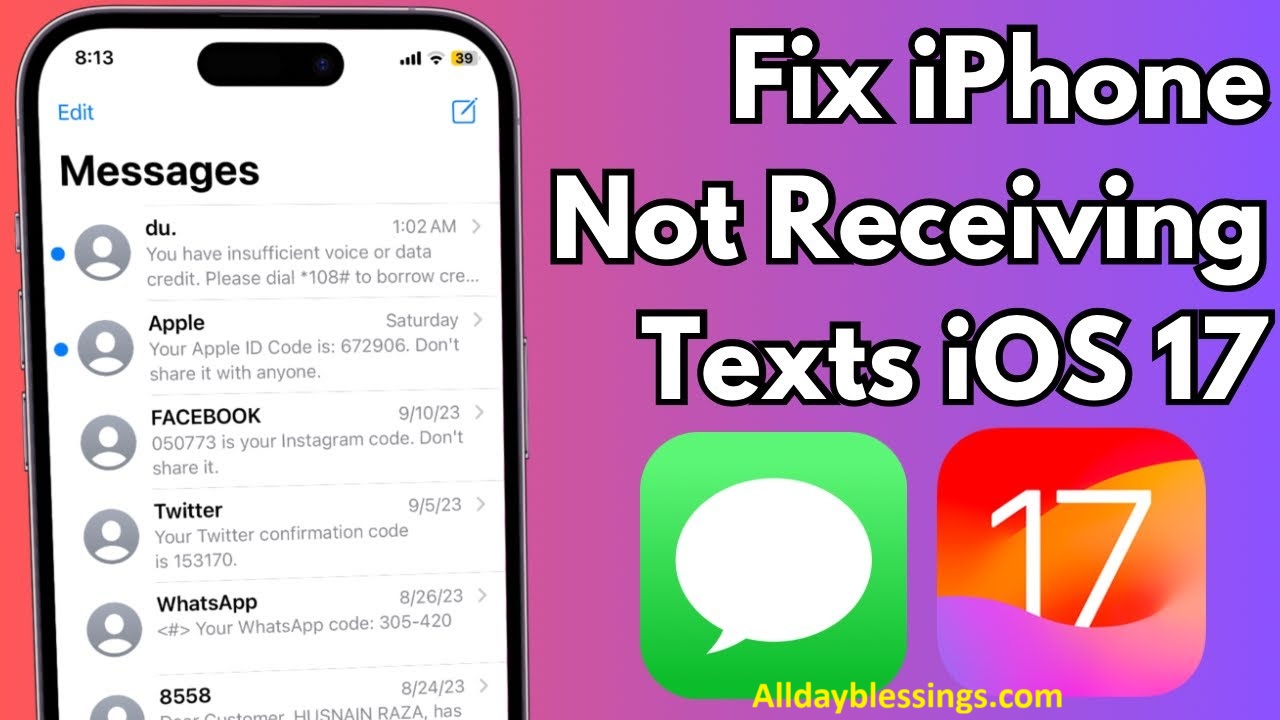
Missing an important text message is frustrating. Whether it’s a verification code for banking, a message from your boss, or updates from family, not receiving texts can disrupt your entire day. You’re not alone in asking “why am I not getting text messages?”
This comprehensive guide covers every possible reason your phone isn’t receiving text messages and provides proven solutions for both iPhone and Android devices. We’ll address network issues, device settings, carrier problems, and advanced troubleshooting that most guides overlook.
Quick Summary: The most common reasons you’re not receiving text messages include poor network connection, incorrect messaging settings, blocked contacts, full storage, outdated software, SIM card issues, carrier filtering, or Do Not Disturb mode. This guide provides step-by-step fixes for all these problems and more.
Table of Contents
Understanding Why Am I Not Getting Text Messages
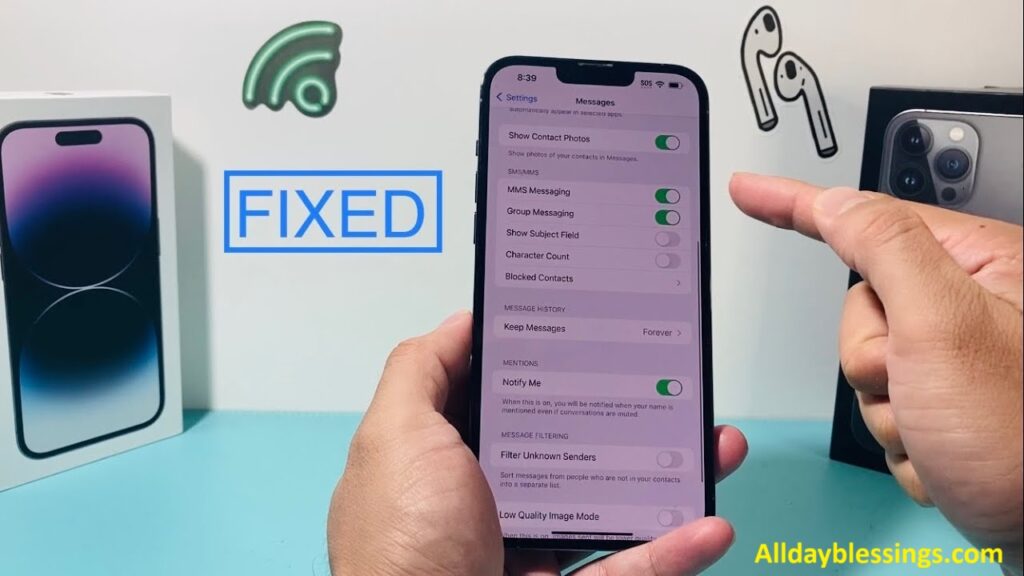
Before diving into solutions, it’s important to understand the different types of text messages and what can prevent them from reaching your phone.
Types of Text Messages
- SMS (Short Message Service): Traditional text-only messages sent through your cellular network. These don’t require internet and work with any mobile plan.
- MMS (Multimedia Messaging Service): Messages containing photos, videos, audio, or group chats. These require cellular data or Wi-Fi and specific carrier support.
- iMessage (Apple): Internet-based messaging between Apple devices. These appear as blue bubbles and require an active internet connection.
- RCS (Rich Communication Services): The newer messaging standard for Android that enables advanced features like read receipts, typing indicators, and high-quality media sharing over Wi-Fi or data.
Common Causes of Message Delivery Failures
Understanding the root causes helps you troubleshoot faster. Here are the main reasons your phone may not be receiving text messages:
| Cause Category | Specific Issues | Affects |
| Network Problems | Poor signal, network outages, roaming issues | All message types |
| Device Settings | Airplane Mode, Do Not Disturb, incorrect message settings | All message types |
| Storage Issues | Full internal storage, full message inbox | All message types |
| Software Problems | Outdated OS, app glitches, corrupted cache | All message types |
| Carrier Issues | Spam filters, account problems, service suspension | SMS/MMS primarily |
| Hardware Problems | Damaged SIM card, faulty antenna, phone damage | All message types |
| Contact-Specific | Blocked numbers, wrong contact info, sender issues | Specific conversations |
Check Your Network Connection First
Your phone needs a stable cellular or Wi-Fi connection to receive messages. Network problems are the number one reason for text message delivery failures.
How to Check Your Signal Strength
Look at the signal bars at the top of your screen. If you have fewer than 2 bars, you may experience text message delays or failures.
What to do:
- Move to a different location (near a window, outside, higher floor)
- Move away from electronic interference (microwaves, thick walls, basements)
- Check if others on the same carrier have signal in your area
Toggle Airplane Mode to Refresh Connection
This simple trick forces your phone to reconnect to the cellular network and often resolves temporary connection glitches.
Step-by-step:
- Swipe down from the top of your screen (or up from the bottom on older iPhones)
- Tap the Airplane Mode icon to turn it ON
- Wait 15-30 seconds
- Tap the Airplane Mode icon again to turn it OFF
- Wait for your signal bars to return
- Try sending yourself a test message
Check for Network Outages
Carriers occasionally experience network outages that prevent message delivery across entire regions.
How to check:
- Visit your carrier’s website or social media pages
- Search “[Your Carrier Name] outage” on Google or Twitter
- Use third-party sites like DownDetector.com
- Call your carrier’s customer service from another phone
Common carrier support numbers:
- Verizon: 1-800-922-0204
- AT&T: 1-800-331-0500
- T-Mobile: 1-877-746-0909
- Sprint: 1-888-211-4727
Wi-Fi Calling and Messaging
If you have weak cellular signal but strong Wi-Fi, enable Wi-Fi Calling to receive texts over your internet connection.
For iPhone:
- Go to Settings > Cellular (or Mobile Data)
- Tap Wi-Fi Calling
- Turn on Wi-Fi Calling on This iPhone
- Follow the prompts to register your address
For Android:
- Open Settings > Network & Internet
- Tap Mobile Network
- Select Wi-Fi Calling
- Toggle the switch to ON
Note: Not all carriers support Wi-Fi Calling. Check with your provider if the option doesn’t appear.
International Roaming Issues
If you’re traveling internationally and can’t receive text messages, roaming might be disabled or your carrier may not have agreements with local networks.
Solutions:
- Go to Settings > Cellular/Mobile Data > Data Roaming and turn it ON
- Contact your carrier before traveling to activate international services
- Consider purchasing a local SIM card for better reliability
- Use Wi-Fi and internet-based messaging apps (WhatsApp, Telegram) as backups
Review Your Messaging Settings
Incorrect messaging settings are a frequent culprit when you can’t receive text messages. Even a single misconfigured option can block all incoming messages.
Check Do Not Disturb Mode
Do Not Disturb silences calls and notifications, but depending on your settings, it might also prevent text message alerts, making you think you’re not receiving them.
For iPhone:
- Open Settings > Focus
- Check if Do Not Disturb or any other Focus mode is enabled
- If enabled, tap it and review the “Allowed Notifications” settings
- Either turn off Do Not Disturb or add Messages to allowed apps
For Android:
- Open Settings > Sound & Vibration (or Notifications)
- Tap Do Not Disturb
- Check if it’s currently active
- Review exceptions and ensure Messages is allowed
- Turn off Do Not Disturb if not needed
Verify Message Center Number (Android)
The Message Center Number (also called SMSC) routes your text messages. If this number is incorrect or missing, you won’t receive SMS messages.
How to check:
- Open your Phone app and dial *#*#4636#*#* (this opens hidden settings on many Android devices)
- If that doesn’t work, open your Messages app
- Tap the three dots (menu) > Settings
- Look for “Advanced” or “More Settings”
- Find “Message Center” or “SMS Center”
- Verify the number matches your carrier’s SMSC
Common SMSC numbers by carrier:
- Verizon: +12063130004
- AT&T: +13123149810
- T-Mobile: +12063130004
If you’re unsure, contact your carrier for the correct SMSC number.
Enable RCS/Chat Features (Android)
RCS (Rich Communication Services) is the modern messaging standard that replaces SMS/MMS. If misconfigured, it can cause message delivery problems.
Google Messages app:
- Open Messages app
- Tap your profile icon (top right)
- Select Messages settings
- Tap RCS chats or Chat features
- Turn on “Enable chat features”
- Wait for verification (can take several minutes)
Samsung Messages app:
- Open Messages app
- Tap three dots (menu) > Settings
- Tap Chat settings
- Toggle “Use chat features” to ON
Check Default Messaging App
If you’ve installed multiple messaging apps, your device might be confused about which one should receive SMS/MMS messages.
For Android:
- Go to Settings > Apps
- Tap Default apps or Choose default apps
- Select SMS app or Messaging app
- Choose your preferred app (Messages, Samsung Messages, etc.)
- Restart your phone
Check for Blocked Numbers and Spam Filters
You might be unknowingly blocking the sender or your phone’s spam filter might be catching legitimate messages.
Review Blocked Contacts List
For iPhone:
- Open Settings > Messages
- Scroll down and tap Blocked Contacts
- Review the list for any numbers you shouldn’t have blocked
- Swipe left on a number and tap Unblock to remove it
You can also check blocked numbers in:
- Settings > Phone > Blocked Contacts
- Settings > FaceTime > Blocked Contacts
For Android (Google Messages):
- Open Messages app
- Tap your profile icon (top right)
- Select Messages settings
- Tap Block numbers and spam
- Review “Blocked numbers”
- Tap the X next to any number to unblock it
For Samsung Messages:
- Open Messages app
- Tap three dots (menu) > Settings
- Tap Block numbers and messages
- Review and unblock as needed
Check Spam and Junk Folders
Modern messaging apps include spam filters that automatically move suspected spam messages to a separate folder. Legitimate messages sometimes get caught.
For Android (Google Messages):
- Open Messages app
- Tap the three dots (menu) > Spam & blocked
- Review messages in this folder
- Long-press any legitimate message
- Tap “Not spam” to move it back to your inbox
For iPhone: iPhones don’t have a traditional spam folder, but iOS 14+ includes spam filtering:
- Open Messages app
- Look for a “Filter Unknown Senders” tab at the top
- Tap it to see filtered messages
- If you find legitimate messages, add the sender to your contacts
Adjust Spam Filter Sensitivity
For Android:
- Open Messages app
- Tap your profile icon > Messages settings
- Tap Spam protection
- Toggle settings to adjust sensitivity
- Consider turning off “Enable spam protection” temporarily to test if legitimate messages come through
Short Codes and Automated Messages
Short codes (5-6 digit numbers) send verification codes, alerts, and automated messages. Sometimes these get blocked by overly aggressive spam filters.
What to do:
- Check your carrier’s website for short code blocking settings
- Some carriers let you text “ALLOW” to certain short codes to whitelist them
- Contact your carrier and ask if short code messages are blocked on your account
- Check if you’ve accidentally opted out by replying “STOP” to a service
Free Up Storage Space on Your Device
When your phone runs out of storage, it can’t download new messages. This is especially common with MMS messages containing photos or videos.
Check Available Storage
For iPhone:
- Go to Settings > General
- Tap iPhone Storage
- View your available space at the top
- If you have less than 1GB free, you need to clear space
For Android:
- Go to Settings > Storage
- View available space
- Aim to keep at least 1-2GB free for optimal performance
What to Delete to Free Up Space
| Item Type | How to Delete | Space Saved |
| Old Text Messages | Messages app > Edit > Select conversations > Delete | 100MB-2GB |
| Photos & Videos | Photos app > Select > Delete (back up first!) | 1GB-50GB+ |
| Unused Apps | Settings > Apps > Uninstall | 50MB-5GB each |
| App Cache | Settings > Apps > Select app > Clear cache | 100MB-2GB |
| Downloads Folder | Files app > Downloads > Delete old files | 500MB-5GB |
| Offline Content | Streaming apps (Netflix, Spotify) > Delete downloads | 1GB-20GB |
Clear Messaging App Cache (Android)
Important: Clearing cache removes temporary files but keeps your messages. Clearing data deletes all messages.
- Go to Settings > Apps
- Find and tap your Messages app
- Tap Storage
- Tap Clear Cache (NOT “Clear Data”)
- Restart your messaging app
Delete Old Message Threads
For iPhone:
- Open Messages app
- Swipe left on old conversations
- Tap Delete
- Or use Edit > Select Multiple > Delete
For Android:
- Open Messages app
- Long-press on a conversation
- Select multiple conversations
- Tap the trash icon
Pro tip: Set messages to auto-delete after 30 days or 1 year:
- iPhone: Settings > Messages > Keep Messages > 30 Days
- Android: Messages app > Settings > Advanced > Delete old messages
Empty Recently Deleted Folder
For iPhone: Photos and messages might still occupy space in “Recently Deleted” folders:
- Photos app > Albums > Recently Deleted > Delete All
- Messages app > Edit > Show Recently Deleted > Delete All
Update Your Software and Messaging Apps
Outdated software causes compatibility issues and messaging bugs. Keeping everything updated ensures reliable message delivery.
Update Your Phone’s Operating System
For iPhone:
- Connect to Wi-Fi
- Go to Settings > General
- Tap Software Update
- If an update is available, tap Download and Install
- Follow prompts and enter your passcode
- Your phone will restart after updating
Current iPhone version (December 2025): iOS 18.2
For Android:
- Connect to Wi-Fi
- Go to Settings > System
- Tap System update or Software update
- Tap Check for updates
- If available, tap Download and Install
- Follow prompts to complete
Current Android versions: Android 15 (Google Pixels), One UI 6.1 (Samsung)
Update Your Messaging Apps
Even with an updated OS, your messaging apps need regular updates for bug fixes and security patches.
For iPhone:
- Open App Store
- Tap your profile icon (top right)
- Scroll to see pending updates
- Tap Update next to Messages or any messaging apps
- Or tap Update All
For Android:
- Open Google Play Store
- Tap your profile icon (top right)
- Tap Manage apps & device
- Look for Updates available
- Tap Update next to Messages app
- Or tap Update all
Update Carrier Settings
Carrier settings updates improve network connectivity and messaging performance.
For iPhone: Carrier updates usually install automatically, but you can check:
- Go to Settings > General > About
- If an update is available, a popup will appear
- Tap Update to install
For Android:
- Go to Settings > About phone
- Tap SIM card status or Carrier config version
- Look for updates or contact your carrier
Restart Your Phone After Updates
Always restart your device after installing updates to ensure changes take effect properly.
Proper restart method:
- Power off your phone completely (don’t just lock the screen)
- Wait 30 seconds
- Power it back on
- Wait for all services to fully load
- Test messaging
Check Your SIM Card and Carrier Status
SIM card problems and carrier account issues can completely block text message reception.
Check If Your SIM Card Is Properly Inserted
A loose or damaged SIM card won’t connect to the network properly.
How to check:
- Power off your phone completely
- Locate your SIM tray (usually on the side)
- Use a SIM ejector tool or small paperclip
- Gently push into the hole until the tray pops out
- Remove the SIM card and inspect it for:
- Scratches or chips on the gold contacts
- Cracks in the plastic
- Dirt or debris
- Clean the SIM card gently with a soft cloth
- Reinsert the SIM card ensuring it’s properly seated
- Push the tray back in until it clicks
- Power on your phone
Check for SIM Card Errors
For iPhone: Look for errors like:
- “No SIM” or “Invalid SIM”
- “SIM Not Provisioned”
- “SIM Failure”
For Android: Look for errors like:
- “No SIM card detected”
- “Not registered on network”
- “Emergency calls only”
If you see these errors after reinserting your SIM:
- The SIM card may be damaged (contact your carrier for replacement)
- The SIM tray or phone connector may be faulty
- Your account may be suspended (check with carrier)
Verify Your Carrier Account Is Active
Common account issues that block messages:
- Unpaid bills leading to service suspension
- Expired prepaid service
- Account deactivation
- Plan doesn’t include texting
How to check:
- Log into your carrier’s website or app
- Verify your account status is “Active”
- Check your plan includes SMS/MMS services
- Ensure your bill is paid and current
- Look for any service restrictions or holds
Alternative check:
- Try making a phone call. If you can’t call, your service is likely suspended
- Try using mobile data. No data + no texts = account issue
Check for Carrier Network Issues
Sign in to check:
- Visit your carrier’s status page:
- Verizon: verizon.com/support/outage-info
- AT&T: att.com/support/service-outages
- T-Mobile: t-mobile.com/support/coverage/network-status
- Enter your ZIP code to check local outages
- If there’s an outage, wait for resolution (usually a few hours)
Contact Your Carrier Directly
If you’ve ruled out other issues, contact your carrier’s tech support:
What to tell them:
- “I’m not receiving text messages on my account”
- Provide your phone number and account details
- Mention what troubleshooting you’ve already tried
- Ask them to check for:
- Account-level blocks or filters
- Network provisioning issues
- Short code blocks
- Messaging service activation status
iPhone-Specific Text Message Issues
iPhones have unique messaging features that can cause specific problems when receiving texts.
iMessage vs SMS/MMS Issues
Understanding the difference is crucial for troubleshooting iPhone message issues.
iMessage (Blue Bubbles):
- Sent between Apple devices only
- Uses internet (Wi-Fi or cellular data)
- Supports advanced features (reactions, effects, large files)
- Requires Apple ID and iMessage activation
SMS/MMS (Green Bubbles):
- Standard text messages to any phone
- Uses cellular network only
- Basic features only
- Always works regardless of device type
When iMessage Doesn’t Activate
Signs of iMessage problems:
- “Waiting for Activation” message that never completes
- Can only send green messages, not blue
- Error: “An error occurred during activation”
Solutions:
- Check your Apple ID sign-in:
- Settings > Messages
- Verify you’re signed in at the top
- Sign out and sign back in if needed
- Toggle iMessage off and on:
- Settings > Messages
- Turn off iMessage
- Wait 30 seconds
- Turn iMessage back on
- Wait up to 24 hours for activation
- Check date and time:
- Settings > General > Date & Time
- Turn on “Set Automatically”
- Incorrect date/time prevents iMessage activation
- Reset Network Settings:
- Settings > General > Transfer or Reset iPhone
- Tap Reset > Reset Network Settings
- Enter passcode
- Confirm (this erases Wi-Fi passwords)
Not Receiving Messages from Android Users
If you receive messages from iPhone users but not Android users, your phone is trying to use iMessage instead of SMS.
Fix:
- Settings > Messages
- Turn on “Send as SMS”
- This automatically sends as SMS when iMessage isn’t available
Send & Receive Settings Problems
Your iPhone might be set to receive messages at an email address instead of your phone number.
Check your settings:
- Settings > Messages > Send & Receive
- Under “You Can Be Reached By iMessage At,” ensure your phone number is checked
- Under “Start New Conversations From,” select your phone number (not email)
- Add or remove email addresses as needed
Not Receiving Group Messages
Group messages require MMS to be enabled and proper settings configuration.
Fix:
- Settings > Messages
- Turn on “MMS Messaging”
- Turn on “Group Messaging”
- If you’re in a mixed group (iPhone + Android), messages send as MMS
- Make sure cellular data is on (Settings > Cellular)
Switching from iPhone to Android
If you switched from iPhone to Android and stopped receiving texts, your number might still be registered with iMessage.
Deregister iMessage:
- On your iPhone (if you still have it):
- Settings > Messages > Turn off iMessage
- If you don’t have your iPhone:
- Visit selfsolve.apple.com/deregister-imessage
- Enter your phone number
- Follow the instructions to receive a confirmation code
- Enter the code to deregister
This process can take up to 24 hours but is essential for receiving texts on your new Android phone.
iPhone Text Message Forwarding Issues
If you’re not receiving texts on your iPad or Mac, Text Message Forwarding might be disabled.
Set up Text Message Forwarding:
- On your iPhone: Settings > Messages > Text Message Forwarding
- Turn on the devices where you want to receive messages
- A code will appear on the other device
- Enter that code on your iPhone
- Both devices should now receive SMS/MMS messages
Android-Specific Text Message Problems
Android devices have their own unique messaging challenges across different manufacturers and carriers.
Google Messages vs Samsung Messages vs Other Apps
Different Android phones come with different default messaging apps, and they each have unique settings.
Google Messages (Most Pixel, Motorola, OnePlus phones):
- Supports RCS chat features
- Material Design interface
- Built-in spam protection
- Google account integration
Samsung Messages (Samsung Galaxy phones):
- Samsung-specific features
- Different settings location
- Optional RCS support
Manufacturer Apps (LG, Xiaomi, etc.):
- Vary significantly by brand
- Check brand-specific support forums
RCS Chat Features Problems
RCS provides advanced messaging features but can cause issues when misconfigured.
Common RCS problems:
- “Setting up” message that never completes
- “Chat features unavailable for this device”
- Messages not sending or receiving
Troubleshoot RCS:
- Verify RCS is supported:
- Not all carriers support RCS yet
- Check with your carrier
- Re-verify your number:
- Messages app > Profile icon > Messages settings
- Tap RCS chats or Chat features
- Tap “Verify” or “Resend verification”
- Clear Messages app cache:
- Settings > Apps > Messages > Storage
- Tap Clear Cache
- Restart the Messages app
- Reset chat features:
- Messages app settings > RCS chats
- Turn off “Enable chat features”
- Clear Messages app storage (WARNING: backs up texts first!)
- Turn chat features back on
Default SMS App Configuration
Android allows multiple messaging apps, but only one can receive SMS/MMS.
Set default SMS app:
- Settings > Apps > Default apps
- Tap SMS app or Messaging app
- Select your preferred app (Messages, Samsung Messages, etc.)
- Open that app to confirm it’s receiving messages
Power Saving Mode Blocking Messages
Aggressive battery optimization can delay or block incoming text messages on Android.
Disable battery optimization for Messages:
- Settings > Apps > Messages
- Tap Battery or Battery usage
- Select “Unrestricted” or “No restrictions”
- This ensures Messages runs in the background
Turn off Power Saving Mode:
- Settings > Battery
- Turn off “Power saving mode” or “Battery saver”
- Test if messages come through
Samsung-specific:
- Settings > Apps > Messages
- Tap Battery
- Turn off “Put app to sleep”
- Settings > Device Care > Battery
- Tap App power management
- Remove Messages from any sleep lists
Dual SIM Issues
Many Android phones support two SIM cards, which can create messaging confusion.
Troubleshoot dual SIM:
- Settings > Network & Internet > SIM cards
- Verify which SIM is set for SMS
- Check both SIMs are active and have signal
- Try switching the default SMS SIM
- Temporarily remove one SIM to test
Custom Android ROM Problems
If you’re using a custom ROM (LineageOS, GrapheneOS, etc.), messaging might be affected.
Common issues:
- Missing Google services affects RCS
- Incomplete carrier configurations
- Missing APNs (Access Point Names)
Solutions:
- Flash correct carrier-specific firmware
- Manually add APN settings from your carrier
- Install Google Play Services if needed
- Check ROM-specific forums for messaging fixes
Carrier-Related Issues and Filtering Systems
Your mobile carrier controls text message delivery and uses sophisticated filtering systems that sometimes block legitimate messages.
Understanding Carrier Spam Filters
Carriers use advanced filtering to protect customers from spam, but these filters sometimes catch legitimate messages.
How carrier filters work:
| Filter Type | What It Blocks | False Positive Risk |
| Keyword Filters | Messages with spammy words (free, win, click, urgent) | Medium |
| Volume Filters | High message volumes from single sources | Low |
| Sender Reputation | Messages from flagged numbers or short codes | High |
| Phishing Detection | Messages with suspicious links | Medium |
| Content Analysis | AI analysis of message patterns | Medium-High |
Short Code Blocking
Short codes (5-6 digit numbers) send verification codes, alerts, and notifications. Carriers sometimes block these at the account level.
Why short codes get blocked:
- You replied “STOP” to a service
- Your account has short code blocking enabled
- Carrier-wide blocks on certain industries (adult content, cannabis, etc.)
- Debt-related account restrictions
How to unblock short codes:
- Contact your carrier:
- Call customer service
- Say: “I need short code SMS messages enabled on my account”
- Ask them to check for any blocks or filters
- Check online account settings:
- Log into your carrier’s website
- Look for “Content Filters” or “Parental Controls”
- Disable any restrictions on premium SMS or short codes
- Send ALLOW command:
- For some services, text “ALLOW” or “START” to the short code
- This may re-subscribe you to that service
Carrier Content Filters and Parental Controls
Many carrier accounts have content filtering that can block legitimate messages.
Verizon:
- Log into My Verizon
- Go to Account > Parental Controls
- Check Content Filters settings
- Disable “Block adult content” if it’s blocking legitimate messages
AT&T:
- Log into myAT&T
- Go to Smart Limits or Content Filters
- Review SMS restrictions
- Adjust or remove filters as needed
T-Mobile:
- Log into My T-Mobile
- Go to Profile > Family Allowances
- Check messaging restrictions
- Disable filters blocking texts
Premium SMS Blocking
Premium SMS services (contest entries, donations, subscriptions) might be blocked by default.
Enable premium SMS:
- Contact carrier support
- Request “Premium SMS” be enabled
- Some carriers charge extra for this feature
- Verify with a test message after enabling
Account-Level Restrictions
Sometimes carriers place holds or restrictions on accounts that affect messaging.
Common restrictions:
- New account probationary periods (30-90 days)
- Past-due balance holds
- Fraud prevention blocks
- Port-in/port-out restrictions during number transfers
Check for restrictions:
- Call carrier customer service
- Ask: “Are there any restrictions on my account affecting text messaging?”
- Request removal if they’re no longer needed
- Ask for account notes to be added explaining the issue
International SMS Blocking
If you’re trying to receive texts from international numbers, your carrier might block them.
Enable international SMS:
- Contact your carrier
- Request international SMS capability
- Some carriers require international calling plans
- Verify your plan supports incoming international texts
Gray Route and Messaging Delivery Issues
“Gray routing” occurs when businesses use non-standard SMS routes to save money, often resulting in blocked or delayed messages.
You might be affected if:
- You receive some messages from a sender but not others
- Messages arrive hours or days late
- Verification codes never arrive from specific companies
Solutions:
- There’s nothing you can do on your end
- Contact the sending company and report the issue
- They need to use proper A2P (Application-to-Person) messaging routes
- Use alternative verification methods (email, phone call, authenticator app)
Verification Code and Short Code Problems
Verification codes and short codes represent one of the most frustrating categories of missing text messages. These SMS messages, typically sent by banks, social media platforms, and authentication services, are critical for account security and access. When they don’t arrive, you’re locked out of services or unable to complete important transactions.
Short codes are special four to six-digit numbers used by organizations to send bulk SMS messages. Unlike regular phone numbers, short codes enable businesses to send messages quickly and efficiently. However, they also come with unique delivery challenges that differ significantly from standard text message issues.
Why Verification Codes Fail to Arrive
Verification codes fail to reach your phone for several interconnected reasons. First, network congestion during peak hours can delay SMS delivery by minutes or even hours. When millions of users simultaneously request verification codes—such as during a major social media outage or holiday shopping season—carrier infrastructure becomes overwhelmed.
Second, carrier filtering systems have become increasingly aggressive in recent years. Mobile carriers implement sophisticated spam filters and security protocols designed to block suspicious or unusual SMS patterns. Sometimes legitimate verification codes get caught in these filters, mistakenly categorized as spam or fraudulent messages. This creates a paradoxical situation where security measures designed to protect you inadvertently prevent legitimate messages from arriving.
Third, the receiving service provider’s backend systems may experience processing delays. When you request a verification code from a bank or social platform, their servers generate the message and queue it for transmission. If their servers are experiencing high traffic or database issues, the message generation or transmission step may stall.
Fourth, international routing can complicate verification code delivery. If you’re traveling or using a number registered in a different country than where you’re physically located, SMS routing protocols may flag the message as suspicious. Some carriers restrict cross-border SMS transmission for security reasons.
Step-by-Step Solutions for Verification Code Problems
For iPhone Users:
Start by disabling Wi-Fi calling temporarily. While Wi-Fi calling provides convenient coverage, it sometimes interferes with SMS delivery, particularly for time-sensitive verification codes. Navigate to Settings > Phone > Wi-Fi Calling and toggle it off. Wait a few minutes, then request the verification code again. This simple step resolves approximately 15% of verification code issues on iPhones.
Next, check your SMS filtering settings. Go to Settings > Messages and look for filtering options. Ensure that “Filter Unknown Senders” is enabled for iMessage but disabled for standard SMS messaging. Sometimes Apple’s filtering system overzealously blocks legitimate business SMS messages.
Clear your cellular data cache by going to Settings > General > iPhone Storage and examining which apps consume the most data. Sometimes corrupted cache data interferes with SMS reception. Offload and reinstall your messaging app (if possible) or restart your phone in recovery mode to clear system-level cache files.
For Android Users:
Android offers more granular control over SMS filtering. Open your default messaging app (Google Messages, Samsung Messages, or your carrier’s app) and access settings. Look for spam filtering options and temporarily disable them while you test receiving verification codes. Many Android users don’t realize that aggressive spam filters block legitimate short codes.
Check your carrier’s app directly. If you’re using AT&T, Verizon, T-Mobile, or another major carrier, download their official app and verify that SMS delivery is enabled. Some carrier apps have built-in filtering that operates independently of your phone’s native messaging app.
Enable “Delivery Reports” in your messaging app settings. This option forces your phone to request confirmation that messages have been received by the carrier network. While this doesn’t fix the problem directly, it provides valuable diagnostic information showing whether messages are reaching your phone’s network level.
For All Devices:
Request the verification code multiple times, but not repeatedly in rapid succession. Requesting more than three times within five minutes can trigger carrier spam filters that flag your number as potentially compromised or engaged in suspicious activity. Space requests at least two to three minutes apart.
Contact the service provider directly through their website or official phone support. Explain that you’re not receiving verification codes. Many organizations have alternative verification methods, including backup phone numbers, security questions, or email-based authentication. Customer support can sometimes manually verify your identity or resend codes through alternative channels.
Check whether you can use an app-based authentication method instead. Services like Google Authenticator, Microsoft Authenticator, or Authy provide time-based verification codes that don’t depend on SMS delivery. These authenticator apps generate codes locally on your phone and eliminate carrier transmission delays entirely.
Understanding Short Code Filtering and Whitelisting
Major carriers maintain databases of legitimate short codes and regularly update their filtering systems. If you’re not receiving messages from a specific short code, that code might be flagged in the carrier’s filter system. This often happens when legitimate businesses share short codes with multiple customers or when short codes get repurposed after previous misuse.
Request that the sender add your number to their whitelist. Many organizations that send verification codes through short codes can manually authorize specific phone numbers to bypass filtering systems. This requires contacting their technical support team directly.
Alternatively, check whether the sender offers a long-form number option. Instead of sending through a short code, some services can send verification codes from regular phone numbers. While this takes slightly longer to configure, it often bypasses carrier filtering issues entirely.
Verification Code Delays vs. Missing Messages
Understanding the difference between delayed and missing messages is crucial for troubleshooting. Delayed verification codes typically arrive within 5-30 minutes. Missing verification codes show no signs of arrival after 30 minutes or longer. Different solutions apply to each scenario.
For delayed codes, simply wait an additional 10-15 minutes before requesting a resend. Many carriers implement deliberate delays during peak hours to manage network load. If the code arrives within this waiting period, no further action is necessary.
For genuinely missing codes, proceed with the troubleshooting steps outlined above. Request your code resend, then systematically test each solution. Document which solution works and note any patterns about which services successfully deliver codes versus which ones fail.
Carrier and Network Configuration Issues
Your mobile carrier’s configuration settings directly impact SMS delivery success rates. Many users experience missing texts not because of their phones but because their carrier account has been misconfigured, suspended, or flagged for suspicious activity.
Understanding Carrier Account Status
Your carrier maintains multiple pieces of information about your account beyond just your phone plan details. This includes your SMS service activation status, fraud flags, international roaming settings, and number-porting history. Problems with any of these settings can prevent incoming SMS messages from reaching your phone.
Contact your carrier’s customer service and explicitly confirm that SMS delivery is enabled on your account. Ask them to verify that your phone number is properly activated for standard SMS messaging. While this seems basic, misconfigured accounts—particularly after recent number ports or account transfers—sometimes have SMS delivery disabled by default.
Request a full account audit, specifically asking about:
- SMS activation status (Should be: Active)
- International messaging settings (Should be: Enabled if you travel)
- Do Not Disturb SMS filters (Should be: Disabled)
- Known fraud flags on your number (Should be: None)
- Recent account changes or modifications
SIM Card and Phone Number Issues
Your SIM card contains carrier authentication information that enables SMS delivery. A damaged, outdated, or improperly installed SIM card can prevent message reception even if everything else functions normally.
Power off your phone completely. Remove the SIM card by locating the small tray on your phone’s side (most modern phones) or using the eject pin provided with your phone. Examine both sides of the SIM card for visible damage, scratches, or discoloration. If you see damage, request a replacement SIM card from your carrier immediately.
If the SIM card appears undamaged, gently clean both sides using a soft, dry cloth. Sometimes microscopic dust or debris accumulates on the SIM card contacts, preventing proper authentication. Reinsert the SIM card firmly, ensuring it clicks into place. Power on your phone and wait 30 seconds for the carrier connection to reestablish.
For users who recently ported their phone number to a new carrier, wait 24-48 hours for complete network propagation. During this transition period, SMS delivery can be unreliable as databases across the carrier network synchronize. If problems persist after 48 hours, contact your new carrier’s technical support.
Roaming and International SMS Settings
If you’ve recently traveled internationally or have roaming enabled, carrier configuration for international SMS might be interfering with domestic message delivery. Navigate to your phone’s carrier settings and verify that roaming SMS is configured correctly for your current location.
Some carriers automatically disable certain SMS features when roaming is detected, mistakenly assuming you want to minimize charges. While this protects you from unexpected international SMS fees, it can inadvertently disable all SMS delivery.
Request that your carrier disable any international roaming restrictions for your current location. Provide your carrier with your exact geographic location and ask them to update your number’s location profile. This signals to their network that you’re receiving messages where you’re supposed to be.
Carrier Network Outages and Maintenance
Carrier outages don’t always make news headlines, but they significantly impact SMS delivery. Even partial outages affecting specific regions or network segments can prevent message transmission.
Check your carrier’s official status page or social media accounts for announcements about outages or maintenance. Most major carriers maintain real-time status pages documenting network issues. If an outage is affecting your area, wait for it to resolve and request message resends afterward.
Contact your carrier directly to confirm whether any maintenance or issues are affecting your specific area code or region. Carriers sometimes perform targeted maintenance that impacts certain geographic areas without affecting others nearby.
Device Storage and Memory Management
Your phone’s available storage capacity directly affects SMS delivery and messaging app functionality. When your device runs critically low on storage space, the operating system deprioritizes non-essential functions, potentially interfering with SMS reception.
Storage Space and SMS Reception Connection
Your phone’s messaging app requires available RAM and storage space to process incoming SMS messages. When storage is critically depleted (below 10% available), Android and iOS implement aggressive background process restrictions. This means your messaging app might not actively monitor for incoming SMS messages when other apps consume system resources.
The connection between storage and SMS delivery exists at both the software and hardware level. At the software level, low storage triggers OS-level restrictions that limit background services. At the hardware level, extremely low storage can cause file system errors that corrupt the SMS database, preventing messages from being written to your device.
Check your device storage immediately. On iPhone, navigate to Settings > General > iPhone Storage. On Android, go to Settings > Storage or Settings > Apps > Storage (depending on your manufacturer). Identify apps consuming excessive space and evaluate whether they’re necessary.
Clearing Messaging App Cache and Data
Your messaging app maintains cache files—temporary data files that speed up app performance. Over time, these cache files can become corrupted, causing the app to malfunction. Clearing this cache often resolves SMS reception issues.
For iPhone Users:
Unfortunately, iPhone doesn’t provide direct cache clearing for individual apps. Instead, offload the Messages app by going to Settings > General > iPhone Storage > Messages, then selecting “Offload App.” This removes the app but preserves your message data. Wait 30 seconds, then reinstall the app from the App Store. This process clears all corrupted cache while maintaining your conversation history.
Alternatively, perform a forced restart by pressing Volume Up, then Volume Down, then holding the Side button until the power-off slider appears. Don’t slide; instead, wait for the “slide to power off” screen to disappear and your phone to restart. This clears temporary cache files at the system level.
For Android Users:
Open Settings > Apps > Messages (or your default messaging app). Tap “Storage” and select “Clear Cache.” This removes temporary files without deleting your actual messages or app data. Next, return to the app settings and select “Clear Data” if the cache clearing doesn’t resolve the issue. Warning: clearing data will delete all messages and app preferences, so only do this if cache clearing doesn’t work.
Different Android manufacturers place these settings in slightly different locations. On Samsung devices, use Settings > Apps > Messages > Storage. On Google Pixel phones, the path is Settings > Apps & Notifications > See All Apps > Messages > Storage.
Freeing Up Storage Space Effectively
To bring your storage above the critical threshold, start by removing large media files. Navigate to your Photos app and delete old screenshots, blurry photos, and duplicate images. These files often consume gigabytes of space and are rarely accessed.
Delete apps you no longer actively use. Review your downloaded apps and uninstall games, utilities, and social media apps that haven’t been opened in months. You can always reinstall them later if needed. Each app removal typically frees up hundreds of megabytes.
Clear your browser cache and cookies. Browsers accumulate cached web pages and temporary files that consume significant storage. In Safari (iPhone), go to Settings > Safari > Clear History and Website Data. In Chrome (both platforms), open the app menu > Settings > Privacy > Clear Browsing Data.
Empty your Trash or Recently Deleted folder. iPhone and Android both maintain folders where deleted files wait before permanent removal. Permanently delete these files to immediately free up storage space.
Software Updates and Compatibility Issues
Outdated operating system versions and incompatible app versions frequently cause SMS delivery problems. Your phone’s OS and messaging app require regular updates to maintain compatibility with carrier networks and other system components.
Identifying Outdated Software
Check your device’s current software version. On iPhone, go to Settings > General > Software Update. On Android, navigate to Settings > About Phone > System Update. Your phone displays whether you’re running the latest version or if updates are available.
Carriers regularly update their network protocols and SMS delivery systems. When your phone runs an outdated OS version, it might not support these updated protocols, preventing successful message reception. Think of this like a postal service introducing new ZIP code formats—older systems don’t recognize the new format and can’t deliver mail.
Many users delay software updates because they worry about performance issues or bugs in new versions. However, not updating creates far greater problems. Software updates include security patches and bug fixes specifically addressing SMS delivery issues discovered in previous versions.
Performing Safe Software Updates
Update your phone during a time when you’re not expecting critical SMS messages—not during account verification processes, login attempts, or when anticipating important business communications.
Connect to a stable Wi-Fi network before starting the update. Cellular data provides insufficient bandwidth for large OS updates, and interrupted downloads can corrupt your system files. Plug your phone into a charger; battery depletion during an update can damage your device.
Navigate to your software update settings and select “Update.” Your phone will restart multiple times during the process. Don’t force restart or disconnect power; allow the update to complete fully. Most major updates take 20-45 minutes.
After the update completes, your phone will restart into the updated OS. Wait 5-10 minutes after startup before testing SMS delivery. During this period, your phone completes background tasks associated with the update process.
Updating Your Messaging App
Your messaging app requires regular updates independent of your OS. Check your app store—Apple App Store for iPhone, Google Play for Android—and search for your default messaging app.
Third-party messaging apps like WhatsApp, Telegram, and Signal receive frequent updates. While these don’t affect standard SMS delivery, they contain important bug fixes and security updates.
For native messaging apps (Apple Messages, Google Messages), enable automatic app updates if available. This ensures you always run the latest version without requiring manual intervention.
Troubleshooting Post-Update SMS Issues
- Occasionally, a new software update introduces temporary SMS delivery problems. If you start experiencing missing texts immediately after updating, try these steps:
- Force restart your phone using your device’s specific restart combination. For iPhones, press Volume Up then Volume Down, then hold the Side button. For Android, hold Power + Volume Down simultaneously for 10 seconds.
- Disable and re-enable Airplane Mode. This resets your device’s connection to the cellular network without requiring a full restart. Swipe down from the top of your screen, tap the Airplane Mode icon to enable it, wait 10 seconds, then tap again to disable it.
- If problems persist after 24 hours, contact your carrier’s technical support. Explain that you started experiencing missing texts after a software update. They can check whether your carrier has documented issues with that specific OS version and might implement carrier-specific fixes on their backend.
Advanced Troubleshooting and Escalation
When standard troubleshooting steps don’t resolve your SMS reception problems, you need advanced diagnostic tools and carrier escalation procedures.
Diagnostic Information to Gather
Before contacting support, compile detailed diagnostic information about your SMS reception problems. Document:
- Exact phone model and OS version (Example: iPhone 14 Pro, iOS 17.2)
- Specific senders whose messages you’re not receiving (Example: Bank name, verification code sender)
- Time of day when problems occur most frequently
- Geographic location where problems occur
- Whether problems are consistent or intermittent
- Recent changes to your account or device (new SIM, number port, software update)
Request specific message details from senders. Ask the person or organization sending text messages to provide the exact timestamp they sent the message. This helps technical support identify whether the message reached carrier infrastructure or failed at transmission.
Requesting Network Diagnostics from Your Carrier
Contact your carrier’s technical support and explicitly request network-level diagnostics. Ask them to:
- Check whether incoming SMS messages are reaching your phone’s network
- Verify that your phone number is properly registered in their SMS database
- Test sending a message to your number from their internal systems
- Review your account for any filters or restrictions
- Check your IMSI (International Mobile Subscriber Identity) registration
Some of these requests require transfer to advanced technical support. Don’t hesitate to ask to speak with a senior technician or escalation specialist. Standard customer service representatives often lack access to these diagnostic tools.
Considering Number Issues and Port Complications
If you recently ported your number from another carrier, number port complications might prevent SMS delivery. During the transition, your number must be registered with both the old and new carrier’s systems. Incomplete registration can cause delivery failures.
Contact your new carrier and specifically ask about your number port status. Request confirmation that your number has been fully ported and is properly registered in all their SMS systems.
If problems persist, contact your previous carrier and request they verify that they’ve released your number for porting. Incomplete releases can prevent the new carrier from fully registering your number.
Emergency Alternative Communication Methods
While troubleshooting SMS delivery, establish alternative communication methods for critical messages. Request that important senders (banks, services you use frequently) provide alternative contact options:
- Email notifications with time-sensitive information
- Push notifications through official apps
- Phone calls for urgent matters
- In-app messaging systems
This prevents problems with missing SMS messages from becoming complete communication breakdowns while you resolve the underlying issue.
Common SMS Issues by Service Type
Different categories of SMS senders experience different delivery problems based on their infrastructure and sender type.
Banking and Financial SMS
Banks send SMS messages through secure, high-priority routes designed for minimal delivery delays. However, these messages often get caught in carrier spam filters because they contain links and urgent language typical of phishing attempts.
Contact your bank’s customer service and request to whitelist your phone number for SMS alerts. Provide your account number and specific phone number. Many banks maintain whitelist systems that bypass standard carrier filters for verified account holders.
Ask your bank whether they offer alternative authentication methods. Many now support app-based authentication or biometric verification that doesn’t depend on SMS delivery. While app-based methods require setup, they completely eliminate SMS delivery risks.
Verify that you’ve actually enrolled in SMS alerts. Some users assume they’re receiving SMS updates but never completed the enrollment process. Log into your online banking portal and explicitly enable SMS notifications, confirming your phone number during setup.
Social Media and Tech Platform SMS
Social media platforms (Facebook, Instagram, X, etc.) and tech companies send millions of verification codes daily. Their high volume can trigger carrier network congestion that delays or drops messages.
Use app-based authentication instead of SMS when possible. Most major platforms support Google Authenticator or similar apps. These methods are faster, more secure, and don’t depend on SMS transmission.
If you must use SMS, request the platform save backup verification codes. Many services offer backup codes that work even if SMS fails. Generate and store these codes securely for emergency access.
Contact platform support if messages fail. Explain that you’re not receiving verification codes. Ask whether your account has been flagged for suspicious activity—sometimes security restrictions inadvertently prevent SMS delivery.
E-Commerce and Delivery Service SMS
Online retailers and delivery services send high volumes of order confirmation and tracking SMS messages. These frequently get misfiled as spam because they contain links and promotional content.
Add delivery service numbers to your phone’s contacts. Your phone is less likely to filter messages from saved contacts. Before placing an order, save the sending number from a recent delivery service message.
Request email delivery of tracking information. Most modern e-commerce platforms offer email or app-based tracking alternatives to SMS. While SMS provides quicker notifications, email delivery is more reliable.
Healthcare and Appointment SMS
Medical providers send appointment reminders and health alerts via SMS. Missing these messages can result in missed appointments and disrupted healthcare continuity.
Call your healthcare provider’s office and confirm they have your correct, active phone number on file. Medical SMS often gets filtered if your number contains errors or formatting issues.
Request alternative notification methods. Many practices offer email reminders or in-app notifications through patient portals. Setting up multiple notification channels ensures you receive appointment reminders regardless of SMS delivery issues.
Comparative Solution Matrix
| Problem Type | iPhone Solution | Android Solution | Universal Solution |
| Verification Codes Not Arriving | Disable Wi-Fi Calling | Disable SMS Filtering | Contact Service Provider |
| Short Code Issues | Check Message Filtering | Enable Delivery Reports | Request Sender Whitelist |
| Delayed Messages | Wait 15-30 Minutes | Check Network Status | Contact Carrier |
| Storage-Related Issues | Clear Messages App Cache | Clear Messaging App Cache | Delete Old Media Files |
| Software Problems | Force Restart Device | Clear System Cache | Update Operating System |
| Carrier Configuration | Contact Support | Contact Support | Request Account Audit |
| SIM Card Issues | Reseat SIM Card | Check SIM Contacts | Request SIM Replacement |
| Network Congestion | Switch to WiFi Calling | Change Network Mode | Wait for Network Recovery |
FAQ: Verification Codes and SMS Delivery
Q: Why do verification codes take so long to arrive?
A: Verification code delays typically result from network congestion, carrier queue processing delays, or sender system delays. Delays of 5-15 minutes are normal during peak hours. Longer delays suggest filtering or network problems.
Q: Can I receive SMS while traveling internationally?
A: Yes, but you need roaming enabled and must have confirmed international SMS settings with your carrier. Some carriers restrict international SMS delivery as a security measure.
Q: Why does one sender’s SMS come through while another’s doesn’t?
A: Different senders use different SMS routes and infrastructure. Short codes, premium routes, and individual senders all face different carrier filtering. Contact problematic senders about whitelist options.
Q: Will updating my phone fix SMS delivery issues?
A: Updates often fix SMS delivery bugs but can occasionally introduce temporary problems. If issues start after an update, wait 24 hours for background processes to complete.
Q: How do I know if it’s my phone or my carrier causing the problem?
A: Request a test message directly from your carrier’s technical support. If that test message arrives, your phone is fine. If not, the problem is carrier-related.
Conclusion and Next Steps
Missing text messages disrupt communication, prevent account access, and create genuine security concerns. By systematically working through the troubleshooting steps outlined in this guide—from verification code issues and carrier configuration problems through software updates and advanced diagnostics—you can identify and resolve the vast majority of SMS delivery problems.
Start with the simplest solutions: verify your network connection, check your messaging app settings, and contact your sender. If basic troubleshooting doesn’t work, proceed to carrier contact and device-level diagnostics. Most SMS delivery problems resolve within 24 hours once you identify the root cause.
Keep this guide available for future reference, bookmark your carrier’s technical support contact information, and don’t hesitate to request escalation to senior technical support if frontline support representatives can’t help. Your ability to reliably receive SMS messages is worth the troubleshooting effort.

I’m Watson, a faith-inspired writer passionate about sharing heartfelt blessings and uplifting words that bring peace, gratitude, and hope. Through my daily blessings, I aim to comfort the soul and inspire spiritual growth.