
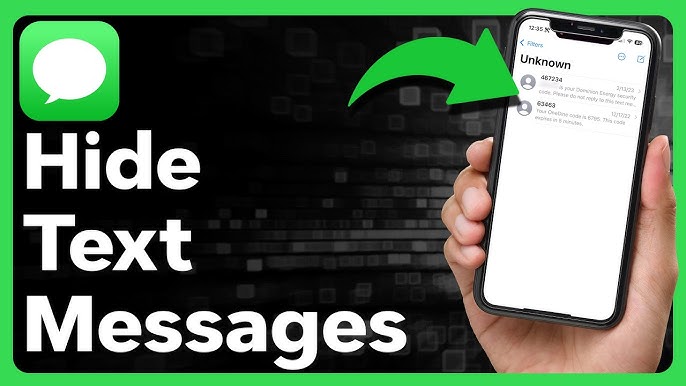
Ever had someone glance at your phone right when a private message pops up on your lock screen? Or maybe you want to keep messages private without losing important conversations? You’re not alone.
In 2026, protecting your message privacy on iPhone is easier than ever. Whether you’re looking to conceal messages from nosy friends, family members, or coworkers, this comprehensive guide will show you exactly how to hide text messages on iPhone without deleting them.
I’ll walk you through 5 proven methods, from hiding lock screen notifications to using advanced Focus filters. Plus, I’ll cover what most guides miss—troubleshooting tips, iOS 18 features, and a comparison table to help you choose the right method.
Let’s dive in and make your iPhone messages truly private.
Table of Contents
Why Hide Messages Instead of Deleting Them?
Before we jump into the methods, let’s talk about why hiding is often better than deleting your messages.
Deleting messages permanently removes them—you can’t get them back unless you have a backup. But when you hide messages, you’re keeping them secure while still having access when you need them.
Here’s why hiding makes more sense:
✓ Preserve Important Information
Maybe it’s a confirmation code, an address, or important details you’ll need later. Deleting means losing that information forever.
✓ Maintain Conversation History
Sometimes you need to reference old conversations. Hidden messages stay accessible to you while remaining invisible to others.
✓ Protect Privacy Without Consequences
Deleting messages from someone might raise questions. Hiding them keeps your private conversations discreet without creating awkward situations.
✓ Keep Your Lock Screen Clutter-Free
Even if you don’t want to delete messages, you can hide message previews to maintain a clean, professional appearance on your lock screen.
✓ Security Without Permanent Action
If you share your phone with family or hand it to a coworker to show them something, hidden messages protect your message privacy without permanent deletion.
Now that you understand the benefits, let’s explore the 5 methods to hide text messages on iPhone in 2026.
Method 1: Hide Lock Screen Message Previews
The easiest way to keep messages private is by turning off message previews on your lock screen. This means notifications will still appear, but the actual message content stays hidden until you unlock your phone.
This method works perfectly for the Messages app, iMessage, WhatsApp, and other messaging platforms.
Step-by-Step Guide
Follow these simple steps to hide notifications from your lock screen:
Step 1: Open the Settings app on your iPhone.
Step 2: Scroll down and tap Notifications.
Step 3: Find and select Messages from the list of apps.
Step 4: Tap on Show Previews.
Step 5: Choose your preferred option:
- When Unlocked (Recommended)
- Never (Maximum privacy)
That’s it! Your message previews are now hidden from the lock screen.
When Unlocked vs Never Option
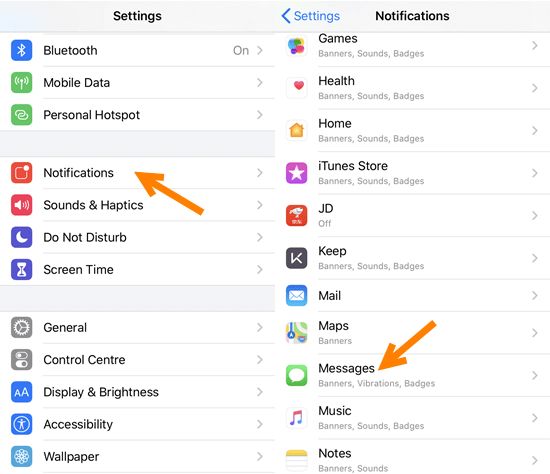
Choosing between “When Unlocked” and “Never” depends on your privacy needs:
When Unlocked (Best for Most People)
- Message previews appear after you unlock with Face ID or Touch ID
- Balances convenience with privacy
- Perfect if you’re the primary phone user but want lock screen protection
- You can still quickly read messages without opening the Messages app
Never (Maximum Privacy)
- No message previews appear—ever
- You must open the Messages app to read any message
- Ideal for shared devices or maximum privacy settings
- Best for sensitive work communications or private conversations
Pro Tip: If you choose “Never,” you’ll see “Notification” on your lock screen instead of the message content. This tells you someone messaged you without revealing who or what they said.
Want to apply this to other apps like WhatsApp, Facebook Messenger, or Telegram? Just follow the same steps but select the different app in your Notifications menu.
Method 2: Use Focus Filters to Hide Specific Contacts
Focus filters are one of the most powerful iOS features for managing your notifications and hiding messages from specific people. This method is perfect when you want to hide conversations from certain contacts without affecting all your messages.
Unlike simply muting someone, Focus mode gives you complete control over who can reach you and when.
Setting Up Custom Focus Mode
Here’s how to create a custom Focus mode to hide alerts from specific contacts:
Step 1: Open the Settings app.
Step 2: Tap Focus.
Step 3: Tap the + button in the top-right corner.
Step 4: Choose Custom at the bottom of the screen.
Step 5: Name your Focus mode (e.g., “Private Time” or “Work Mode”).
Step 6: Tap People under “Allowed Notifications.”
Step 7: Tap Add People and select the contacts you WANT to hear from.
Step 8: Under “Silenced Notifications,” choose Everyone Else to hide messages from all other contacts.
Step 9: Customize Lock Screen appearance if desired.
Step 10: Tap Done.
Now, when this Focus filter is active, you’ll only receive notifications from your selected contacts. Everyone else’s messages are silently delivered—you won’t see lock screen notifications, hear sounds, or get any alerts.
Scheduling Focus Modes
The real power of Focus filters comes from automation. Instead of manually turning Focus mode on and off, schedule it to activate automatically:
Time-Based Scheduling:
Step 1: Open Settings > Focus.
Step 2: Select your custom Focus mode.
Step 3: Tap Add Schedule or Automation.
Step 4: Choose Time.
Step 5: Set your start and end times.
Step 6: Select which days this applies.
Example: Set “Work Mode” to run Monday-Friday, 9 AM to 5 PM, automatically hiding messages from personal contacts during work hours.
Location-Based Scheduling:
Step 1: In your Focus mode settings, tap Add Schedule or Automation.
Step 2: Choose Location.
Step 3: Select a location (work, gym, home, etc.).
Step 4: Choose “When Arriving” or “When Leaving.”
Example: Activate “Private Mode” when you arrive at family gatherings, automatically concealing messages from work contacts.
App-Based Scheduling:
Step 1: Tap Add Schedule or Automation.
Step 2: Choose App.
Step 3: Select specific apps.
Example: When you open your work email app, automatically enable Focus mode to hide personal messages.
Pro Tip: You can create multiple Focus modes for different scenarios—Work, Sleep, Driving, Personal Time, etc. Each can have unique notification settings and scheduled times.
Method 3: Hide Alerts for Individual Conversations
Sometimes you don’t want to create an entire Focus mode—you just want to hide alerts from one annoying group chat or a specific person. The Messages app has a built-in feature for this exact situation.
When you hide alerts for a conversation, you still receive the messages, but your iPhone won’t show notifications, play sounds, or display banners. The secret messages sit quietly waiting for you to check them when you’re ready.
Here’s how to hide alerts for specific conversations:
Step 1: Open the Messages app.
Step 2: Find the conversation you want to mute.
Step 3: Swipe left on the conversation.
Step 4: Tap the bell icon with a slash through it (Hide Alerts).
A moon icon will appear next to the conversation, indicating alerts are hidden. You’ll still see a badge on your Messages app icon showing unread messages, but you won’t get any lock screen or banner notifications.
To unhide alerts later:
Step 1: Swipe left on the conversation again.
Step 2: Tap Show Alerts.
Alternative Method (More Options):
Step 1: Open the conversation in the Messages app.
Step 2: Tap the contact name or group name at the top.
Step 3: Tap Info (i icon).
Step 4: Toggle Hide Alerts to ON.
From this screen, you can also:
- Archive the conversation (new in iOS 18)
- Block the contact
- View shared photos and links
- Enable Focus filters for this specific contact
When to Use This Method:
✓ Muting group chats that are too active
✓ Hiding messages from contacts you don’t want to see immediately
✓ Private conversations that don’t need instant notification
✓ Temporarily silencing someone without blocking them
✓ Keeping work messages separate from personal life
Pro Tip: If you use WhatsApp, the process is similar. Open the chat, tap the contact name, and select “Mute” to hide WhatsApp messages from your notifications.
Method 4: Archive Messages (iOS 18 Feature)
iOS 18 introduced a game-changing feature: the ability to archive messages without deleting them. This is perfect for keeping messages private while decluttering your main conversation list.
Archived messages are hidden from your main Messages app view but remain fully accessible when you need them. Think of it as a hidden folder for your conversations.
How to Archive Messages:
Step 1: Open the Messages app.
Step 2: Swipe left on any conversation you want to archive.
Step 3: Tap Archive (folder icon).
The conversation disappears from your main message list but isn’t deleted. It’s now safely stored in your archive.
How to View Archived Messages:
Step 1: Open the Messages app.
Step 2: Scroll to the very top of your conversation list.
Step 3: Tap Archived (you’ll see a number indicating how many archived conversations you have).
Step 4: Tap any conversation to view it.
How to Unarchive Messages:
Step 1: Go to your Archived folder.
Step 2: Swipe left on the conversation.
Step 3: Tap Unarchive.
The conversation returns to your main message list.
Archive vs. Delete vs. Hide Alerts:
| Feature | Archive | Delete | Hide Alerts |
| Keeps messages | ✓ Yes | ✗ No | ✓ Yes |
| Hides from main list | ✓ Yes | ✓ Yes | ✗ No |
| Stops notifications | ✗ No | ✓ Yes | ✓ Yes |
| Recoverable | ✓ Yes | ✗ No | ✓ Yes |
| Best for | Decluttering | Permanent removal | Reducing interruptions |
When to Use Archive:
✓ Old conversations you want to keep but don’t need to see daily
✓ Private conversations you want hidden from your main list
✓ Messages you might need to reference later
✓ Keeping messages private when sharing your screen
✓ Organizing your Messages app without permanent deletion
Pro Tip: You can set up Focus filters to automatically archive messages from specific contacts. Go to Settings > Focus > Choose a mode > Focus Filters > Messages > Archive conversations from > Select contacts.
Method 5: Use Third-Party Apps for Extra Privacy
While Apple’s built-in privacy settings are solid, sometimes you need extra security for truly secret messages. Third-party apps offer features like password protection, invisible ink, disappearing messages, and disguised interfaces.
These apps are perfect when you need maximum message privacy and want to hide conversations completely from prying eyes.
Best Apps for 2026
1. Signal – The Gold Standard for Privacy
Signal is the most trusted name in secure messaging. It offers end-to-end encryption, disappearing messages, and screen security features.
Key Features:
- Military-grade encryption
- Disappearing messages (set custom timers)
- Screen lock with Face ID or Touch ID
- No message previews in notifications
- Open-source and independently audited
Best For: People who prioritize security above all else.
2. NewsTalk – Disguised Messaging
NewsTalk takes discrete messaging to another level by disguising itself as a news app. Notifications appear as breaking news alerts, making your private messages completely undetectable.
Key Features:
- Appears as a legitimate news app
- Password-protected chat access (long-press reload button)
- Notifications disguised as news alerts
- Works even on shared devices
- Built-in fake news articles for cover
Best For: People who need complete discretion and want secret messages hidden in plain sight.
3. Telegram – Feature-Rich Privacy
Telegram offers “Secret Chats” with self-destruct timers and screenshot protection.
Key Features:
- Secret chats with end-to-end encryption
- Self-destruct messages (1 second to 1 week)
- No screenshots allowed in secret chats
- Cloud-based storage for regular chats
- Large file sharing capabilities
Best For: People who want flexibility between regular and secret messages.
4. Wickr Me – Enterprise-Level Security
Wickr is designed for secure business communications but works great for personal use too.
Key Features:
- End-to-end encryption
- Automatic message expiration
- No phone number required
- Secure file sharing
- Shredder tool for permanent deletion
Best For: Professional and business communications requiring secure texts.
5. CoverMe – Encrypted Private Vault
CoverMe combines messaging with a private vault for photos and files.
Key Features:
- Private conversations with military encryption
- Hidden vault for photos and videos
- Private calling with encrypted voice
- Password protection with Face ID
- Decoy password feature
Best For: People who need to hide messages AND other sensitive content.
Pros and Cons
| App | Pros | Cons |
| Signal | • Most secure encryption<br>• Trusted by security experts<br>• Free and open-source<br>• No ads | • Requires contacts to use Signal<br>• Basic interface<br>• Fewer features than competitors |
| NewsTalk | • Completely disguised<br>• Notifications look like news<br>• Works on shared devices<br>• No one suspects it’s a messaging app | • Both users need the app<br>• Learning curve for features<br>• Smaller user base |
| Telegram | • Good balance of features and security<br>• Large user base<br>• Cloud sync across devices<br>• Free unlimited storage | • Regular chats not end-to-end encrypted<br>• Controversial privacy policies<br>• Some security concerns |
| Wickr Me | • Enterprise-grade security<br>• No personal info required<br>• Automatic message deletion<br>• Professional features | • Smaller user community<br>• Interface less intuitive<br>• Some features require premium |
| CoverMe | • Multiple privacy features<br>• Private vault included<br>• Encrypted calling<br>• Decoy password option | • Subscription required for full features<br>• Can be complex<br>• Battery usage higher |
Important Security Tips When Using Third-Party Apps:
- Always enable biometric lock (Face ID or Touch ID)
- Turn off message previews in notification settings
- Don’t use your main phone number if possible
- Enable disappearing messages for sensitive conversations
- Regularly update the app for latest security patches
- Avoid screenshotting secret messages
- Use a strong password different from your phone’s passcode
Pro Tip: For maximum privacy, use Signal or NewsTalk for secret messages and keep using iMessage for regular conversations. This compartmentalizes your communications and makes your truly private conversations even more secure.
Advanced Privacy Settings
Beyond the main methods, your iPhone has several advanced privacy settings that further protect your messages and enhance overall security. These features work in combination with the methods above to create multiple layers of message privacy.
Face ID Lock for Messages
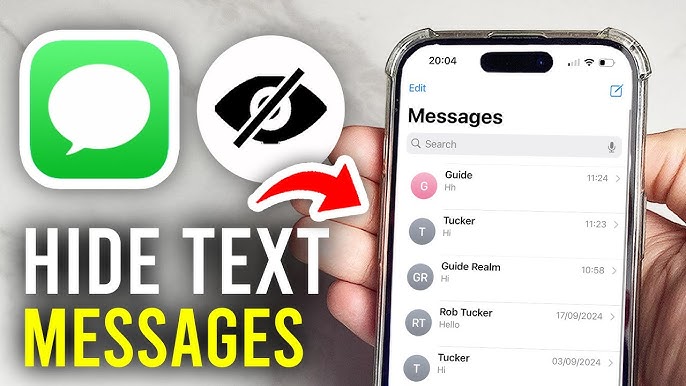
While your iPhone has Face ID or Touch ID for unlocking, you can add an extra security layer specifically for the Messages app using Screen Time.
Setting Up App-Specific Lock:
Step 1: Open the Settings app.
Step 2: Scroll down and tap Screen Time.
Step 3: Tap App Limits.
Step 4: Tap Add Limit.
Step 5: Select Social Networking or manually choose Messages.
Step 6: Set the time limit to 1 minute.
Step 7: Enable Block at End of Limit.
Step 8: When the limit triggers, set a Screen Time passcode (different from your phone passcode).
Now, when someone tries to open your Messages app, they’ll need your Screen Time passcode after the 1-minute limit expires.
Better Alternative – Use Shortcuts Automation:
Step 1: Download the Shortcuts app (pre-installed on iOS 18+).
Step 2: Create a new automation triggered by opening Messages.
Step 3: Add Face ID authentication requirement.
Step 4: If authentication fails, close the app automatically.
This provides seamless Face ID protection specifically for your Messages app without affecting other apps.
Third-Party App Lock Solutions:
Apps like BioProtect, Folder Lock, and App Locker offer dedicated app locking features:
- Lock individual apps with Face ID/Touch ID
- Set different passwords for different apps
- Take photos of intruders
- Fake crash screens
- Time-based locking
When to Use App-Specific Locks:
✓ You share your iPhone with family members
✓ You leave your phone unlocked at work
✓ You want extra protection for private conversations
✓ Someone knows your phone passcode
✓ You frequently hand your phone to others
Filtering Unknown Senders
iOS includes a powerful feature that filters messages from people not in your contacts. This isn’t just for spam—it also helps keep messages private by separating personal and unknown senders.
How to Enable Unknown Sender Filtering:
Step 1: Open Settings app.
Step 2: Scroll down and tap Messages.
Step 3: Toggle ON Filter Unknown Senders.
This creates two tabs in your Messages app:
- Known Senders – Contacts in your address book
- Unknown Senders – Everyone else
Messages from unknown senders won’t trigger notifications, sounds, or lock screen alerts. They’re silently delivered to the Unknown Senders tab.
Additional Message Filtering Options:
Block Unknown Callers and Messages:
Step 1: Settings > Phone > Silence Unknown Callers (toggle ON).
Step 2: Settings > Messages > Filter Unknown Senders (toggle ON).
Now, calls and messages from numbers not in your contacts are automatically silenced.
Report Junk Messages:
Step 1: Open a spam message.
Step 2: Tap the contact/number at the top.
Step 3: Tap info (i icon).
Step 4: Scroll down and tap Report Junk.
This reports the sender to Apple and your carrier, helping improve filtering for everyone.
Pro Tips for Advanced Privacy:
- Enable Two-Factor Authentication on your Apple ID for account security
- Use Sign in with Apple for apps instead of sharing your real email
- Turn off iCloud Messages sync if you don’t want messages on all devices
- Disable message reactions from showing in notifications
- Turn off read receipts in Settings > Messages > Send Read Receipts
- Hide sensitive notifications completely: Settings > Notifications > Show Previews > Never
- Enable Stolen Device Protection (iOS 17.3+) for additional security
Bonus: Invisible Ink in iMessage
For one-off private messages, use the Invisible Ink feature in iMessage:
Step 1: Type your message in iMessage.
Step 2: Press and hold the blue send arrow.
Step 3: Select Invisible Ink from the effects menu.
Step 4: Send the message.
The recipient must swipe over the message to reveal it, adding a layer of discretion to sensitive messages.
Comparison Table: All Methods at a Glance
Choosing the right method depends on your specific needs. Here’s a comprehensive comparison to help you decide:
| Method | Privacy Level | Ease of Use | Messages Visible? | Notifications? | Best For |
| Hide Lock Screen Previews | ⭐⭐⭐ Medium | ⭐⭐⭐⭐⭐ Very Easy | ✓ In Messages app | ✓ Yes (no preview) | Quick lock screen privacy |
| Focus Filters | ⭐⭐⭐⭐ High | ⭐⭐⭐ Medium | ✓ In Messages app | ✗ No (during Focus) | Scheduled privacy |
| Hide Alerts | ⭐⭐⭐ Medium | ⭐⭐⭐⭐⭐ Very Easy | ✓ In Messages app | ✗ No | Individual contacts |
| Archive Messages | ⭐⭐⭐⭐ High | ⭐⭐⭐⭐ Easy | ✗ Hidden in archive | ✓ Yes | Decluttering |
| Third-Party Apps | ⭐⭐⭐⭐⭐ Very High | ⭐⭐ Harder | ✗ Only in special app | Optional | Maximum privacy |
| Face ID Lock | ⭐⭐⭐⭐⭐ Very High | ⭐⭐⭐ Medium | ✓ Behind lock | ✓ Yes | Shared devices |
| Filter Unknown | ⭐⭐⭐ Medium | ⭐⭐⭐⭐ Easy | ✓ In separate tab | ✗ No | Spam + privacy |
Feature Comparison:
| Feature | Built-in iOS | Third-Party Apps |
| Cost | Free | Free to $5/month |
| Encryption | Standard | Military-grade |
| Disappearing Messages | No | Yes |
| Disguised Interface | No | Yes (some apps) |
| Biometric Lock | Requires setup | Built-in |
| Cross-Platform | Apple only | Android + iOS |
| Cloud Backup | Yes | Varies |
| Learning Curve | Minimal | Moderate |
Quick Decision Guide:
Choose Hide Lock Screen Previews if:
- You want the simplest solution
- You’re okay with messages being visible once unlocked
- You want to protect privacy from casual glances
Choose Focus Filters if:
- You want automated privacy based on time/location
- You need to hide messages from specific contacts during certain hours
- You want professional/personal life separation
Choose Hide Alerts if:
- You want to mute specific conversations
- You still want to check messages on your own time
- You don’t need to hide the conversation from your message list
Choose Archive if:
- You want to declutter your Messages app
- You need easy access to archived messages when needed
- You want a clean message list without permanent deletion
Choose Third-Party Apps if:
- You need maximum security and privacy
- You’re sending truly secret messages
- You want features like disappearing messages or disguised notifications
- Someone might force you to unlock your phone
Choose Face ID Lock if:
- You share your iPhone with others
- You leave your phone unlocked in public
- You want an extra security layer just for Messages
Choose Filter Unknown if:
- You receive spam frequently
- You want to separate contacts from strangers
- You want to reduce unwanted notifications
Pro Tip: Combine multiple methods for maximum message privacy. For example, use Hide Lock Screen Previews + Focus Filters + Archive for comprehensive protection without third-party apps.
Common Issues & Troubleshooting
Even with the best setup, you might encounter issues when trying to hide messages on iPhone. Here are the most common problems and their solutions:
Problem 1: Message Previews Still Showing on Lock Screen
Symptoms: After changing Show Previews to “Never,” you still see message content on your lock screen.
Solutions:
✓ Check each app individually – Some apps have their own notification settings. Go to Settings > Notifications > Select each messaging app > Show Previews > Never.
✓ Restart your iPhone – Sometimes settings don’t apply until you restart. Press and hold the power button and slide to power off.
✓ Update iOS – Go to Settings > General > Software Update. Older iOS versions have bugs with notification settings.
✓ Check Do Not Disturb settings – If Show Previews is set to “When Unlocked” but your DND settings override it, previews may still appear.
Problem 2: Focus Mode Not Hiding Messages
Symptoms: You’ve set up Focus filters, but notifications from blocked contacts still appear.
Solutions:
✓ Verify Focus is active – Check your lock screen or Control Center for the Focus mode indicator.
✓ Check “Allowed Notifications” – Go to Settings > Focus > Your mode > People. Make sure unwanted contacts aren’t in “Allowed.”
✓ Enable “Share Across Devices” – Settings > Focus > Toggle on “Share Across Devices” so Focus filters apply to all your Apple devices.
✓ Check app-specific settings – Some apps bypass Focus mode. Go to Settings > Focus > Your mode > Apps and ensure messaging apps respect Focus.
✓ Disable “Time Sensitive Notifications” – Some messages marked as “Time Sensitive” bypass Focus mode. Go to Settings > Notifications > Messages > Toggle off “Time Sensitive Notifications.”
Problem 3: Archived Messages Keep Reappearing
Symptoms: You archive messages, but they pop back into your main conversation list.
Solutions:
✓ Don’t reply from archive – When you send a new message from an archived conversation, it automatically unarchives. View only, don’t respond.
✓ Turn off automatic unarchiving – Go to Settings > Messages > Toggle off “Keep Archived Conversations Archived” (iOS 18+).
✓ Check iCloud sync – If you have multiple devices, one device might be unarchiving conversations. Ensure all devices have the same settings.
Problem 4: Face ID Lock Not Working for Messages
Symptoms: The Screen Time method isn’t requiring Face ID to open Messages.
Solutions:
✓ Set time limit lower – Try setting the App Limit to 0 minutes instead of 1 minute.
✓ Verify Screen Time passcode – Make sure you have a separate Screen Time passcode set, different from your phone’s passcode.
✓ Use Shortcuts instead – The Screen Time method isn’t perfect. Use the Shortcuts app automation for more reliable app locking.
✓ Try third-party apps – Apps like BioProtect offer more reliable app-specific locking with Face ID or Touch ID.
Problem 5: Third-Party App Notifications Too Obvious
Symptoms: Your “secret” messaging app shows obvious notifications that give away its purpose.
Solutions:
✓ Turn off all notifications – Go to Settings > Notifications > Your app > Toggle off “Allow Notifications.”
✓ Use disguised apps – Switch to apps like NewsTalk that disguise notifications as something innocent.
✓ Change app name – Some apps let you rename them. Use a boring name like “Notes” or “Calculator.”
✓ Hide app in folder – Place the app deep within a folder with other similar apps to make it less obvious.
Problem 6: Unknown Sender Filter Not Working
Symptoms: Messages from unknown numbers still show notifications and appear in your main messages list.
Solutions:
✓ Check if numbers are saved – If a contact has even partial information saved, iOS considers them “known.” Delete partial contacts.
✓ Enable both filters – Turn on BOTH “Filter Unknown Senders” AND “Silence Unknown Callers” for complete filtering.
✓ Report as junk – Report spam messages as junk to improve filtering accuracy.
✓ Check carrier settings – Some carriers have additional filtering. Contact your carrier for their spam blocking options.
Problem 7: Messages Syncing to Other Devices
Symptoms: You hide messages on your iPhone, but they’re still visible on your iPad or Mac.
Solutions:
✓ Apply settings to all devices – Privacy settings must be configured individually on each device. Repeat the setup on iPad, Mac, and other devices.
✓ Turn off iCloud Messages – Go to Settings > Apple ID > iCloud > Toggle off Messages. This stops sync but also means messages aren’t backed up.
✓ Use device-specific accounts – Consider using different Apple IDs on different devices for complete separation.
Problem 8: Lost Access to Archived/Hidden Messages
Symptoms: You can’t find messages you archived or the Archive option isn’t visible.
Solutions:
✓ Update to iOS 18+ – The Archive feature requires iOS 18 or later. Update your iPhone to access it.
✓ Scroll to top – The Archived folder appears at the very top of your message list. Scroll all the way up.
✓ Search for the conversation – Use the search bar in Messages to find archived conversations.
✓ Check iCloud backup – If you deleted instead of archived, restore from a previous iCloud backup (this will erase current data).
Still Having Issues?
✓ Reset all settings – Go to Settings > General > Transfer or Reset iPhone > Reset > Reset All Settings. This won’t delete data but will reset privacy settings to default.
✓ Contact Apple Support – If nothing works, Apple Support can diagnose device-specific issues.
✓ Check for iOS bugs – Search Apple’s support forums to see if others have similar issues with your iOS version.
Pro Tip: Before troubleshooting, take screenshots of your current notification settings and privacy settings so you can restore them if needed.
FAQs About Hiding iPhone Messages
Can I hide text messages on iPhone without the other person knowing?
Yes, all methods in this guide are invisible to the sender. When you hide messages, archive conversations, or use Focus filters, the other person has no idea—they just see their messages as “Delivered.”
Will hiding messages delete them permanently?
No. All the methods covered here keep messages private without deleting them. Your messages remain accessible to you but hidden from others. Only deleting permanently removes them.
Can someone see my hidden messages if they unlock my phone?
It depends on the method. Hide Lock Screen Previews only hides the message preview—messages are visible once unlocked. Archive and Focus filters provide better privacy even after unlocking. For maximum security, use third-party apps with password protection.
Does hiding messages affect iCloud backup?
No. All hidden, archived, or muted messages are still backed up to iCloud normally. Your privacy settings are preserved in backups.
Can I hide WhatsApp messages using these methods?
Yes. Methods 1, 2, and 3 work with WhatsApp and other messaging apps. Each app also has its own built-in privacy features—check Settings within WhatsApp for additional options like archived chats and fingerprint lock.

I’m Watson, a faith-inspired writer passionate about sharing heartfelt blessings and uplifting words that bring peace, gratitude, and hope. Through my daily blessings, I aim to comfort the soul and inspire spiritual growth.