
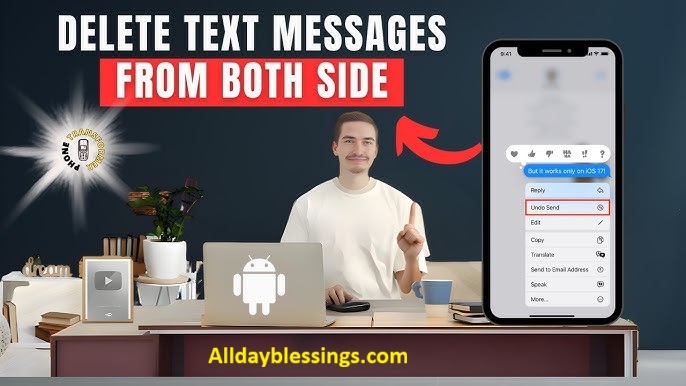
How to Delete Text Messages on iPhone for Both Sides or Have you ever sent a text message and immediately regretted it? Whether it’s a message sent to the wrong person, an embarrassing typo, or sensitive information you wish you could take back, we’ve all been there.
The good news is that with iOS 16 or later, Apple finally introduced a way to delete messages from both your iPhone and the recipient’s device—but it comes with strict limitations you need to understand.
This comprehensive guide will walk you through every method available to delete text messages on iPhone for both sides, explain the critical requirements and limitations, and help you avoid common mistakes that leave your messages visible to recipients.
Table of Contents
Can You Really Delete Messages on iPhone for Both Sides?
The short answer: Yes, but only under specific conditions.
Apple’s Undo Send feature allows you to delete iMessages from both your device and the recipient’s device, but you must act within a 2-minute window. Both you and the recipient must be using iOS 16 or later for this to work. If either device runs an older iOS version, the message will remain visible on the recipient’s phone even after you “unsend” it from your end.
For SMS/MMS messages (green bubbles), there is no way to delete them from the recipient’s device. The Undo Send feature only works with iMessage (blue bubbles).
Understanding iMessage vs SMS: Key Differences
Before diving into deletion methods, it’s crucial to understand the difference between iMessage and SMS, as this determines whether you can delete messages for both sides.
iMessage (Blue Bubbles)
iMessage is Apple’s proprietary messaging service that works exclusively between Apple devices. When you send an iMessage, you’ll see blue message bubbles. Key features include:
- Internet-based: Uses Wi-Fi or cellular data instead of your text messaging plan
- End-to-end encryption: Your messages are secure and private
- Rich features: Supports read receipts, typing indicators, reactions, effects, and high-quality media sharing
- Cross-device sync: Messages appear on all your Apple devices signed in with the same Apple ID
- Undo Send capability: Works only with iOS 16 or later
SMS/MMS (Green Bubbles)
SMS (Short Message Service) and MMS (Multimedia Messaging Service) are traditional cellular text messaging protocols. You’ll see green bubbles when:
- You’re texting someone with an Android phone or non-Apple device
- iMessage is turned off on your device or the recipient’s device
- You don’t have an internet connection and your iPhone falls back to SMS
Key characteristics:
- Cellular network-based: Uses your carrier’s text messaging service
- No encryption: Messages can be intercepted or viewed by carriers
- Limited features: No read receipts, typing indicators, or message editing
- Character limits: SMS messages are limited to 160 characters per message
- Cannot be unsent: There’s no way to delete SMS messages from the recipient’s device
| Feature | iMessage (Blue) | SMS/MMS (Green) |
| Requires | iOS/macOS device | Any phone |
| Connection | Internet (Wi-Fi/Data) | Cellular network |
| Encryption | End-to-end | None |
| Undo Send | Yes (iOS 16+) | No |
| Edit Messages | Yes (15 min) | No |
| Media Quality | High resolution | Compressed |
| Read Receipts | Available | Not available |
| Cost | Free (uses data) | May incur carrier charges |
Method 1: Use Undo Send (iOS 16+) – The Official Way
This is the only official method provided by Apple to delete messages from both your iPhone and the recipient’s device. When executed correctly, it completely removes the message from both sides of the conversation.
Requirements for Undo Send
Before attempting to unsend a message, verify these requirements:
- Both devices must run iOS 16 or later (or iPadOS 16.1, macOS 13, watchOS 9, visionOS 1)
- The message must be an iMessage (blue bubble)
- You must act within 2 minutes of sending the message
- Both sender and recipient must have internet connectivity
Step-by-Step Guide to Undo Send
Step 1: Send Your iMessage
- Open the Messages app on your iPhone
- Navigate to the conversation with your intended recipient
- Type your message in the text field at the bottom
- Tap the blue send arrow to send the message
- Verify the message appears as a blue bubble (this confirms it’s an iMessage, not SMS)
Step 2: Unsend the Message (Within 2 Minutes)
- Act immediately! You only have 2 minutes from the moment you send the message
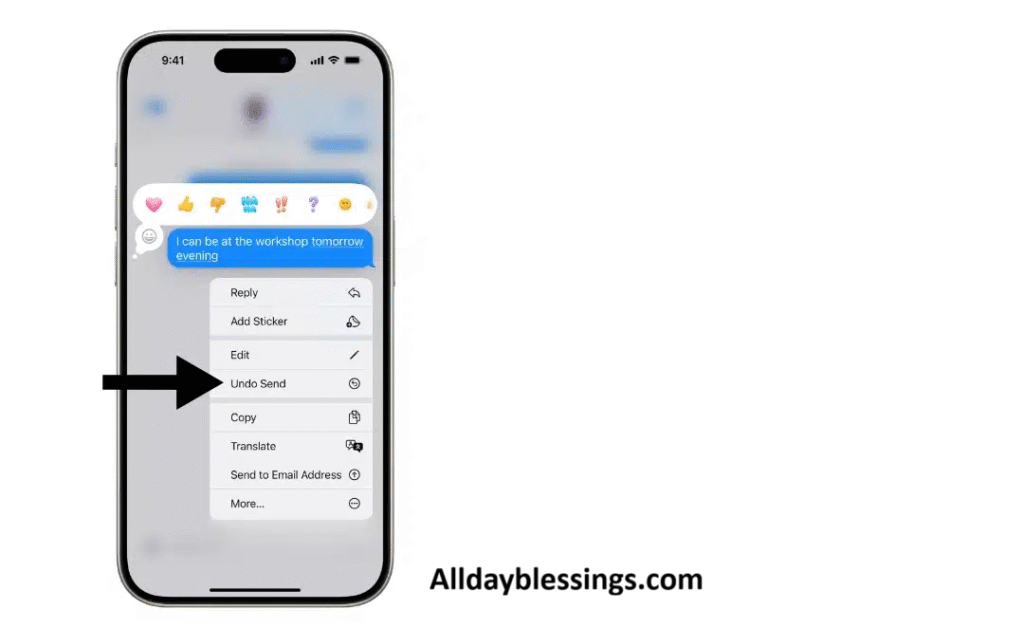
- Tap and hold directly on the message bubble you just sent
- A context menu will slide up from the bottom of your screen
- Tap “Undo Send” from the menu options
- The message will instantly disappear from your screen
Step 3: Verify the Deletion
After tapping Undo Send:
- The message bubble will vanish from your conversation
- A small gray notification will appear saying “You unsent a message”
- If the recipient is using iOS 16 or later, they’ll see the same notification
- The message content is completely removed from both devices
What the Recipient Sees
The recipient’s experience depends on their iOS version:
If recipient has iOS 16 or later:
- The message disappears from their screen
- They see a notification: “[Your Name] unsent a message”
- They cannot view the original message content
- The notification remains in the conversation
If recipient has iOS 15 or earlier:
- The original message remains visible on their device
- They see your full message as if nothing happened
- You’ll receive a warning: “You unsent a message. [Recipient] may still see the message on their device”
- The message only disappears from your device
The 2-Minute Window: Everything You Need to Know
The 2-minute time limit is non-negotiable and starts the instant your message is delivered. Here’s what you need to know:
Why 2 minutes?
- Apple designed this window to prevent misuse while allowing quick corrections
- It’s enough time to catch immediate regrets but not long enough to unsend messages the recipient has already read and responded to
What counts against your 2 minutes:
- Network delays don’t extend the window
- The timer starts when the message is delivered, not when you tap send
- If you’re on a slow connection, the message might deliver late, giving you less time
Common scenarios that waste your 2-minute window:
- Taking time to realize you sent to the wrong person
- Fumbling to find the Undo Send option
- Being distracted immediately after sending
- Not knowing the feature exists
Pro tip: If you’re sending a sensitive or important message, keep the Messages app open for 30 seconds after sending. This gives you immediate access to Undo Send if needed.
Troubleshooting Undo Send
Problem: The “Undo Send” option doesn’t appear
Solutions:
- Verify you’re running iOS 16 or later (Settings > General > About)
- Confirm the message is a blue bubble (iMessage), not green (SMS)
- Check that you’re within the 2-minute window
- Make sure you’re tapping and holding the correct message bubble
- Restart the Messages app and try again
Problem: You unsent the message, but the recipient says they can still see it
Possible causes:
- The recipient is using iOS 15 or earlier
- The recipient took a screenshot before you unsent it
- Their device hasn’t synced the deletion due to poor connectivity
- They saw the notification preview before the message was deleted
Problem: The message won’t unsend even though all requirements are met
Try these fixes:
- Check your internet connection (Wi-Fi or cellular data)
- Verify the recipient’s device is online
- Force quit the Messages app and reopen it
- Update to the latest iOS version
- Sign out and back into iMessage (Settings > Messages > Send & Receive)
Method 2: Delete Messages Locally Only
This method removes messages from your device only—they remain visible on the recipient’s phone. However, it’s useful for managing your own message history and freeing up storage space.
When to Use Local Deletion
- You want to clear your own message history for privacy
- You need to free up storage space on your iPhone
- You’re not concerned about the recipient still having the messages
- The 2-minute Undo Send window has passed
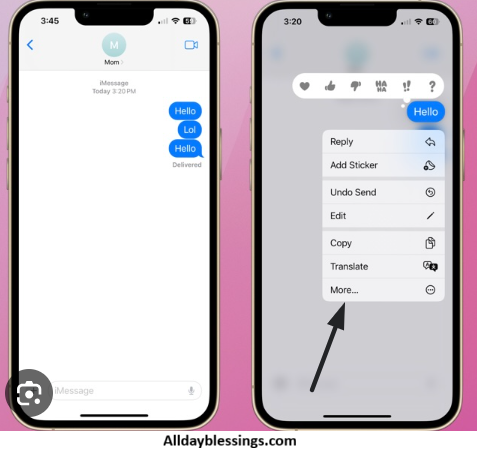
How to Delete Individual Messages
- Open the Messages app
- Open the conversation containing messages you want to delete
- Tap and hold the specific message bubble
- Tap “More” from the menu
- Select additional messages if needed (they’ll show a checkmark)
- Tap the trash icon in the bottom-left corner
- Confirm by tapping “Delete Message” (or “Delete Messages” if multiple)
How to Delete Entire Conversations
Method A: Swipe to Delete
- Open the Messages app
- In your conversation list, swipe left on the conversation
- Tap the red “Delete” button
- The entire conversation is removed from your device
Method B: Edit Mode
- Open the Messages app
- Tap “Edit” in the top-left corner
- Tap “Select Messages”
- Select the conversations you want to delete
- Tap the trash icon
- Tap “Delete” to confirm
Important Notes About Local Deletion
- Messages are moved to “Recently Deleted” for 30 days
- You can recover them within this period
- After 30 days, they’re permanently deleted
- Deleted messages are removed from all your Apple devices if iCloud Messages is enabled
- The recipient still has all the messages you deleted
Method 3: Using iCloud Synchronization
iCloud Messages syncs your messages across all Apple devices signed in with your Apple ID. Understanding how this works can help you manage messages more effectively.
How iCloud Messages Works
When iCloud Messages is enabled:
- All your messages are stored in iCloud
- Deleting a message on one device deletes it on all your devices
- Messages don’t count against your iPhone storage (they’re in the cloud)
- New devices automatically download your message history
Checking iCloud Messages Status
- Open Settings on your iPhone
- Tap your name at the top
- Tap iCloud
- Tap Show All (under Apps Using iCloud)
- Look for Messages and check if it’s enabled
Deleting Messages from iCloud
Important: This only removes messages from YOUR devices, not the recipient’s.
- Ensure iCloud Messages is enabled on all your devices
- Delete messages using Method 2 (Local Deletion) on any device
- The deletion syncs automatically to all your Apple devices
- Messages are permanently removed from iCloud after 30 days
Managing iCloud Message Backups
If you want to remove messages from iCloud backups:
- Go to Settings > [Your Name] > iCloud
- Tap Manage Account Storage > Backups
- Tap your device name
- Toggle off Messages
- Tap Turn Off & Delete
This prevents messages from being included in future backups, and removes them from existing backups.
Method 4: Third-Party Messaging Apps
If you need more robust message deletion features than Apple provides, consider using third-party messaging apps that support “Delete for Everyone” functionality.
WhatsApp – Delete for Everyone
Time window: Up to 2 days, 12 hours after sending
How it works:
- Open WhatsApp and the conversation
- Tap and hold the message you want to delete
- Tap the trash icon at the top
- Select “Delete for Everyone”
- The message is removed from both sides
Limitations:
- Both users must have WhatsApp installed
- Recipient may see a notification before you delete
- Screenshots can still capture messages
Telegram – Delete for Everyone
Time window: No time limit (can delete old messages)
How it works:
- Open Telegram and find the message
- Tap and hold the message
- Select “Delete”
- Choose “Delete for everyone”
- Confirm deletion
Advantages:
- Works for messages sent days, weeks, or months ago
- More reliable than other platforms
- No recipient notification
Signal – Delete for Everyone
Time window: Up to 3 hours after sending
How it works:
- Open Signal and the conversation
- Long press the message
- Tap the three dots
- Select “Delete for everyone”
- Confirm
Security features:
- End-to-end encryption (most secure)
- Disappearing messages option
- Screenshot notifications
Comparison Table: Third-Party Apps
| App | Delete Window | Both Sides | Encryption | Notification to Recipient |
| 2 days, 12 hours | Yes | Yes | “This message was deleted” | |
| Telegram | Unlimited | Yes | Optional | No notification |
| Signal | 3 hours | Yes | Yes | “This message was deleted” |
| iMessage | 2 minutes | Yes (iOS 16+) | Yes | “Unsent a message” |
| SMS/MMS | Not possible | No | No | N/A |
Safety Warnings About Third-Party Apps
Legitimate apps:
- WhatsApp, Telegram, Signal are reputable and safe
- They’re widely used with millions of active users
- Available through the official App Store
Apps to avoid:
- Any app claiming to delete SMS messages from both sides (impossible)
- Apps requiring access to your iCloud credentials
- Apps promising to “hack” or remotely delete messages
- Spyware apps like mSpy or similar tracking software
Red flags:
- Requests for excessive permissions
- Promises that sound too good to be true
- Poor reviews or unknown developers
- Asks you to jailbreak your iPhone
iOS Version Requirements & Compatibility
Understanding iOS compatibility is crucial for successful message deletion. Here’s everything you need to know.
iOS Version Timeline
| iOS Version | Release Date | Undo Send Support |
| iOS 15 or earlier | Before Sept 2022 | ❌ Not supported |
| iOS 16 | September 2022 | ✅ Fully supported |
| iOS 17 | September 2023 | ✅ Fully supported |
| iOS 18 | September 2024 | ✅ Fully supported |
Checking Your iOS Version
- Open Settings
- Tap General
- Tap About
- Look for Software Version
Your version will show as something like “18.1.1” or “16.7.2”—the first number (before the dot) is what matters.
Checking Recipient’s iOS Version
You cannot directly check someone else’s iOS version, but these clues help:
Strong indicators they have iOS 16+:
- They can unsend messages to you
- They can edit messages (shows “Edited” label)
- Recent iPhone models (iPhone 14, 15, 16 typically run newer iOS)
Signs they might have older iOS:
- Very old iPhone model (iPhone 6s, 7, 8)
- They’ve mentioned not updating their phone
- They don’t use newer iOS features
What Happens with Version Mismatches
Scenario 1: You have iOS 16+, recipient has iOS 15 or earlier
- You can tap Undo Send on your device
- Message disappears from your screen
- Recipient still sees the full message
- You receive a warning about this
Scenario 2: Recipient has iOS 16+, you have iOS 15 or earlier
- You don’t have the Undo Send option
- You cannot unsend any messages
- Recipient can unsend their messages to you
Scenario 3: Both have iOS 16 or later
- Full Undo Send functionality works
- Messages disappear from both devices
- Both see unsend notifications
Updating to iOS 16 or Later
If you don’t have iOS 16 yet:
- Back up your iPhone (Settings > [Your Name] > iCloud > iCloud Backup)
- Connect to Wi-Fi and plug in your charger
- Go to Settings > General > Software Update
- Tap Download and Install
- Follow the on-screen instructions
Note: Some older iPhones cannot run iOS 16:
- iPhone 6s, 6s Plus, 7, 7 Plus, and SE (1st gen) max out at iOS 15
- Only iPhone 8 and newer can run iOS 16 or later
Common Limitations & What Actually Works
Let’s address the biggest misconceptions and clarify what’s truly possible.
What You CAN Do
✅ Unsend iMessages within 2 minutes (iOS 16+, both sides)
✅ Edit iMessages within 15 minutes (up to 5 edits, recipient sees edit history)
✅ Delete messages from your own device (any time)
✅ Use third-party apps (WhatsApp, Telegram, Signal) for better deletion features
✅ Recover deleted messages from Recently Deleted (within 30 days)
✅ Set messages to auto-delete (after 30 days or 1 year)
What You CANNOT Do
❌ Delete SMS/MMS messages from recipient’s device (impossible—green bubbles)
❌ Unsend iMessages after 2 minutes (window is fixed)
❌ Delete messages if recipient has iOS 15 or earlier (they’ll still see it)
❌ Prevent screenshots (recipient can capture message before deletion)
❌ Remove messages from notification previews (they may see it before deletion)
❌ Use third-party apps to delete standard iPhone messages remotely (scams)
The Screenshot Problem
Even with Undo Send, recipients can capture your messages:
Before you delete:
- Lock screen notifications show message preview (60-200 characters)
- Banner notifications while phone is in use
- Quick screenshots before deletion
Solution:
- Send carefully—assume any message can be captured
- Use disappearing message apps (Signal, Snapchat) for highly sensitive content
- Don’t rely solely on Undo Send for truly confidential information
The Notification Preview Issue
When you send an iMessage, the recipient’s phone may display a notification with part of your message before you can unsend it.
What appears in notifications:
- First 60-200 characters of your message
- Sender name
- Time sent
Factors affecting notification visibility:
- Recipient’s notification settings
- Whether their phone is locked or unlocked
- Their Do Not Disturb settings
Reality check: If you send something truly sensitive, there’s a chance the recipient saw a preview before you could unsend it.
Troubleshooting: When Undo Send Doesn’t Work
Running into problems? Here are solutions to common issues.
Issue 1: “Undo Send” Option Missing
Causes and fixes:
Cause: You’re not running iOS 16 or later
- Fix: Update your iPhone (Settings > General > Software Update)
Cause: The message is SMS (green bubble), not iMessage
- Fix: Only iMessage supports Undo Send—SMS cannot be unsent
Cause: More than 2 minutes have passed
- Fix: The window is closed—you can only delete from your device now
Cause: You’re not tapping and holding the message correctly
- Fix: Press directly on the message bubble and hold for 1-2 seconds
Issue 2: Message Unsent on My Phone but Recipient Still Sees It
Causes and fixes:
Cause: Recipient has iOS 15 or earlier
- Fix: None—the feature requires iOS 16+ on both devices
- Workaround: Ask recipient to delete the message manually
Cause: Recipient’s device is offline
- Fix: Wait for their device to sync (when they connect to internet)
- Note: If too much time passes, the sync may fail
Cause: They took a screenshot
- Fix: None—screenshots are permanent
- Prevention: Send carefully, use disappearing message apps
Issue 3: Poor Network Connection Delays
Symptoms:
- Message takes long to send
- Undo Send option appears but doesn’t work
- Deletion doesn’t sync to recipient
Solutions:
- Check your Wi-Fi or cellular connection
- Wait for strong signal before sending sensitive messages
- Use Wi-Fi for better reliability
- Avoid sending critical messages in areas with poor coverage
Issue 4: Undo Send Works But Leaves Notification
This is normal behavior, not a bug:
- The recipient sees “[Your Name] unsent a message”
- This notification cannot be removed
- It’s Apple’s way of maintaining transparency
Workaround:
- Use third-party apps that don’t leave notifications (like Telegram)
- Be selective about what you unsend
Frequently Asked Questions
Can I delete messages before the recipient reads them?
Only if you use Undo Send within 2 minutes for iMessages between iOS 16+ devices. However, they may still see the notification preview.
Will deleting a message on my iPhone delete it on my iPad?
If iCloud Messages is enabled, yes—deleting on one device removes it from all your Apple devices. But it doesn’t delete from the recipient’s devices.
Can Android users see when I unsend messages?
No. When you text Android users, you’re using SMS (green bubbles), which cannot be unsent at all.
Does unsending a message notify the recipient?
Yes. Recipients with iOS 16+ see “[Your Name] unsent a message” in the conversation.
Can I recover messages I unsent?
No. Once you successfully unsend an iMessage using Undo Send, it’s permanently deleted from both devices and cannot be recovered.
How long do I have to edit a message?
15 minutes, and you can edit up to 5 times. Recipients see an “Edited” label and can view edit history.
Do deleted messages take up storage space?
Messages you delete go to Recently Deleted for 30 days, where they still use storage. After 30 days, they’re permanently removed and stop using storage.
Can police recover deleted iMessages?
Deleted iMessages may be recoverable from backups for a limited time. However, iMessage uses end-to-end encryption, so the content cannot be intercepted in transit.
Will Undo Send work in group chats?
Yes, but every member must have iOS 16+ for the message to disappear for everyone. If even one person has iOS 15 or earlier, they’ll still see it.
Can someone tell if I screenshot their message?
No. iPhone doesn’t notify when you screenshot regular messages. (Note: Some apps like Snapchat do notify for screenshots.)
Is It Ethical? Privacy & Legal Considerations
While the technology exists to delete messages, consider these important ethical and legal points.
When Message Deletion Is Appropriate
Legitimate uses:
- Correcting embarrassing typos
- Removing messages sent to wrong person
- Retracting information sent in error
- Protecting personal privacy
Questionable uses:
- Deleting evidence in legal matters
- Removing messages to hide misconduct
- Manipulating conversation history
- Denying things you said
Legal Considerations
Important legal points:
- Evidence preservation: In legal proceedings, deleting messages may be considered destruction of evidence
- Workplace communications: Employers may have policies about message retention
- Contract discussions: Messages negotiating agreements may need to be preserved
- Harassment cases: Victims should preserve evidence rather than deleting it
Privacy Best Practices
Protect your privacy by:
- Using end-to-end encrypted apps (iMessage, Signal, WhatsApp)
- Setting messages to auto-delete after 30 days
- Regularly reviewing and deleting old conversations
- Being mindful of what you send (assume it could be screenshotted)
Respect others’ privacy by:
- Not sharing screenshots of private conversations
- Asking permission before forwarding messages
- Honoring requests to delete shared information
- Being transparent about your communication
What Competitors Missed: Key Insights
After analyzing dozens of articles on this topic, here’s what most guides fail to mention:
1. The iOS Version Confusion
Most articles say “both users need iOS 16” but fail to explain that:
- iOS version ≠ iPhone model number (iOS 15 is not iPhone 15)
- Many users don’t know their iOS version
- There’s no easy way to check the recipient’s version
- Version mismatches are the #1 reason Undo Send “doesn’t work”
2. The Notification Preview Loophole
Almost no guides mention that recipients may see your message content in notification previews before you can unsend it—making the feature less private than it seems.
3. Group Chat Complications
If even ONE person in a group chat has iOS 15 or earlier, your unsent message remains visible to that person (and potentially shared with others).
4. The Third-Party App Scam Warning
Many articles recommend sketchy “message deletion” apps without warning that:
- Apps cannot remotely delete iPhone messages
- Most are scams or malware
- Some violate privacy laws
5. Time Zone and Network Delays
The 2-minute window is affected by:
- Network latency (slow connections reduce your effective time)
- Time zone differences (doesn’t matter—it’s based on delivery time)
- iMessage sync delays across devices
iOS Version Compatibility Checker
Use this quick reference to determine if Undo Send will work:
Your iPhone Model & iOS Compatibility
| iPhone Model | Max iOS Version | Undo Send Available? |
| iPhone 6s, 6s Plus, SE (1st gen) | iOS 15 | ❌ No |
| iPhone 7, 7 Plus | iOS 15 | ❌ No |
| iPhone 8, 8 Plus, X | iOS 16+ | ✅ Yes (update required) |
| iPhone XR, XS, XS Max | iOS 16+ | ✅ Yes (update required) |
| iPhone 11, 11 Pro, 11 Pro Max | iOS 16+ | ✅ Yes (update required) |
| iPhone 12, 12 mini, 12 Pro, 12 Pro Max | iOS 16+ | ✅ Yes (update required) |
| iPhone 13, 13 mini, 13 Pro, 13 Pro Max | iOS 16+ | ✅ Yes (update required) |
| iPhone 14, 14 Plus, 14 Pro, 14 Pro Max | iOS 16+ | ✅ Yes (may need update) |
| iPhone 15, 15 Plus, 15 Pro, 15 Pro Max | iOS 17+ | ✅ Yes |
| iPhone SE (2nd & 3rd gen) | iOS 16+ | ✅ Yes (update required) |
| iPhone 16, 16 Plus, 16 Pro, 16 Pro Max | iOS 18+ | ✅ Yes |
Decision Flow: Can You Delete the Message?
Follow this flowchart to determine your options:
Is the message a blue bubble (iMessage)?
- No (green bubble) → Cannot delete from recipient’s device
- Yes → Continue
Do both you and the recipient have iOS 16 or later?
- No → Cannot delete from recipient’s device
- Yes → Continue
Has it been less than 2 minutes since you sent the message?
- No → Cannot delete from recipient’s device (only your device)
- Yes → Continue
Do both devices have internet connectivity?
- No → Undo Send may fail or be delayed
- Yes → You can successfully unsend the message!
Auto-Delete Settings for Privacy
Set up automatic message deletion to manage your message history and protect privacy.
Setting Up Auto-Delete
- Open Settings on your iPhone
- Scroll down and tap Messages
- Scroll to Message History
- Tap Keep Messages
- Choose:
- 30 Days (messages older than 30 days are automatically deleted)
- 1 Year (messages older than 1 year are automatically deleted)
- Forever (default—messages never auto-delete)
What Happens When Messages Auto-Delete
- Old messages are permanently removed from your device
- If iCloud Messages is on, they’re removed from all your devices
- The recipient still has their copies
- Deleted messages cannot be recovered
- You’ll see a confirmation before mass deletion occurs
Best Practices for Auto-Delete
Choose 30 days if:
- You value privacy over message history
- You don’t need to reference old conversations
- You want minimal message storage
Choose 1 year if:
- You need to reference recent conversations
- You want balance between privacy and history
- You occasionally need old messages
Choose Forever if:
- You need complete message archives
- You’re in a profession requiring message retention
- You value history over storage space
Advanced Tips: Preventing Message Regret
The best strategy is to avoid sending messages you’ll regret. Here are pro tips:
1. Use the “Airplane Mode” Technique
For truly sensitive messages:
- Turn on Airplane Mode before sending
- Type and “send” your message (it won’t actually send)
- Review the message in your conversation
- If it looks good, turn off Airplane Mode to actually send
- If you have doubts, delete it before re-enabling connectivity
2. Enable “Send with Effect” Delay
Using message effects adds a slight delay:
- Type your message
- Tap and hold the send button
- Choose any effect (Gentle, Loud, etc.)
- This gives you an extra second to reconsider
3. Draft in Notes First
For important messages:
- Compose in the Notes app first
- Review carefully
- Only copy to Messages when you’re certain
- Saves you from regret and typos
4. Use “Send Later” (iOS 16+)
Schedule messages to send later:
- Type your message
- Tap and hold the send button
- Select “Send Later”
- Choose your send time
- You can cancel anytime before it sends
5. Enable Read Receipts Selectively
Know when recipients see your messages:
- Settings > Messages > Send Read Receipts
- Enable for trusted contacts only
- Helps you gauge if Undo Send is still useful
6. Create a “Delay Rule”
Personal policy examples:
- Wait 10 seconds before sending emotional messages
- Never send messages after 10 PM
- Re-read every message before sending
- Avoid messaging when angry or upset
Real User Scenarios & Solutions
Scenario 1: Wrong Recipient
Problem: You sent “I can’t stand working with Sarah” to… Sarah.
Solution:
- Immediately tap and hold the message
- Tap “Undo Send” (if within 2 minutes, both have iOS 16+)
- If Undo Send unavailable: Apologize directly and honestly
- Prevention: Double-check recipient before sending sensitive messages
Scenario 2: Autocorrect Disaster
Problem: Autocorrect changed your message to something embarrassing or nonsensical.
Solution:
- Within 15 minutes: Tap and hold message > Edit > Fix typo
- Recipient sees “Edited” but it’s less suspicious than unsending
- If past 15 minutes: Send a correction message
- Prevention: Proofread before sending, disable autocorrect for important words
Scenario 3: Accidental Group Message
Problem: You sent a message meant for one person to an entire group chat.
Solution:
- Try Undo Send if within 2 minutes
- Remember: ALL members need iOS 16+ or some will still see it
- If it doesn’t work: Address it directly, own the mistake
- Prevention: Check the conversation name before sending
Scenario 4: Message Sent to Someone on Android
Problem: You need to unsend a message but recipient has an Android phone.
Solution:
- Bad news: Impossible—you’re using SMS, which can’t be unsent
- Only option: Ask them to delete it manually
- Prevention: Use cross-platform apps (WhatsApp, Telegram) for sensitive conversations with Android users
Conclusion
Deleting text messages on iPhone for both sides is possible, but it comes with strict requirements: both users must have iOS 16 or later, the message must be an iMessage (blue bubble), and you must act within 2 minutes. When these conditions are met, the Undo Send feature works effectively to remove messages from both devices.
However, it’s crucial to understand the limitations:
- SMS/MMS messages (green bubbles) cannot be unsent
- Recipients may see notification previews before deletion
- Screenshots can preserve messages even after unsending
- iOS version mismatches leave messages visible on older devices
For more robust deletion features, consider using third-party messaging apps like WhatsApp, Telegram, or Signal. These apps offer longer deletion windows and more consistent cross-platform functionality.

I’m Watson, a faith-inspired writer passionate about sharing heartfelt blessings and uplifting words that bring peace, gratitude, and hope. Through my daily blessings, I aim to comfort the soul and inspire spiritual growth.