
Last Updated: December 2025
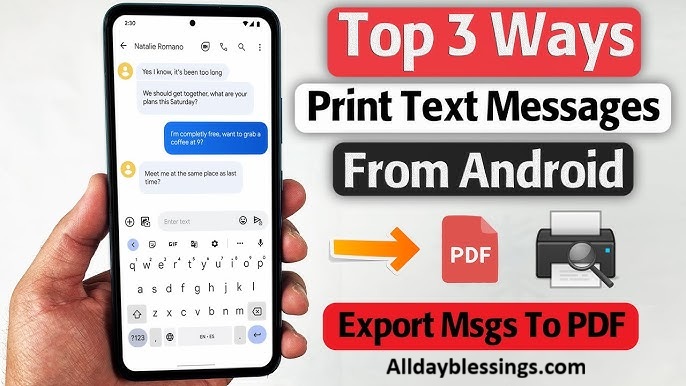
How to Print Text Messages from Android? Whether you need SMS messages for court evidence, personal memories, or business records, this comprehensive guide covers everything you need to know about printing and saving text message conversations in 2025.
With over 23 billion text messages sent daily worldwide, the need to document text messages has become essential for legal cases, compliance requirements, and personal archiving. This guide shows you 5 proven methods to print out text messages from any Android phone, including Samsung Galaxy, Google Pixel, and other devices.
Table of Contents
Why Print Text Messages from Android?
Understanding why you might need to print text messages helps you choose the right method. Here are the most common reasons people need to save text messages to computer or print Android messages to PDF.
Legal Evidence Use Cases
Text messages have become crucial legal evidence in countless court cases. If you’re involved in any legal proceedings, you may need to print text messages for court to present to your lawyer or attorney. These digital conversations can serve as proof in:
- Custody hearings and divorce proceedings
- Workplace disputes and harassment cases
- Contract agreements and business deals
- Personal injury claims
- Criminal trial evidence
- Small claims court cases
Legal administrators and law firm assistants regularly require clients to backup Android text messages for court because these SMS and MMS conversations contain critical information that can make or break a case. The key is ensuring your printed messages maintain proper metadata including timestamps, contact names, and phone numbers for authenticity.
Personal Archiving and Memory Preservation
Not all reasons to print text message conversations are legal. Many people want to preserve:
- Sweet messages from loved ones
- Last conversations with deceased family members
- Milestone announcements (pregnancies, engagements)
- Important life advice from mentors
- Funny conversations worth remembering
- Travel plans and special memories
Export text conversations to keep them safe beyond your phone’s lifespan. Digital messages can be lost due to phone damage, software updates, or accidental deletion.
Business Compliance and Record-Keeping
Businesses using business text messaging platforms need to save text messages for:
- Compliance with industry regulations
- Customer service documentation
- Order confirmations and delivery updates
- Employee communication records
- Financial transaction verification
- Insurance claim documentation
Companies must often maintain SMS records for 3-7 years depending on their industry. Using proper methods to backup SMS messages ensures you meet these requirements.
Backup and Data Security
Creating a backup of your text conversations protects against:
- Phone theft or loss
- Device malfunction
- Accidental message deletion
- Operating system crashes
- Factory reset mistakes
Regular backups to Google Drive, Google One, or your computer provide peace of mind that your important messages are safe.
Requirements: What You Need
Before you print text messages from Android, gather these essentials to ensure a smooth process.
Your Android Phone
Any Android phone works with these methods, including:
- Samsung Galaxy (S24, S23, A series, Note series)
- Google Pixel (Pixel 8, Pixel 7, Pixel 6)
- OnePlus devices
- Motorola phones
- LG smartphones
- Other Android manufacturers
Your device should run Android 8.0 or higher for best compatibility with modern apps and features. The Messages app or Google Messages should be your default text messaging application.
Printing Options Overview
You have multiple ways to print your SMS and MMS messages:
- Wi-Fi printer with wireless connectivity
- Cloud printer supporting email or app printing
- USB connection to computer
- Bluetooth printer pairing
- Professional printing services (like Google Photos)
Most modern printers from HP Smart, Canon, Epson, and Brother support wireless printing from smartphones.
Internet Connection
A stable Wi-Fi connection is essential for:
- Accessing Google Messages for web
- Uploading to cloud services
- Using Gmail or email-based printing
- Downloading backup apps
Some methods work offline, but internet access provides more options.
Computer Access (Optional)
While not required for all methods, having access to a Windows 11, Mac, or Linux computer expands your options for:
- Using third-party software like TouchCopy or Droid Transfer
- Editing PDF files before printing
- Organizing large message archives
- Creating professional-looking printouts
5 Methods to Print Android Text Messages
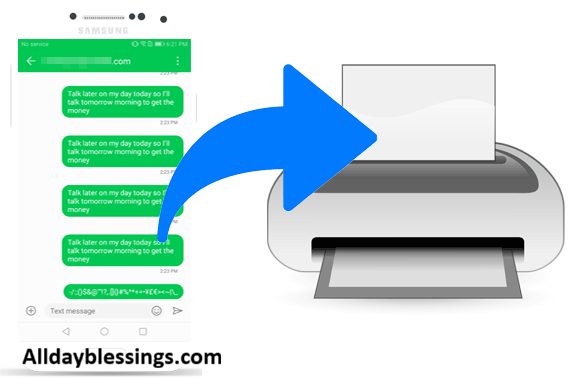
Here are five proven methods to print text messages from Samsung, Pixel, and other Android devices. Each method includes step-by-step instructions, screenshots, and tips for success.
Method 1: Using Google Messages for Web (Free)
Google Messages for web is the easiest free method to print Google Messages directly from your computer. This official solution from Google works with any Android phone running Google Messages as the default SMS app.
What You’ll Need:
- Android phone with Google Messages installed
- Computer with web browser
- Wi-Fi connection
- Printer connected to your computer
Step-by-Step Instructions:
- Open Google Messages on your Android phone
- Look for the blue icon with a white speech bubble
- If you don’t have it, download it free from Google Play Store
- Access Messages Settings
- Tap the three dots (hamburger menu) in the top right
- Select “Device pairing” or “Messages for web”
- Scan the QR Code
- On your computer, visit messages.google.com
- A QR code will appear on screen
- Use your phone’s camera to scan the code
- Your conversations will sync instantly
- Select the Conversation
- Click the contact name or chat you want to print
- Scroll to find specific messages within the date range you need
- Prepare to Print
- Use your mouse to highlight the text messages you want
- Right-click and select “Copy”
- Paste into a document (Word, Google Docs, or Notepad)
- Format and Print
- Add contact name, phone number, and timestamp information
- Format the document for readability
- Press Ctrl+P (Windows) or Command+P (Mac)
- Select your printer and print
Pros:
- ✅ Completely free
- ✅ Official Google solution
- ✅ Works on all Android devices
- ✅ No app installation needed
- ✅ Real-time message sync
Cons:
- ❌ Manual formatting required
- ❌ No automatic PDF export
- ❌ Time-consuming for long conversations
- ❌ Screenshots work better for chat bubble format
Pro Tip: Keep the web session active by checking “Remember this computer” to avoid rescanning the QR code each time.
Method 2: Screenshot Method (Free)
The screenshot method is the quickest way to print text messages that look exactly like they appear on your phone, including chat bubbles, emojis, and images.
What You’ll Need:
- Android phone
- Email account (Gmail, Outlook, Yahoo Mail)
- Printer or computer
Step-by-Step Instructions:
- Open Your Messages App
- Launch Google Messages or your default SMS app
- Navigate to the conversation you need
- Position the Messages
- Scroll to the specific text messages you want to print
- Ensure important messages are visible on screen
- Take a Screenshot
- Method A: Press Power + Volume Down buttons simultaneously
- Method B: Use three-finger swipe down (on supported devices)
- Method C: Ask Google Assistant: “Take a screenshot”
- You’ll see a flash and preview of the screenshot
- Repeat for Multiple Messages
- Scroll down to next section
- Take additional screenshots to capture entire conversation
- Organize them in sequence
- Access Your Screenshots
- Open Google Photos app
- Screenshots appear in “Library” or “Screenshots” folder
- Select all relevant images
- Send to Email or Computer
- Tap the Share icon (three connected dots)
- Choose Gmail or your email app
- Send to your own email address
- Or upload to Google Drive for computer access
- Print from Computer
- Open the email or Google Drive on your computer
- Download the screenshot images
- Open in your photo viewer
- Print each image (File > Print)
Alternative: Google Photos Print Service
- Select screenshots in Google Photos
- Tap three dots menu
- Choose “Order photo” or “Photo print”
- Select print size and quantity
- Complete checkout (pricing varies by country)
- Photos ship to your address
Pros:
- ✅ 100% free (excluding Google Photos printing)
- ✅ Preserves exact visual appearance
- ✅ Includes emojis and images
- ✅ Shows chat bubble format
- ✅ No apps required
Cons:
- ❌ Time-consuming for long conversations
- ❌ Uses more printer ink
- ❌ Hard to organize many screenshots
- ❌ Loses some metadata detail
- ❌ Quality depends on screen resolution
Pro Tip: Use a screenshot app from Google Play Store that can capture scrolling screenshots to get entire conversations in one image.
Method 3: SMS Backup Apps (Free/Paid)
SMS Backup apps automatically save text messages to cloud storage or email, making them easy to print or archive. The most popular option is SMS Backup+, which works with Gmail and supports IMAP.
What You’ll Need:
- Android phone
- Gmail account with IMAP enabled
- SMS Backup+ or similar app
- Internet connection
Step-by-Step Instructions for SMS Backup+:
- Enable IMAP in Gmail
- Visit gmail.com on computer
- Click Settings (gear icon) > See all settings
- Click “Forwarding and POP/IMAP” tab
- Select “Enable IMAP”
- Click “Save Changes”
- Download SMS Backup+
- Open Google Play Store on your Android phone
- Search for “SMS Backup+”
- Install the free app by Jan Berkel
- Open the app
- Connect Your Gmail Account
- Tap “Connect”
- Select your Gmail account
- Grant necessary permissions
- App will create an “SMS” label in Gmail
- Backup Your Messages
- Tap “Backup” in SMS Backup+
- Select backup options:
- SMS only
- MMS (picture messages)
- Call logs (optional)
- Wait for backup to complete
- Access Messages in Gmail
- Open Gmail on computer
- Look for “SMS” label in sidebar
- Click to view all backed-up messages
- Each conversation appears as an email thread
- Print from Gmail
- Open the message thread you need
- Click the printer icon or press Ctrl+P
- Adjust print settings
- Print to paper or save as PDF
Alternative Apps:
Super Backup & Restore
- Backs up SMS, MMS, call logs
- Exports to XML or CSV format
- Local backup to SD card
- Schedule automatic backups
SMS Organizer (Microsoft)
- Organizes messages by category
- Export to Plain Text or CSV
- Cloud sync available
- Free with no ads
SMS to Text (Paid, $4.99)
- Direct PDF export
- Includes timestamps and contact names
- Date range filtering
- Professional formatting
Pros:
- ✅ Automatic backup
- ✅ Preserves metadata (timestamps, phone numbers)
- ✅ Easy export to multiple formats
- ✅ Works with Google Drive, Dropbox
- ✅ Can schedule regular backups
Cons:
- ❌ Requires IMAP setup
- ❌ Gmail formatting may not look like text messages
- ❌ Some apps have ads
- ❌ Paid apps for better features
Pro Tip: Set up automatic weekly backups in SMS Backup+ to always have recent messages saved. This protects against phone loss or damage.
Method 4: Third-Party Software (Paid)
Professional software like Decipher TextMessage, TouchCopy, and Droid Transfer offers the most comprehensive features for printing text messages with legal-quality formatting.
What You’ll Need:
- Android phone (or iPhone for some tools)
- Windows or Mac computer
- USB cable
- Paid software ($20-$40 one-time purchase)
Recommended Software Options:
Droid Transfer (for Android)
- Price: $34.99 one-time
- Format exports: PDF, HTML, CSV, Plain Text
- Works with all Android devices
- Includes MMS and RCS support
- Date range filtering
TouchCopy (for iPhone, but worth mentioning)
- Works with iMessage, WhatsApp, LINE
- Professional PDF output
- Customizable layouts
- Privacy-focused (local storage only)
Decipher TextMessage (for iPhone)
- Court-ready formatting
- Contact info on every message
- Keyword search feature
- Group text messages support
SMS Backup & Restore (Pro Version)
- Android-specific
- Export to Google Drive automatically
- XML and CSV support
- Restore to new device
Step-by-Step Instructions (Droid Transfer Example):
- Purchase and Install Software
- Visit wideanglesoftware.com
- Download Droid Transfer for Windows or Mac
- Complete installation
- Purchase license key
- Install Transfer Companion App
- Download free “Transfer Companion” from Google Play Store
- Install on your Android phone
- Open the app
- Connect Devices
- Ensure phone and computer are on same Wi-Fi network
- Open Droid Transfer on computer
- A QR code appears
- Scan with Transfer Companion app
- Devices will connect wirelessly
- Select Messages
- Click “Messages” in Droid Transfer sidebar
- Browse all conversations
- Select contact or conversation to print
- Filter by Date Range
- Click “Filter Dates” button
- Enter start and end dates
- Only messages in that date range appear
- Print or Export
- Click “Print” for immediate printing
- Or click “Export” and choose format:
- PDF (best for court)
- HTML (viewable in browser)
- CSV (for spreadsheets)
- Plain Text (simple format)
- Review and Print
- Open the PDF file
- Verify timestamps, contact names, phone numbers included
- Print using File > Print
- Save PDF for backup
Pros:
- ✅ Professional, court-ready formatting
- ✅ Preserves all metadata
- ✅ Includes emojis and images inline
- ✅ Date range and keyword search
- ✅ Multiple export formats
- ✅ Local storage (privacy-focused)
- ✅ Suitable for legal evidence
- ✅ Excellent customer support
Cons:
- ❌ Costs $20-$40
- ❌ Requires computer access
- ❌ Learning curve for features
- ❌ One-time purchase per platform
Pro Tip: These tools are worth the investment if you need to print text messages for court or have hundreds of messages to organize. The PDF output meets most legal requirements for court cases.
Method 5: Direct Printer Connection (Free)
Modern Wi-Fi printers and cloud printers can connect directly to your Android phone for wireless printing without a computer.
What You’ll Need:
- Wi-Fi printer or Bluetooth printer
- Printer manufacturer’s app (HP Smart, Canon Print, Epson iPrint)
- Android phone on same Wi-Fi network
Step-by-Step Instructions:
- Set Up Your Printer
- Ensure printer is connected to your Wi-Fi network
- Check printer manual for Wi-Fi setup
- Note your printer model name
- Download Printer App
- HP Smart (for HP printers)
- Canon PRINT Inkjet/SELPHY
- Epson iPrint
- Brother iPrint&Scan
- Samsung Mobile Print
- Download from Google Play Store
- Take Screenshots
- Open your Messages app
- Navigate to conversation
- Take screenshots of messages (Power + Volume Down)
- Capture all needed text messages
- Open Printer App
- Launch HP Smart or your printer app
- Tap “Print” or “+” button
- Select “Photos” or “Images”
- Select Screenshots
- Browse to your screenshots folder
- Select all relevant images
- Tap “Next” or “Continue”
- Configure Print Settings
- Choose paper size (Letter, A4)
- Select number of copies
- Choose color or black & white
- Set orientation (portrait/landscape)
- Print
- Tap “Print” button
- Printer will receive job wirelessly
- Collect your printed text messages
Alternative: Email-to-Printer
Many HP printers support email printing:
- Find your printer’s email address
- Check printer display screen
- Or look in HP Smart app settings
- Format usually: [printer-name]@hpprint.com
- Take screenshots of messages
- Email screenshots to printer address
- Use Gmail or any email app
- Attach screenshot images
- Send to printer email
- Printer automatically prints
- Usually within 1-2 minutes
- Works from anywhere with internet
Pros:
- ✅ No computer needed
- ✅ Completely wireless
- ✅ Works with modern printers
- ✅ Simple process
- ✅ Free method
Cons:
- ❌ Requires compatible printer
- ❌ Screenshot quality varies
- ❌ Uses more ink than text printing
- ❌ Limited formatting options
- ❌ Not ideal for large conversations
Pro Tip: Enable Bluetooth on both phone and printer for an alternative wireless connection if Wi-Fi is unavailable.
Samsung Galaxy-Specific Instructions
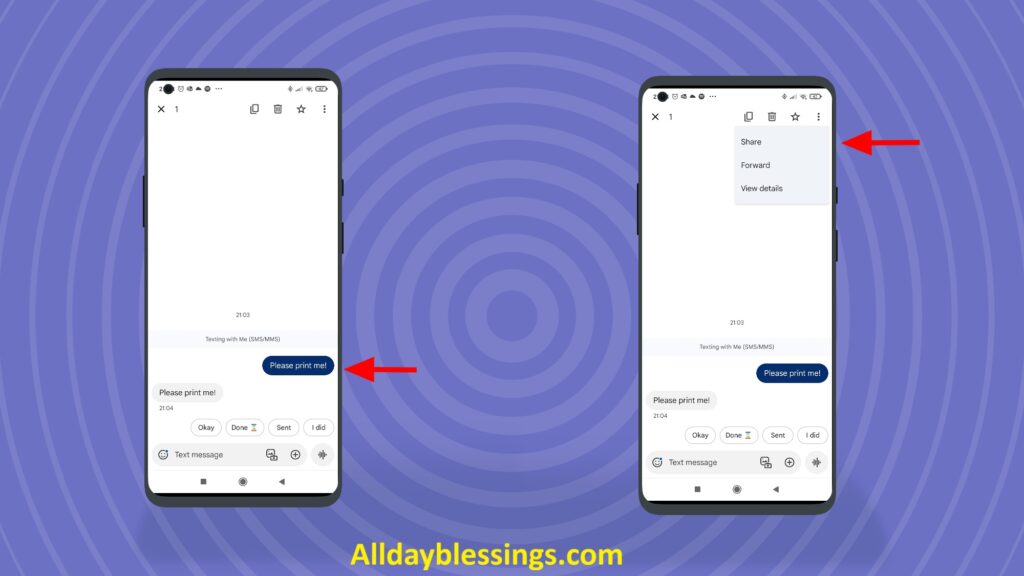
Samsung Galaxy devices offer unique features that make printing text messages easier. Here are Samsung-specific methods for Samsung users.
Smart Switch Method
Samsung Smart Switch is a built-in tool that backups all your data, including SMS and MMS messages.
Steps:
- Open Smart Switch
- Pre-installed on Samsung Galaxy devices
- Or download from Google Play Store
- Launch the app
- Connect to Computer
- Use USB cable to connect Samsung phone to Windows or Mac
- Or use Wi-Fi connection
- Backup Messages
- Select “Backup” in Smart Switch
- Choose “Messages” from data types
- Start backup process
- Data saves to computer
- Access Backup Files
- Navigate to backup folder on computer
- Messages saved in readable format
- Export to document or PDF
- Print
- Open message file
- Format as needed
- Print using standard methods
Samsung Cloud Backup
Samsung Cloud automatically backs up your text messages to cloud storage.
Steps:
- Enable Samsung Cloud
- Settings > Accounts and backup
- Samsung Cloud > Back up data
- Enable “Messages”
- Manual Backup
- Tap “Back up now”
- Wait for completion
- Access on Computer
- Visit samsungcloud.com
- Log in with Samsung account
- Download message backup
- Export and print
Samsung Print Service Plugin
Samsung phones include a built-in print service.
Steps:
- Enable Print Service
- Settings > Connections
- More connection settings > Printing
- Samsung Print Service Plugin > Turn on
- Add Printer
- Tap “Add printer”
- Select your printer from list
- Take Screenshots
- Capture text messages
- Print Directly
- Open screenshot in Gallery
- Tap three dots > Print
- Select printer
Pro Tip: Samsung Galaxy S24 and S23 users can use “Smart Capture” to take scrolling screenshots that capture entire conversations in one image.
Legal Considerations: Using Text Messages as Evidence
If you need to print text messages for court or legal proceedings, follow these guidelines to ensure your messages are admissible as evidence.
Court Admissibility Requirements
For text messages to be accepted as legal evidence in court, they must meet specific criteria:
Authentication
- Messages must be proven genuine
- Include metadata: timestamps, phone numbers, contact names
- Show complete conversation context, not cherry-picked messages
- Maintain chain of custody documentation
Relevance
- Messages must relate directly to the case
- Lawyer or attorney determines relevance
- Irrelevant conversations may be excluded
Best Evidence Rule
- Original format is preferred
- PDF exports with metadata are acceptable
- Screenshots alone may be challenged
- Professional software output strengthens authenticity
Hearsay Exceptions
- Text messages are sometimes considered hearsay
- Exceptions exist for party admissions, business records
- Consult your attorney about admissibility
Proper Documentation
When preparing text messages for court, follow these best practices:
Include Complete Metadata
- Sender name and phone number
- Recipient name and phone number
- Date and time (timestamp) for each message
- Time zone information
- Message delivery status
Maintain Context
- Print entire conversation, not selective messages
- Include dates showing continuity
- Don’t edit or alter messages
- Show deleted messages if available
Create Multiple Formats
- PDF for formal submission
- Screenshots for visual reference
- CSV or XML for data analysis
- Keep original backup files
Document Your Process
- Note which method you used
- Record date you created backup
- Save software version information
- Keep chain of custody records
Metadata Preservation
Metadata is critical information that proves message authenticity. When you print text messages from Android, ensure these elements are preserved:
Essential Metadata:
- Message date and time
- Sender identification
- Recipient identification
- Message direction (sent/received)
- Message type (SMS, MMS, RCS)
- Attachment information
- Device information
How to Preserve Metadata:
- Use professional software like Droid Transfer
- Avoid manual copy-paste (loses metadata)
- Export to PDF with headers/footers
- Don’t edit messages before printing
- Use certified forensic tools for high-stakes cases
Privacy Laws 2025
Be aware of privacy regulations when handling text messages for legal purposes:
United States
- Federal Wiretap Act restrictions
- State-specific consent laws
- Electronic Communications Privacy Act (ECPA)
- Some states require two-party consent for recording conversations
Europe (GDPR)
- General Data Protection Regulation applies
- Right to be forgotten considerations
- Data processing consent requirements
- Cross-border transfer restrictions
Other Considerations
- Attorney-client privilege
- Doctor-patient confidentiality
- Workplace monitoring policies
- Divorce proceeding discovery rules
Pro Tip: Always consult with your lawyer or attorney before collecting or presenting text messages as evidence. They can advise on jurisdiction-specific requirements and proper procedures for your case.
Working with Your Attorney
When you need to backup Android text messages for court, coordinate with your legal team:
- Ask About Format Requirements
- What format does the court prefer?
- Are screenshots acceptable?
- Do they need certified forensic extraction?
- Discuss Date Ranges
- What date range is relevant?
- Should you include all messages or specific threads?
- Clarify Submission Deadlines
- When is discovery deadline?
- How much time to prepare evidence?
- Understand Redaction Rules
- Can privileged information be redacted?
- How to handle third-party privacy?
Troubleshooting Common Issues
Encountering problems when trying to print text messages from Android? Here are solutions to common issues.
Device-Specific Problems
Samsung Galaxy Issues
Problem: Smart Switch won’t recognize phone
- Solution: Update Smart Switch to latest version
- Enable USB debugging in Developer Options
- Try different USB cable
- Restart both phone and computer
Problem: Samsung Cloud sync fails
- Solution: Check internet connection
- Verify Samsung account login
- Free up cloud storage space
- Disable battery optimization for Samsung Cloud
Google Pixel Issues
Problem: Can’t access Google Messages for web
- Solution: Clear browser cache and cookies
- Disable browser extensions
- Try different browser (Chrome works best)
- Update Google Messages app
Problem: RCS messages not backing up
- Solution: RCS (Rich Communication Services) may not export with some apps
- Use screenshots for RCS conversations
- Check if backup app supports RCS
Other Android Devices
Problem: Messages app looks different
- Solution: Steps vary by manufacturer’s custom SMS app
- Switch to Google Messages for consistency
- Check manufacturer’s support documentation
Connectivity Issues
Wi-Fi Printer Won’t Connect
Problem: Phone can’t find printer
- Solution: Ensure both devices on same Wi-Fi network
- Restart router, printer, and phone
- Check printer Wi-Fi settings
- Update printer firmware
- Disable Wi-Fi Direct if enabled
Problem: Print jobs fail or get stuck
- Solution: Clear printer queue
- Restart print spooler service
- Check printer paper and ink levels
- Update printer app to latest version
Bluetooth Connection Problems
Problem: Bluetooth pairing fails
- Solution: Turn Bluetooth off/on on both devices
- Forget device and re-pair
- Ensure printer is in pairing mode
- Check Bluetooth range (stay within 30 feet)
- Remove other paired devices if at limit
Computer Connection Issues
Problem: USB connection not recognized
- Solution: Enable “File Transfer” mode on phone
- Install manufacturer USB drivers
- Try different USB port
- Use original USB cable
- Restart phone and computer
App and Software Problems
SMS Backup+ Issues
Problem: IMAP connection fails
- Solution: Verify IMAP is enabled in Gmail
- Check Gmail account permissions
- Allow “less secure apps” in Google account settings (if using older Android)
- Update SMS Backup+ to latest version
Problem: Backup incomplete
- Solution: Check storage space in Gmail
- Disable battery optimization for app
- Keep phone screen on during backup
- Backup in smaller batches
Google Messages for Web Issues
Problem: QR code won’t scan
- Solution: Increase screen brightness
- Clean phone camera lens
- Try different lighting conditions
- Manually enter pairing code if available
Problem: Messages not syncing
- Solution: Check internet connection
- Clear Google Messages app cache
- Re-pair devices
- Update app to latest version
Third-Party Software Problems
Problem: Droid Transfer or TouchCopy won’t connect
- Solution: Ensure companion app is installed
- Check firewall settings
- Disable VPN temporarily
- Verify both devices on same network
Problem: Export fails or crashes
- Solution: Free up computer storage space
- Export smaller date ranges
- Update software to latest version
- Try different export format
Printing and Formatting Issues
Problem: Screenshots too small to read
- Solution: Increase phone display text size before screenshot
- Use photo editing app to enlarge images
- Print on larger paper size
- Use scrolling screenshot apps
Problem: PDF formatting looks wrong
- Solution: Adjust page margins in PDF settings
- Change orientation (portrait vs landscape)
- Use software with customizable layouts
- Edit PDF in Adobe Acrobat before printing
Problem: Messages print out of order
- Solution: Number screenshots before printing
- Use software that maintains chronological order
- Check export settings for sort order
- Manually reorganize pages after printing
Problem: Missing emojis or images
- Solution: Ensure MMS backup is enabled
- Use screenshot method to capture visual elements
- Check if export format supports images
- Verify printer can handle color/graphics
Problem: Text too small in printout
- Solution: Increase font size before export
- Adjust printer scale settings
- Use “fit to page” option
- Edit document before printing to enlarge text
FAQ About How to Print Text Messages from Android
Can I print text messages without a computer?
Yes! Use the screenshot method with direct printer app, or use Google Messages for web on any device with browser.
Will printing delete my messages?
No. Printing or backing up creates a copy. Your original messages remain on your phone.
How much storage do I need for message backups?
Text-only SMS requires minimal space (1MB per 1,000 messages). MMS with images needs more (10-100MB+ depending on media).
Can I print deleted messages?
Only if you had a backup before deletion. Some software can recover recently deleted messages from phone storage.
Are free methods as good as paid software?
Free methods work fine for personal use. Paid software is better for legal cases requiring professional formatting and metadata preservation.
What format is best for court?
PDF format with complete metadata (timestamps, phone numbers, contact names). Consult your lawyer for court-specific requirements.
Can I print group text messages?
Yes. All methods support group text messages. Some software clearly identifies all participants.
How do I print just certain dates?
Use date range filtering in apps like Droid Transfer, SMS Backup+, or manually screenshot specific date sections.
Comparison: Best Method for Your Needs – How to Print Text Messages from Android
Choosing the right method to print text messages from Android depends on your specific situation, budget, and technical comfort level. Below is a comprehensive comparison table that evaluates all five methods based on key criteria to help you make an informed decision.
| Method | Cost | Ease of Use | Time Required | Quality | Legal Admissibility | Best For |
| Google Messages for Web | Free | Easy | 5-10 minutes | High | Medium (no metadata) | Quick personal backup of recent conversations |
| Screenshot Method | Free | Very Easy | 15-30 minutes | Medium | Low (no timestamps) | Small message volumes, casual use |
| SMS Backup Apps (SMS Backup+, Super Backup) | Free/Paid ($5-15) | Medium | 10-20 minutes | High | High (preserves metadata) | Court evidence, comprehensive SMS archiving |
| Third-Party Software (Droid Transfer, Dr.Fone) | Paid ($30-70) | Easy | 5-15 minutes | Very High | Very High | Legal evidence, business compliance, bulk export |
| Direct Printer Connection | Free | Difficult | 20-40 minutes | Medium | Low | Limited scenarios, no computer access |
Pros and Cons for Each Method
Method 1: Google Messages for Web
Pros:
- Completely free and accessible
- Works with Google Messages app natively
- Easy QR code connection
- Supports RCS and MMS messages
- Can save as PDF directly from browser
- No additional software installation needed
- Works across Windows 11, Mac, and Linux
Cons:
- Limited to Google Messages users only
- No automatic timestamp preservation in printed format
- Requires active Wi-Fi connection
- Cannot export bulk conversations easily
- Manual screenshot still needed for long threads
- Not ideal for court case documentation
- Missing metadata information crucial for lawyer or attorney review
Method 2: Screenshot Method
Pros:
- Works on any Android phone (Samsung Galaxy, Google Pixel, etc.)
- No app installation required
- Quick for single message or short chat
- Visual representation of conversation
- Shows contact name and basic date range
Cons:
- Extremely time-consuming for long text message conversations
- No metadata preservation for legal evidence
- Screenshots can be easily questioned in trial
- Poor quality for lengthy SMS messages
- Manual compilation into PDF required
- Not accepted by most court systems
- Loses timestamp accuracy
- Difficult to organize multiple conversations
Method 3: SMS Backup Apps
Pros:
- Dedicated SMS and MMS archiving
- Creates proper backup with full metadata
- Exports to multiple formats: PDF, HTML, CSV, XML, Plain Text
- Free versions available (SMS Backup+, Super Backup)
- Can save text messages to computer via Gmail or IMAP
- Preserves phone number, contact name, and exact timestamp
- Suitable for court submission
- Automatic backup scheduling available
- Works with Google Drive and Google One integration
Cons:
- Learning curve for first-time users
- Some apps require paid upgrades for advanced features
- Occasional compatibility issues with newer Android versions
- Setup time required for cloud services
- May not support latest RCS messages
- Some apps discontinued or poorly maintained
- Manual transfer process for large text message volumes
Method 4: Third-Party Software
Pros:
- Professional-grade export capabilities
- Excellent for legal evidence preparation
- Preserves complete metadata chain
- Supports bulk print text messages operations
- Compatible with all Android phone models
- Direct print to any Wi-Fi printer or cloud printer
- Clean, formatted PDF output ready for attorney submission
- TouchCopy, Droid Transfer, Decipher TextMessage are court-tested
- Can save to multiple formats simultaneously
- Technical support available
- Works offline via USB or Bluetooth connection
Cons:
- Higher upfront cost ($30-70 average)
- Software installation on Windows 11 or Mac required
- May require USB debugging enabled
- Some software has annual subscription models
- Overkill for simple personal archiving
- Steep price for one-time backup needs
Method 5: Direct Printer Connection
Pros:
- No computer required
- Uses native Android printing framework
- Works with modern HP Smart-compatible printers
- Free method
- Direct from Messages app to printer
Cons:
- Very limited printer compatibility
- Poor formatting of text conversations
- No metadata included
- Difficult setup process
- Unreliable for MMS or media-rich messages
- Not suitable for legal evidence
- No PDF creation
- Cannot backup for future reference
Choosing Your Method: Decision Guide
- For Legal Purposes (court case, lawyer submission, trial evidence): Choose Method 3 (SMS Backup Apps with paid tier) or Method 4 (Third-Party Software like Droid Transfer). These methods preserve critical metadata, maintain timestamp integrity, and produce court-admissible documentation that any attorney will accept.
- For Personal Memory Preservation: Use Method 1 (Google Messages for Web) for quick, free text message archiving. It’s perfect for saveing important conversations without technical complexity. Combine with Google Drive storage for long-term backup.
- For Business Compliance: Implement Method 3 with automated backup scheduling. Set up SMS Backup+ to continuously export to Gmail via IMAP, creating a permanent, searchable backup archive. This ensures all SMS, MMS, and business-related chat communications are documented.
- For Quick, One-Time Needs: Go with Method 2 (Screenshot) only if you need to print out text messages for informal purposes where legal admissibility isn’t required. Best for sending a few messages to family or friends.
- For Samsung Galaxy Users: Leverage Samsung’s built-in features through Method 3 combined with Smart Switch and Samsung Cloud backup. Samsung devices offer native export options that work seamlessly with their ecosystem, making it easier to document text messages and transfer them to computer for printing.
Cost-Benefit Analysis
If you need to print text messages only once for a court case, investing in third-party software ($30-70) is worthwhile compared to lawyer fees for document preparation (typically $200-500). The software can save you money and provide peace of mind with professional legal evidence formatting.
For ongoing backup needs, free SMS Backup apps provide excellent value. Set them up once, and they’ll continuously save text messages to computer automatically through cloud services like Google Drive or Google One.
The screenshot method, while free, costs you valuable time—potentially hours for lengthy conversation threads. For text message conversations exceeding 50 messages, your time is better spent using automated methods.
Technical Compatibility Considerations
Android Version Requirements:
- Google Messages for Web: Android 5.0+
- SMS Backup Apps: Android 4.4+ (varies by app)
- Third-Party Software: All Android versions
- Screenshot Method: All devices
- Direct Printer: Android 8.0+ (printer-dependent)
Printer Compatibility: Modern Wi-Fi printer models from HP, Canon, Epson, and Brother support Android printing through HP Smart and similar apps. Older printers may require computer-based methods (Method 3 or Method 4) to first export to PDF, then print from a PC.
File Format Flexibility: For court submissions, check with your lawyer or attorney about preferred formats. Most legal evidence is submitted as PDF (universal acceptance) or HTML (preserves hyperlinks and formatting). Some jurisdictions accept CSV for data analysis or XML for technical verification. Always maintain the original backup in multiple formats for redundancy.
Conclusion & Best Practices About How to Print Text Messages from Android
Successfully printing text messages from Android in 2025 requires understanding your specific needs and choosing the appropriate method. Whether you’re preparing text messages for court, creating a personal backup, or fulfilling business compliance requirements, the right approach ensures your SMS messages and MMS content are properly documented and preserved.
Key Takeaways for Printing Android Messages
For Legal Evidence, always prioritize methods that preserve metadata. Use professional SMS Backup apps like SMS Backup+ or commercial software such as Droid Transfer, TouchCopy, or Decipher TextMessage. These tools maintain the complete timestamp, phone number, contact name, and message integrity that court systems require. Never rely solely on screenshot methods for trial submissions—they lack the metadata chain necessary for legal admissibility.
For Samsung Galaxy devices, leverage the manufacturer’s built-in tools. Smart Switch and Samsung Cloud backup provide seamless text message archiving that integrates with Samsung’s printing ecosystem. Use the native Print Plugin features to export directly from the Messages app to your Wi-Fi printer or cloud printer.
For quick personal archiving, Google Messages for Web remains the simplest free solution. Connect via QR code, select your conversation, and save as PDF directly from your browser. While it won’t satisfy attorney requirements for legal evidence, it’s perfect for preserving personal memories or casual documentation.
Best Practices Checklist About How to Print Text Messages from Android
Before You Begin:
- Charge your Android phone to at least 50% battery
- Connect to stable Wi-Fi for cloud-based methods
- Verify your contact name displays correctly in messages
- Note the specific date range you need to print
- Determine if you need SMS, MMS, RCS, or all message types
- Check with your lawyer if preparing court case documentation
During the Process:
- Backup your entire text messages before printing (redundancy protection)
- Test print a single conversation first to verify formatting
- Preserve original timestamp information in all exports
- Include phone number and contact name headers
- Save digital copies to Google Drive, Google One, or external storage
- Create multiple format versions: PDF, HTML, and Plain Text
- Document your export method and date for legal evidence chain
After Printing:
- Verify all messages printed completely and legibly
- Check that metadata (dates, times, contacts) is visible
- Store printed text message conversations in protective sleeves
- Keep digital backup copies indefinitely for court or personal reference
- Label printed documents with source device, date range, and export date
- For legal evidence, provide your attorney with both printed and digital versions
Privacy and Security Considerations
When you print text messages from Android, remember that physical copies can be lost or stolen. Always secure sensitive conversations, especially those intended for lawyer review or court submission. Use password-protected PDF files when transmitting via email or cloud services. Some SMS Backup apps offer encryption for additional security.
If using third-party software, verify the company’s privacy policy. Reputable tools like Droid Transfer and TouchCopy process your text messages locally on your computer without uploading to external servers, protecting your SMS privacy.
Future-Proofing Your Text Message Archives
Technology evolves rapidly. The Messages app you use today may change formats, and RCS adoption continues to expand beyond SMS and MMS. Create comprehensive backup archives now using multiple formats (PDF, CSV, XML) to ensure future compatibility. Store these backups across multiple locations: local computer storage, Google Drive, external hard drives, and consider professional archival services for critical legal evidence.
Final Recommendations About How to Print Text Messages from Android
For most users, a hybrid approach works best: maintain automated SMS Backup through a free app to Google Drive or Gmail (IMAP setup), then use Google Messages for Web or screenshot methods for immediate, small-scale printing needs. When legal evidence requirements arise, invest in third-party software that guarantees court admissibility with proper metadata preservation.
Samsung Galaxy owners should fully utilize Samsung’s ecosystem—Smart Switch, Samsung Cloud backup, and native printing features provide the most seamless experience for print text messages operations on Galaxy devices.
The ability to save text messages to computer and print out text messages is essential in 2025’s digital landscape. Whether documenting important conversations for trial, preserving personal memories, or meeting business compliance standards, following these best practices ensures your Android text message archives remain accessible, admissible, and protected for years to come.
Remember: always backup before you print, verify metadata for legal evidence, and choose the method that matches your needs and technical comfort level. With the right approach, printing text messages from Android becomes a straightforward process that protects your important SMS messages and conversation history.

I’m Watson, a faith-inspired writer passionate about sharing heartfelt blessings and uplifting words that bring peace, gratitude, and hope. Through my daily blessings, I aim to comfort the soul and inspire spiritual growth.